> ## Documentation Index
> Fetch the complete documentation index at: https://docs.fleetdesk.ca/llms.txt
> Use this file to discover all available pages before exploring further.

# Quick start

> Create people, book a dual lesson, dispatch the flight, and post the PTR entry.

Use this guide to run a full training flight workflow in FleetDesk, from creating the student and instructor records through confirming the posted PTR entry.

<Note>
  This workflow assumes your aircraft and PPL training program are already
  configured.
</Note>

## Add the instructor

<Steps>
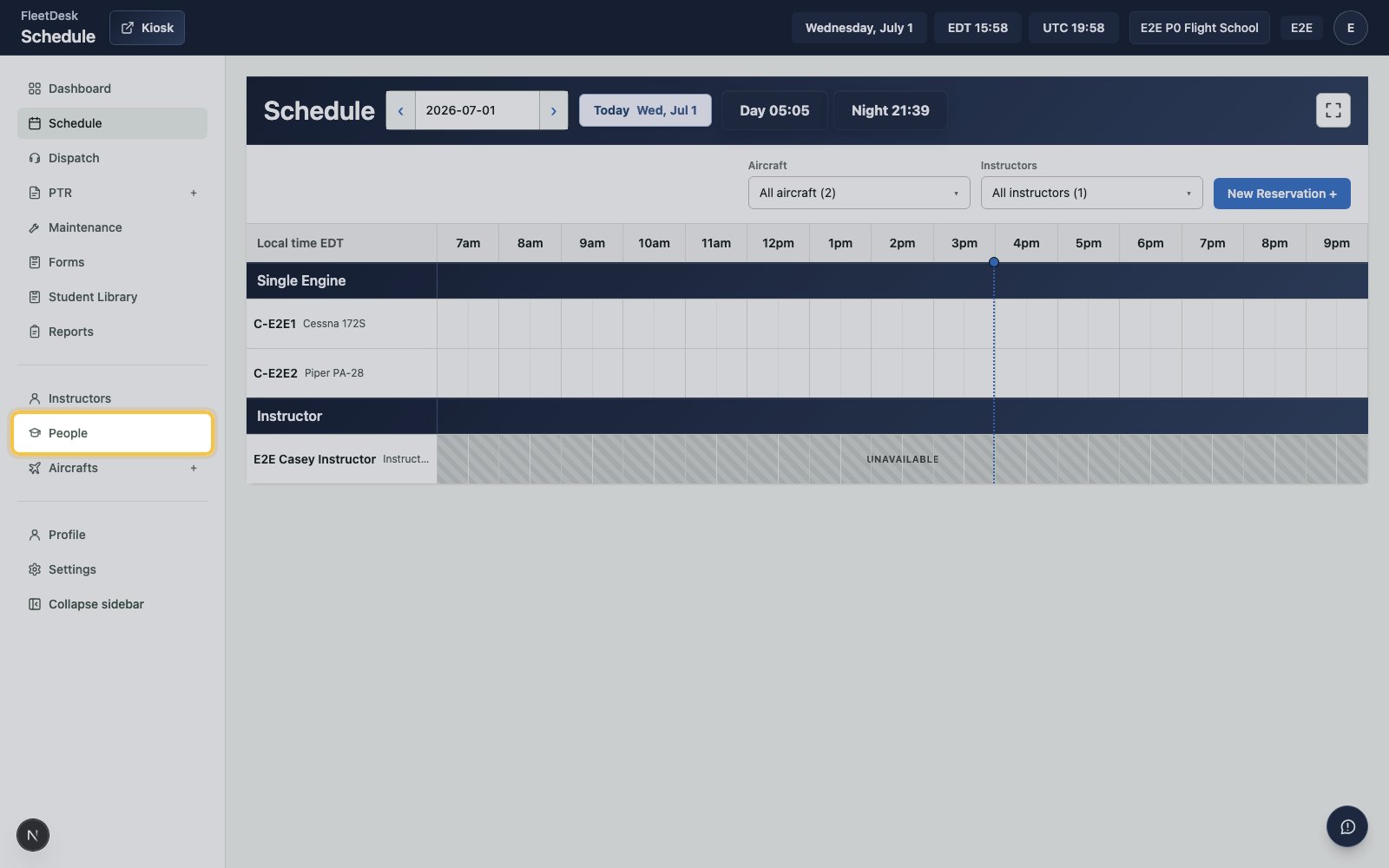
  <Step title="Open People">
    Select **People** from the sidebar.

    <img src="https://mintcdn.com/clearsignal-510cec9c/zrJeukWi5N6SK11x/images/quick-start/01-open-people.png?fit=max&auto=format&n=zrJeukWi5N6SK11x&q=85&s=bb13a8ae1af04664dcd2f1d95b2f42c3" alt="People page with the People sidebar item highlighted" width="1600" height="1000" data-path="images/quick-start/01-open-people.png" />
  </Step>

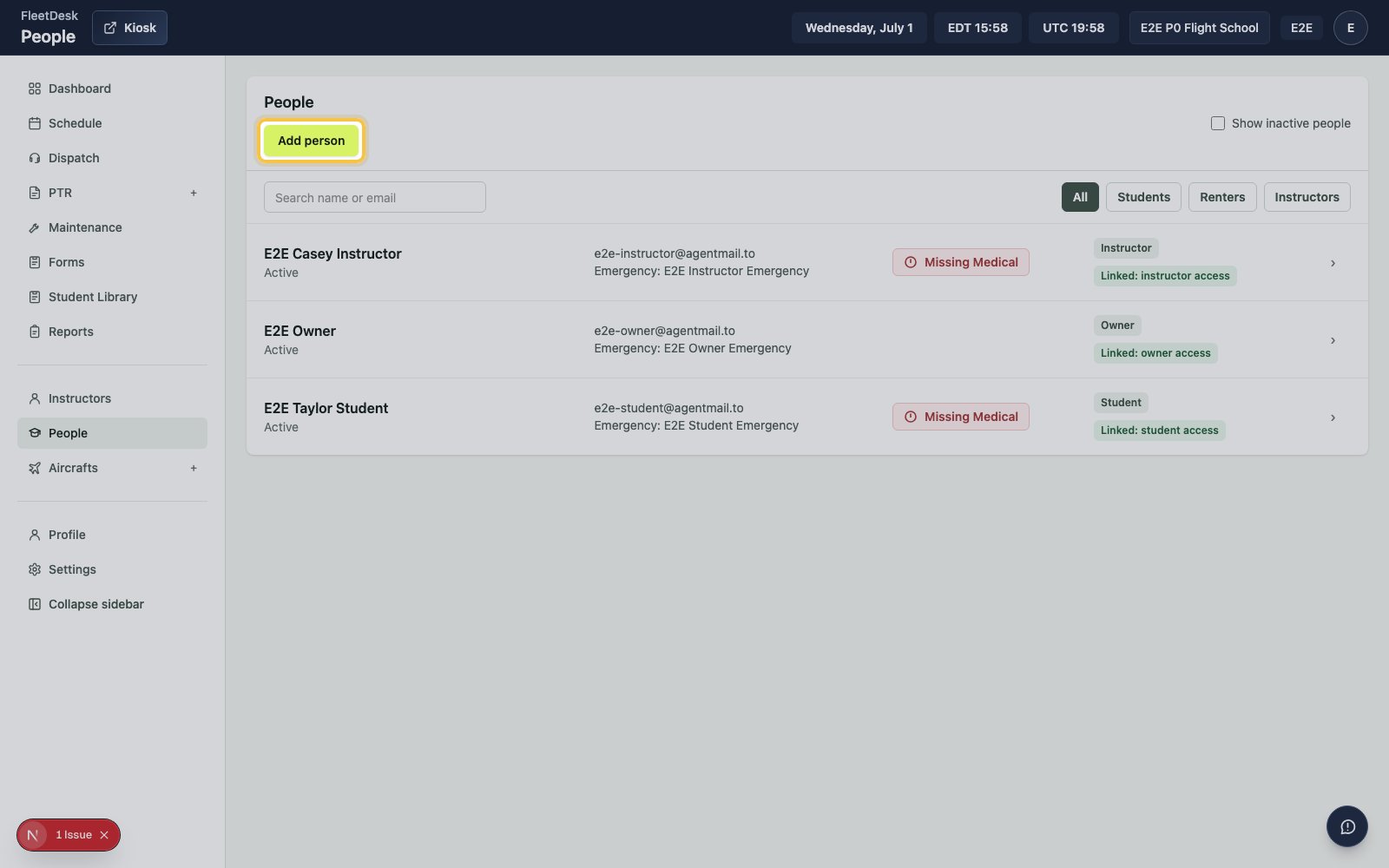
  <Step title="Start a new person record">
    Click **Add person**.

    <img src="https://mintcdn.com/clearsignal-510cec9c/zrJeukWi5N6SK11x/images/quick-start/02-add-person.png?fit=max&auto=format&n=zrJeukWi5N6SK11x&q=85&s=b935fc064a5921a4fcdb26988c839e77" alt="People page with Add person highlighted" width="1600" height="1000" data-path="images/quick-start/02-add-person.png" />
  </Step>

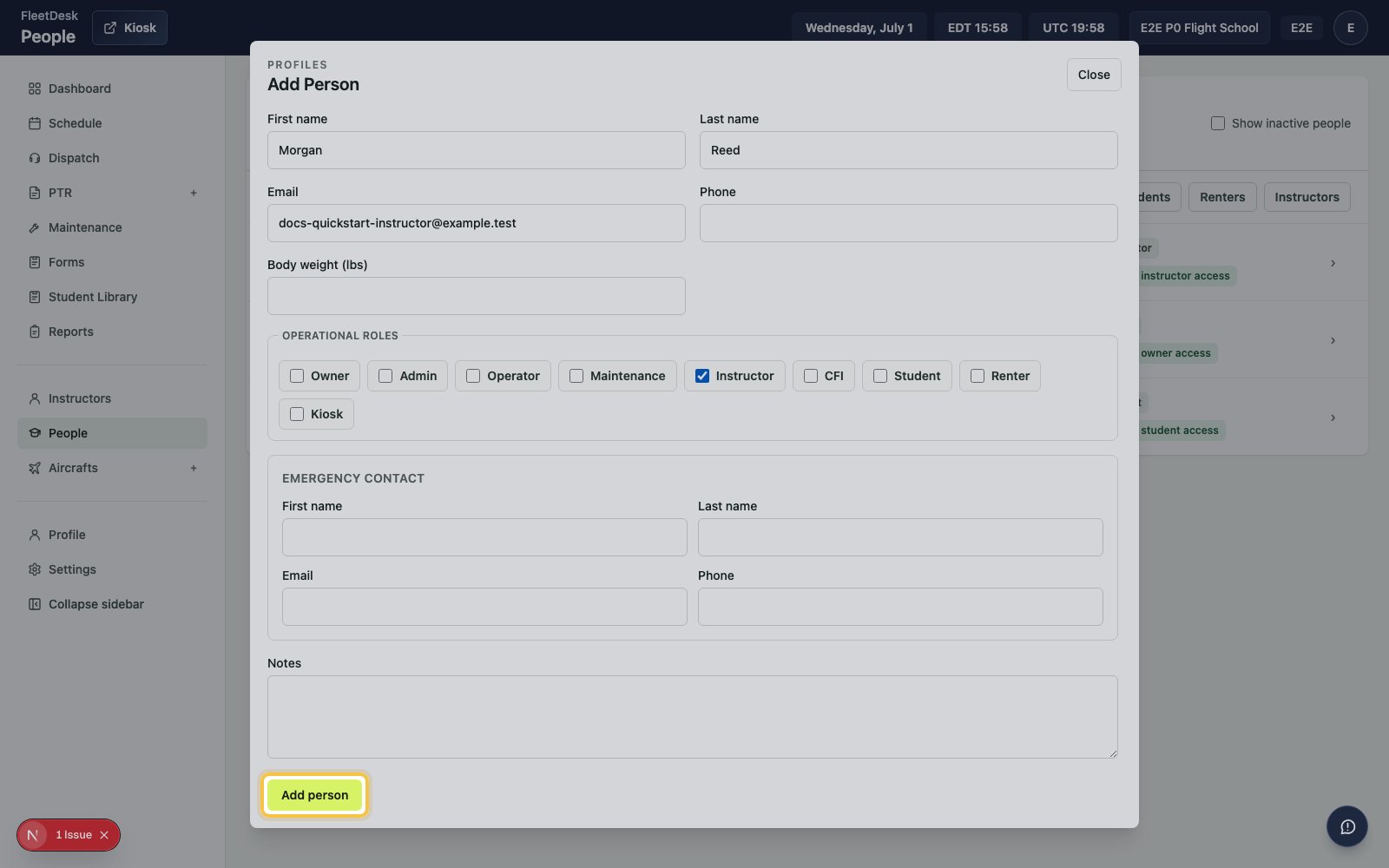
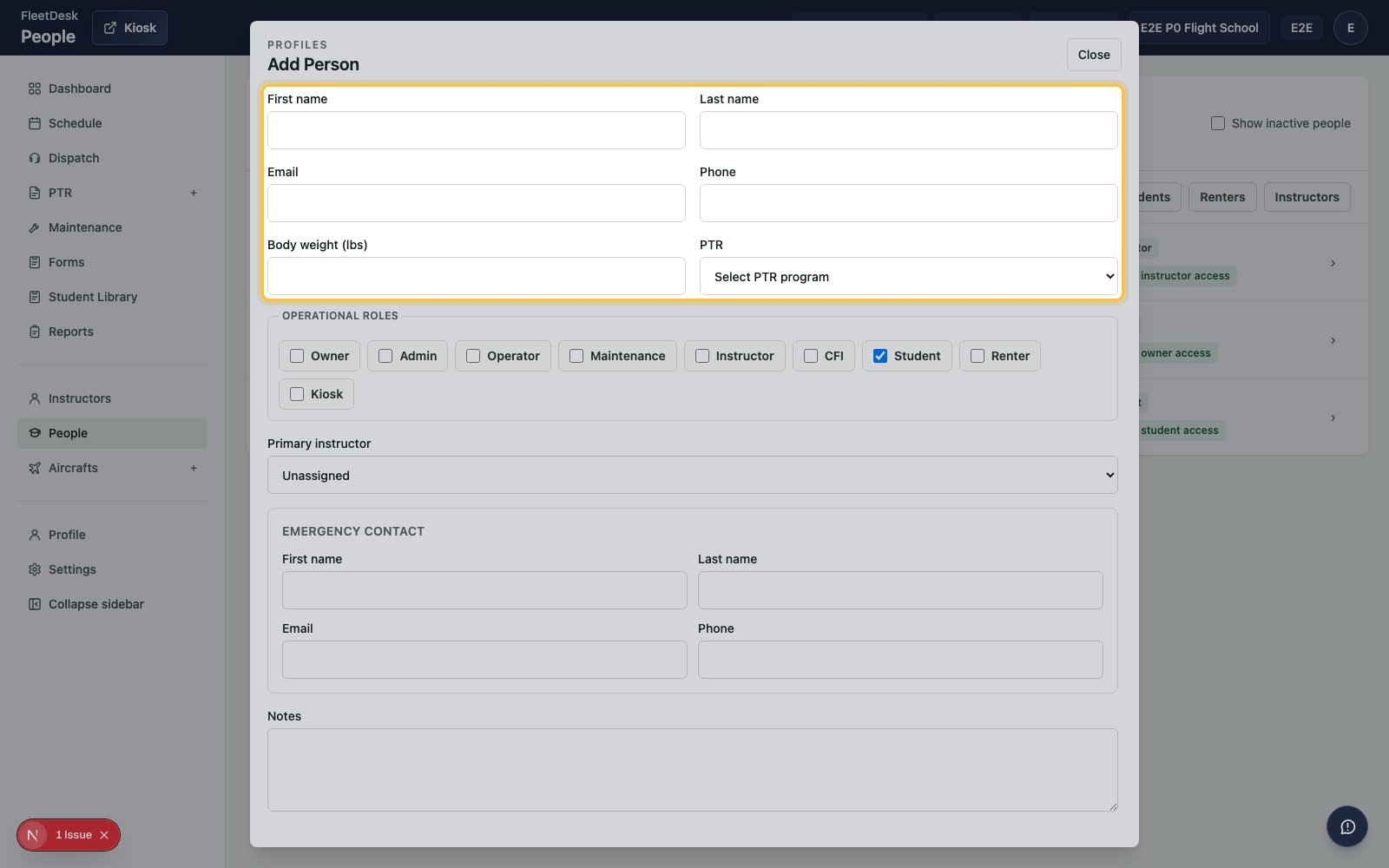
  <Step title="Enter the instructor details">
    Fill in the instructor's name and email.
    <img src="https://mintcdn.com/clearsignal-510cec9c/zrJeukWi5N6SK11x/images/quick-start/03-instructor-details.png?fit=max&auto=format&n=zrJeukWi5N6SK11x&q=85&s=1716e7ca4e0067601316b6354b2dc54d" alt="Add Person form with instructor details fields highlighted" width="1600" height="1000" data-path="images/quick-start/03-instructor-details.png" />
  </Step>

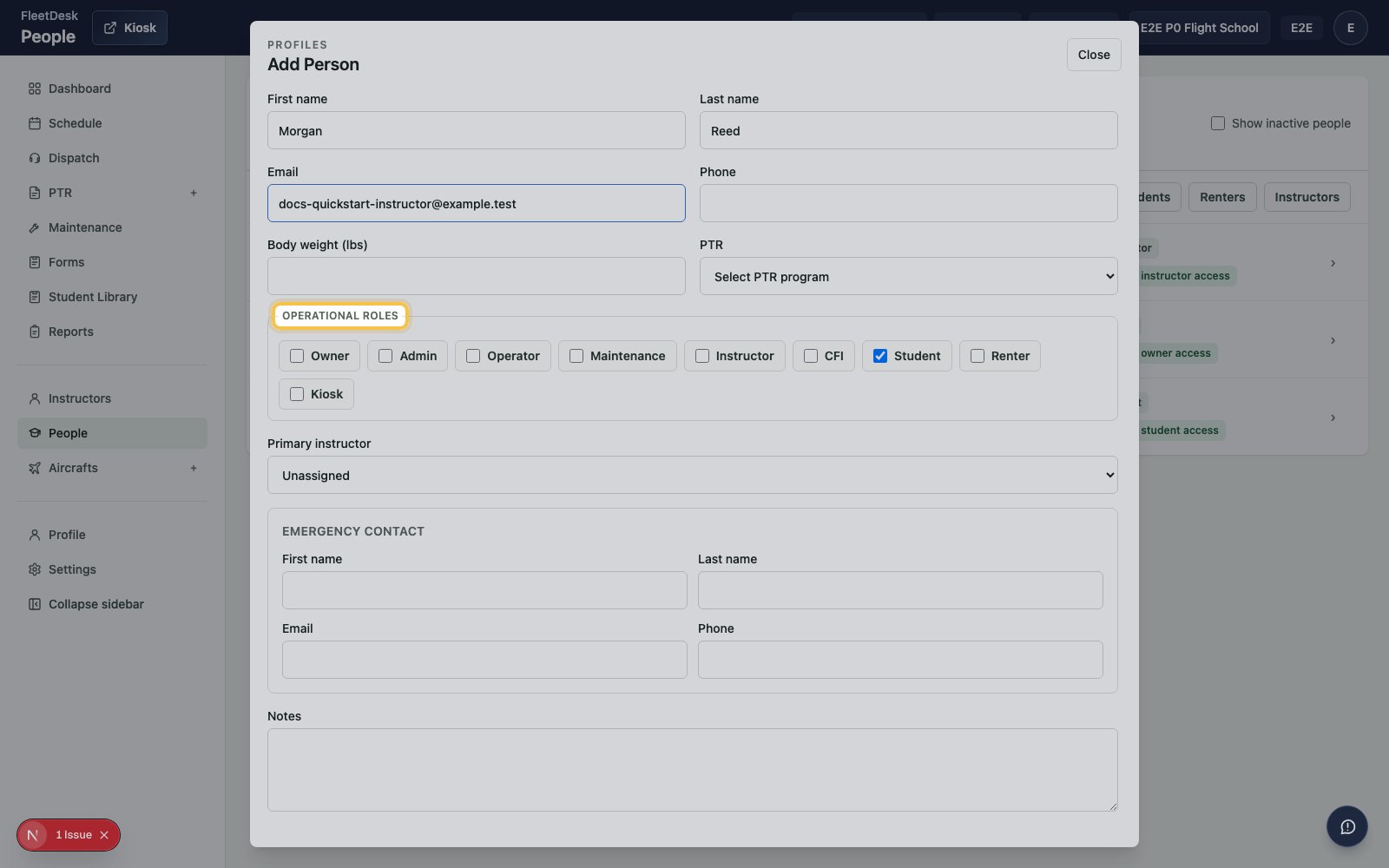
  <Step title="Set the instructor role">
    Select **Instructor** under **Operational roles**.
    <img src="https://mintcdn.com/clearsignal-510cec9c/zrJeukWi5N6SK11x/images/quick-start/04-instructor-role.png?fit=max&auto=format&n=zrJeukWi5N6SK11x&q=85&s=e525cd0a7ec29e51d6001ad6859a02be" alt="Add Person form with Instructor role highlighted" width="1600" height="1000" data-path="images/quick-start/04-instructor-role.png" />
  </Step>

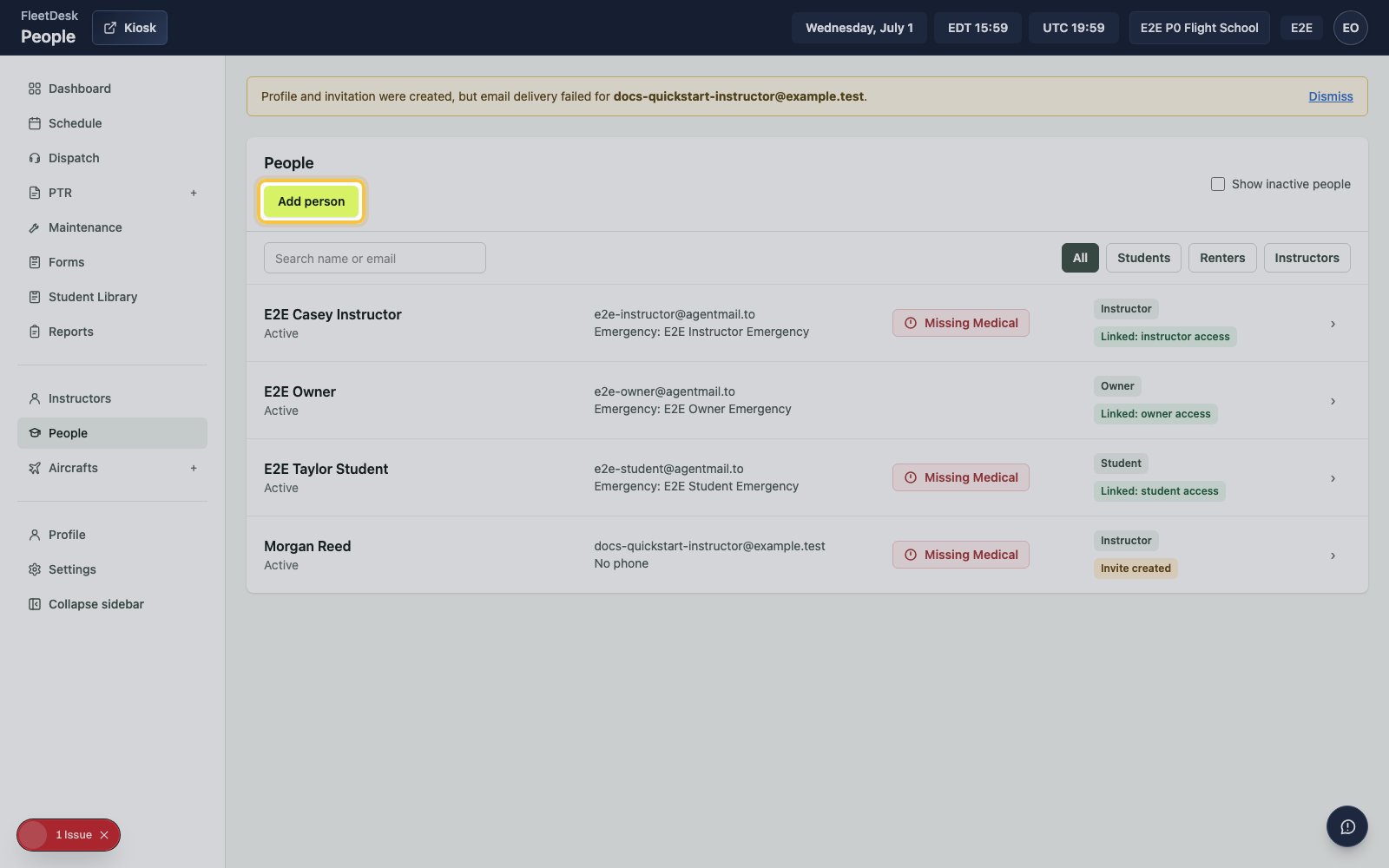
  <Step title="Save the instructor">
    Click **Add person**.

    <img src="https://mintcdn.com/clearsignal-510cec9c/zrJeukWi5N6SK11x/images/quick-start/05-save-instructor.png?fit=max&auto=format&n=zrJeukWi5N6SK11x&q=85&s=9dc341c6ce77d23d4fe465dc5f61bb75" alt="Add Person form with the Add person submit button highlighted" width="1600" height="1000" data-path="images/quick-start/05-save-instructor.png" />
  </Step>
</Steps>

## Add the student and PTR

<Steps>
  <Step title="Start another person record">
    Click **Add person**.

    <img src="https://mintcdn.com/clearsignal-510cec9c/zrJeukWi5N6SK11x/images/quick-start/06-add-student.png?fit=max&auto=format&n=zrJeukWi5N6SK11x&q=85&s=5bd9a76c8c1c16b9c7baa08f02a0f974" alt="People page with Add person highlighted for the student record" width="1600" height="1000" data-path="images/quick-start/06-add-student.png" />
  </Step>

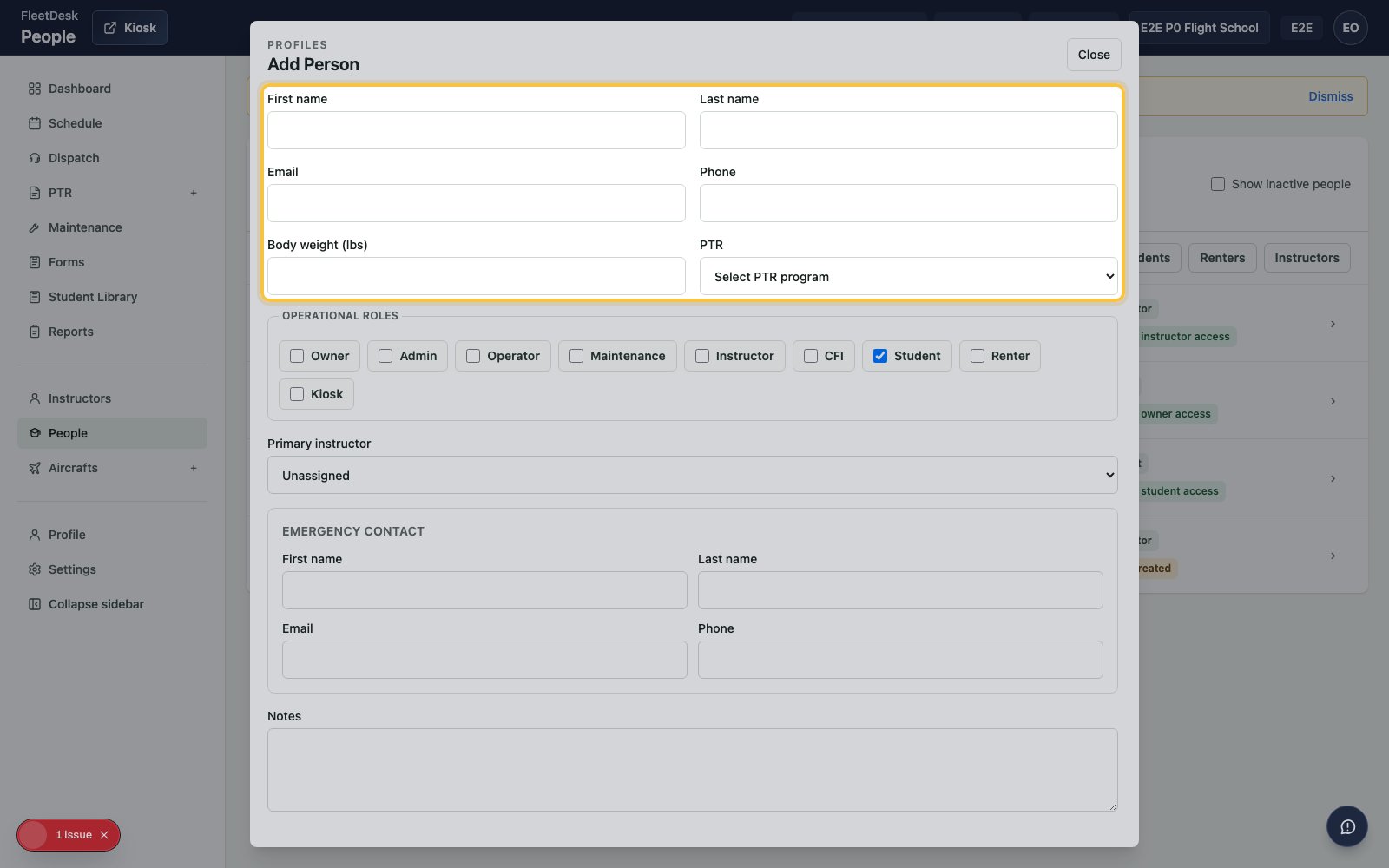
  <Step title="Enter the student details">
    Fill in the student's name and email.

    <img src="https://mintcdn.com/clearsignal-510cec9c/zrJeukWi5N6SK11x/images/quick-start/07-student-details.png?fit=max&auto=format&n=zrJeukWi5N6SK11x&q=85&s=da0f93a7fcb7fa270e63e1cac5c162dd" alt="Add Person form with student details fields highlighted" width="1600" height="1000" data-path="images/quick-start/07-student-details.png" />
  </Step>

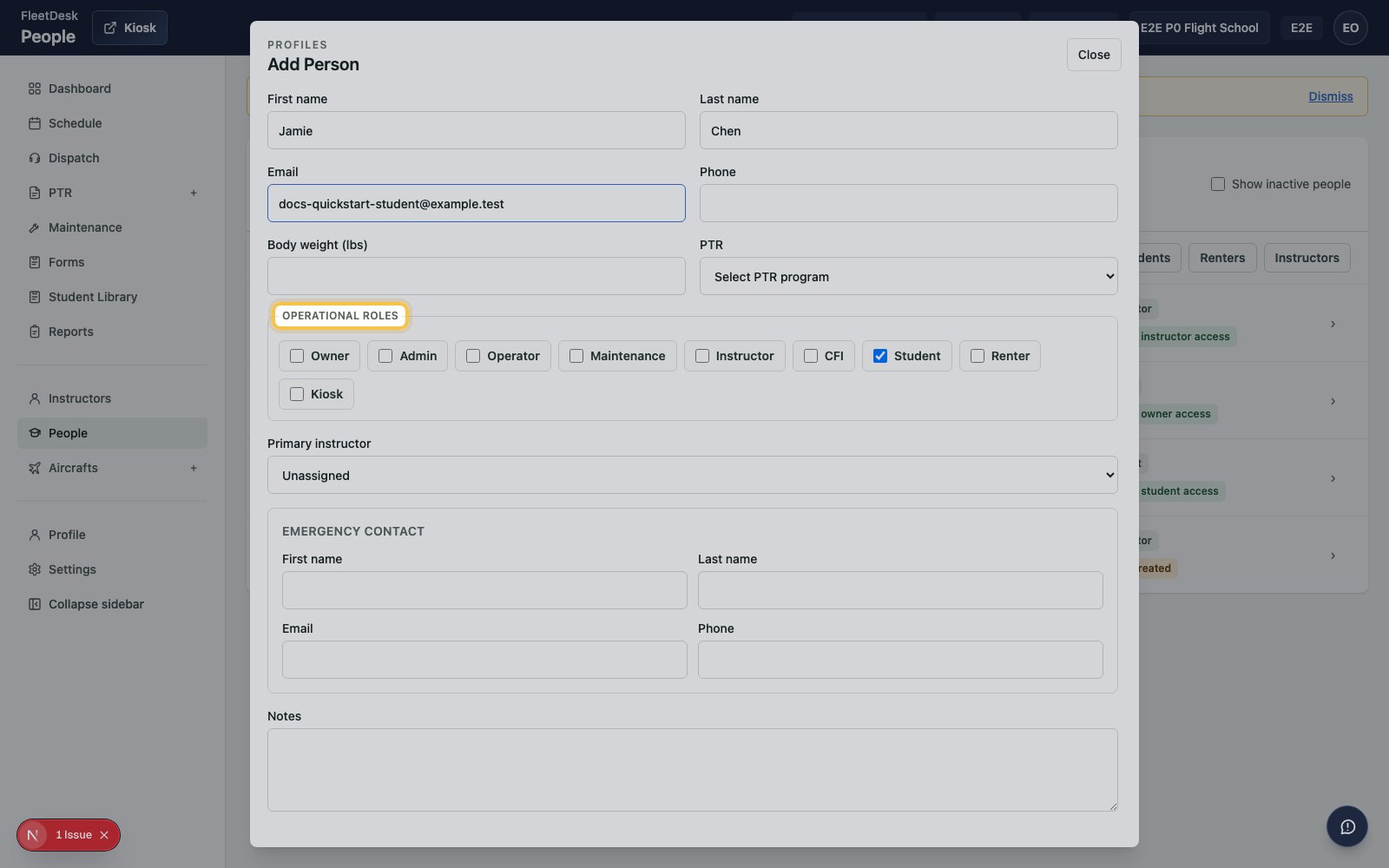
  <Step title="Set the student role">
    Select **Student** under **Operational roles**.
    <img src="https://mintcdn.com/clearsignal-510cec9c/zrJeukWi5N6SK11x/images/quick-start/08-student-role.png?fit=max&auto=format&n=zrJeukWi5N6SK11x&q=85&s=03522d9984e8ef9e93d76b2d81752bac" alt="Add Person form with Student role highlighted" width="1600" height="1000" data-path="images/quick-start/08-student-role.png" />
  </Step>

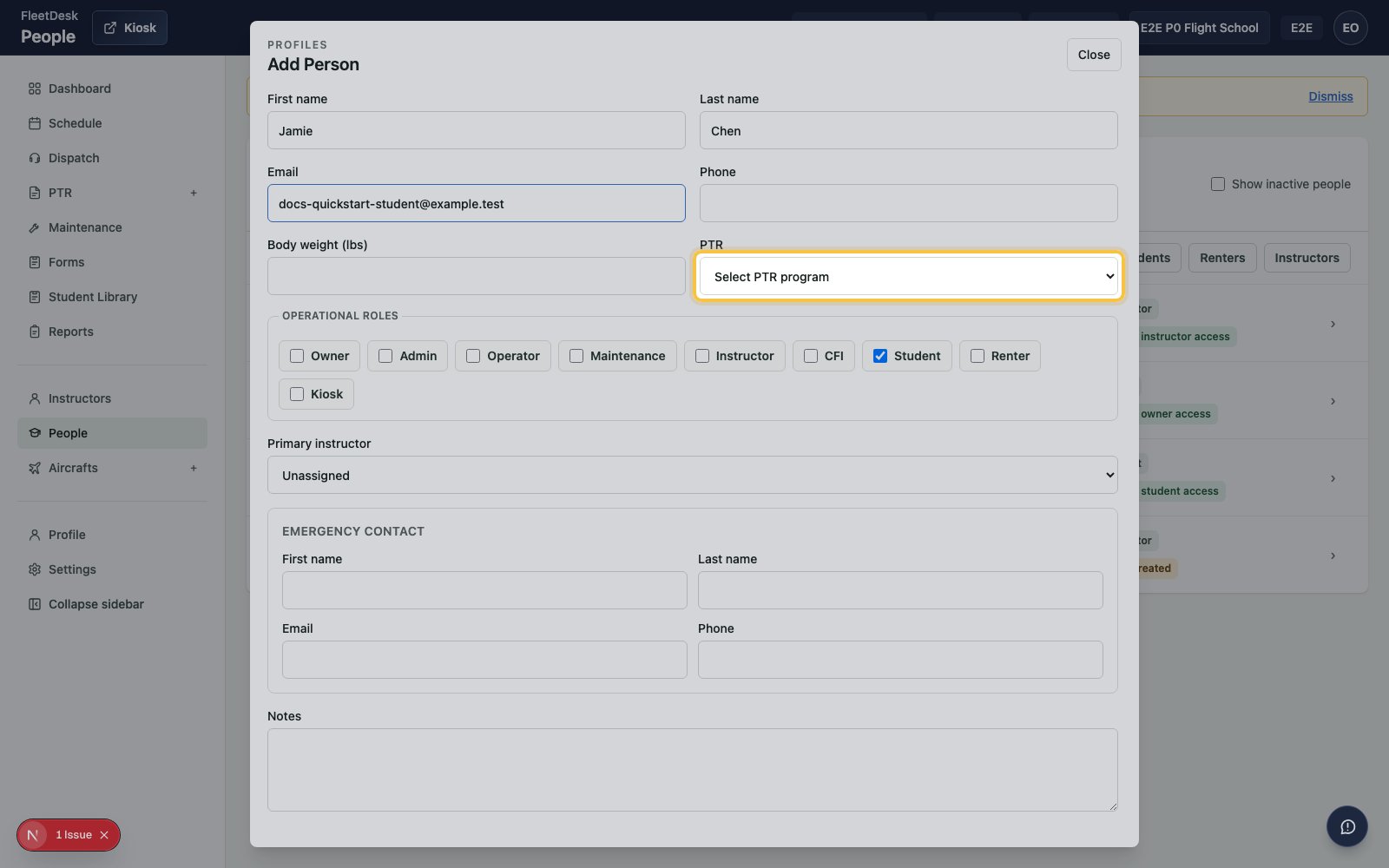
  <Step title="Create the PPL PTR">
    In **PTR**, choose **Private Pilot Licence**.
    <img src="https://mintcdn.com/clearsignal-510cec9c/zrJeukWi5N6SK11x/images/quick-start/09-student-ppl-ptr.png?fit=max&auto=format&n=zrJeukWi5N6SK11x&q=85&s=e71d11caeff0a9a4873c12852782904f" alt="Add Person form with the Private Pilot Licence PTR field highlighted" width="1600" height="1000" data-path="images/quick-start/09-student-ppl-ptr.png" />
  </Step>

  <Step title="Assign the primary instructor">
    In **Primary instructor**, choose the instructor you created.
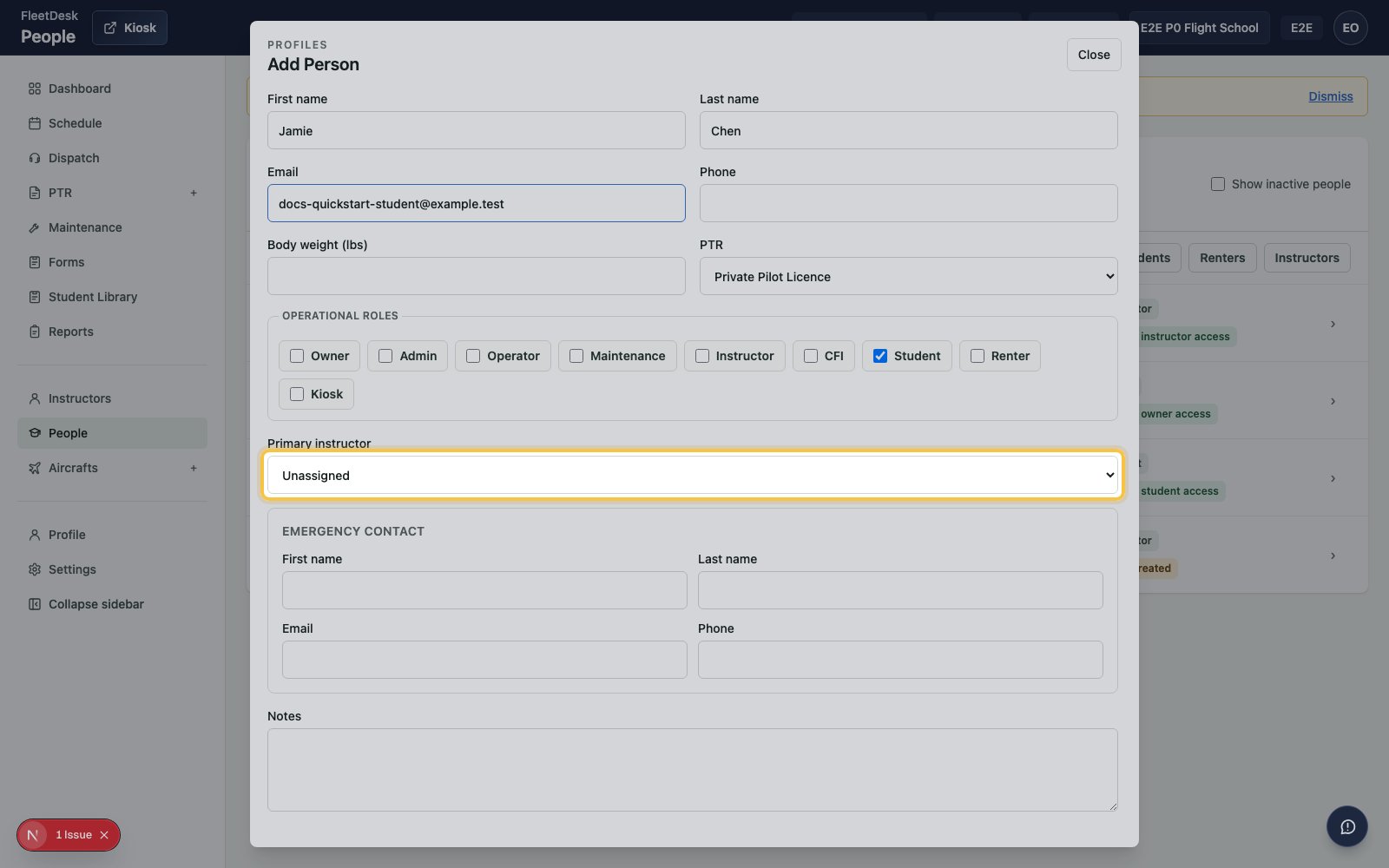
    <img src="https://mintcdn.com/clearsignal-510cec9c/zrJeukWi5N6SK11x/images/quick-start/10-primary-instructor.png?fit=max&auto=format&n=zrJeukWi5N6SK11x&q=85&s=408dab273bcd25641072a30e076fb624" alt="Add Person form with the Primary instructor field highlighted" width="1600" height="1000" data-path="images/quick-start/10-primary-instructor.png" />
  </Step>

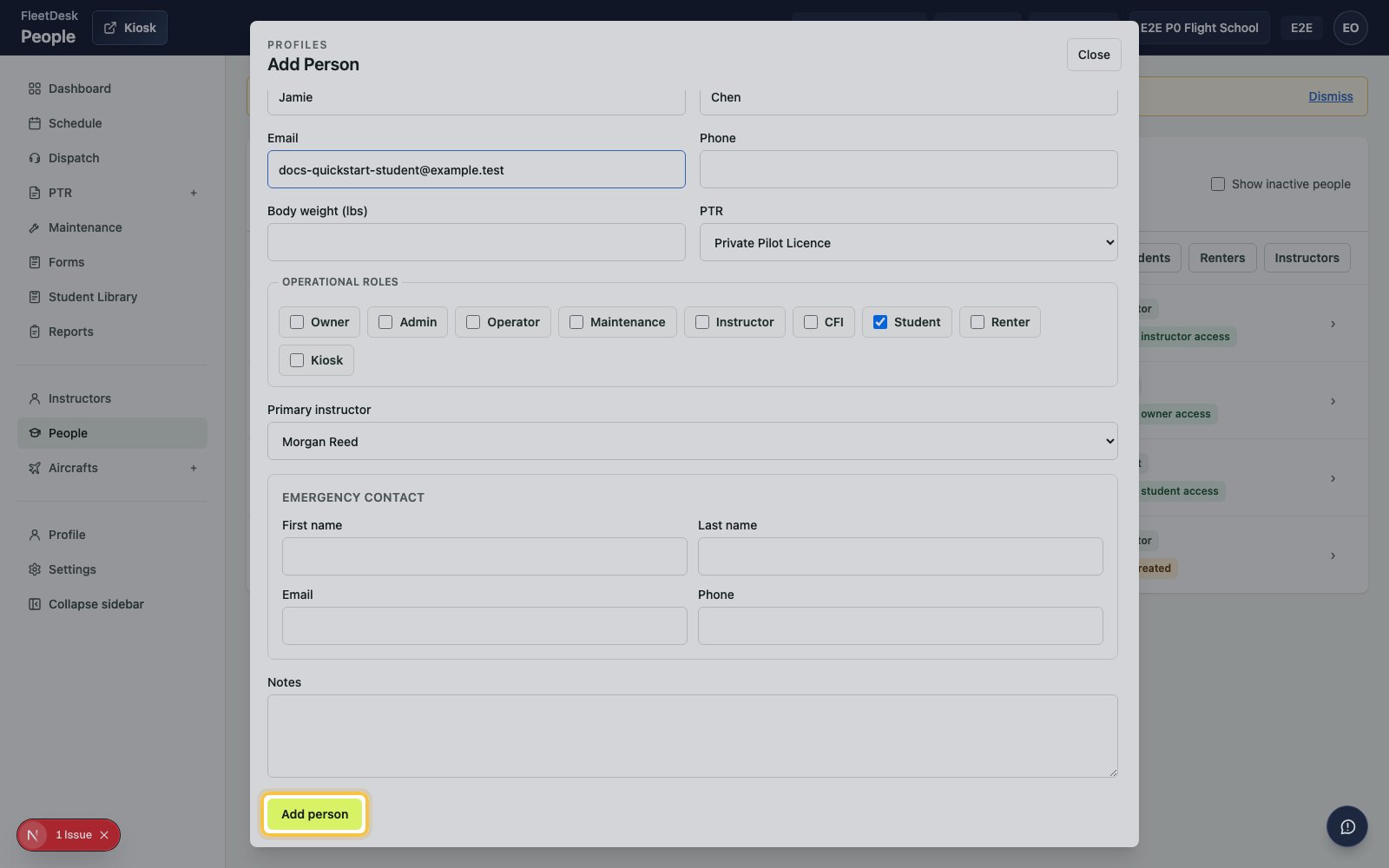
  <Step title="Save the student">
    Click **Add person**.

    <img src="https://mintcdn.com/clearsignal-510cec9c/zrJeukWi5N6SK11x/images/quick-start/11-save-student.png?fit=max&auto=format&n=zrJeukWi5N6SK11x&q=85&s=f35aebbdfb6128a07345ce12a8a5ae59" alt="Add Person form with the Add person submit button highlighted for the student" width="1600" height="1000" data-path="images/quick-start/11-save-student.png" />
  </Step>
</Steps>

## Create the dual booking

<Steps>
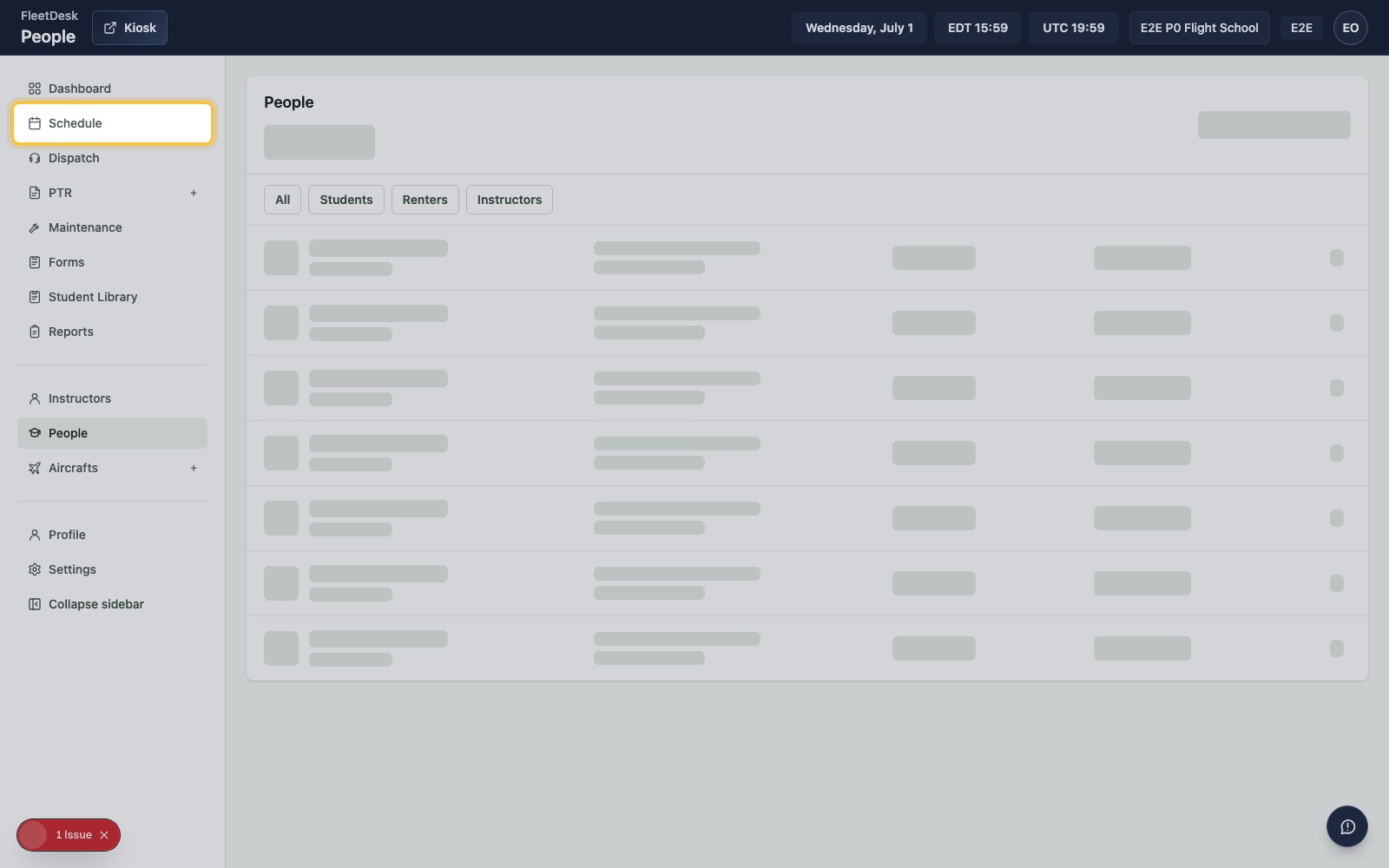
  <Step title="Open Schedule">
    Select **Schedule** from the sidebar.

    <img src="https://mintcdn.com/clearsignal-510cec9c/zrJeukWi5N6SK11x/images/quick-start/12-open-schedule.png?fit=max&auto=format&n=zrJeukWi5N6SK11x&q=85&s=6f430e438cef7a43602a2386c2ada25a" alt="People page with the Schedule sidebar item highlighted" width="1600" height="1000" data-path="images/quick-start/12-open-schedule.png" />
  </Step>

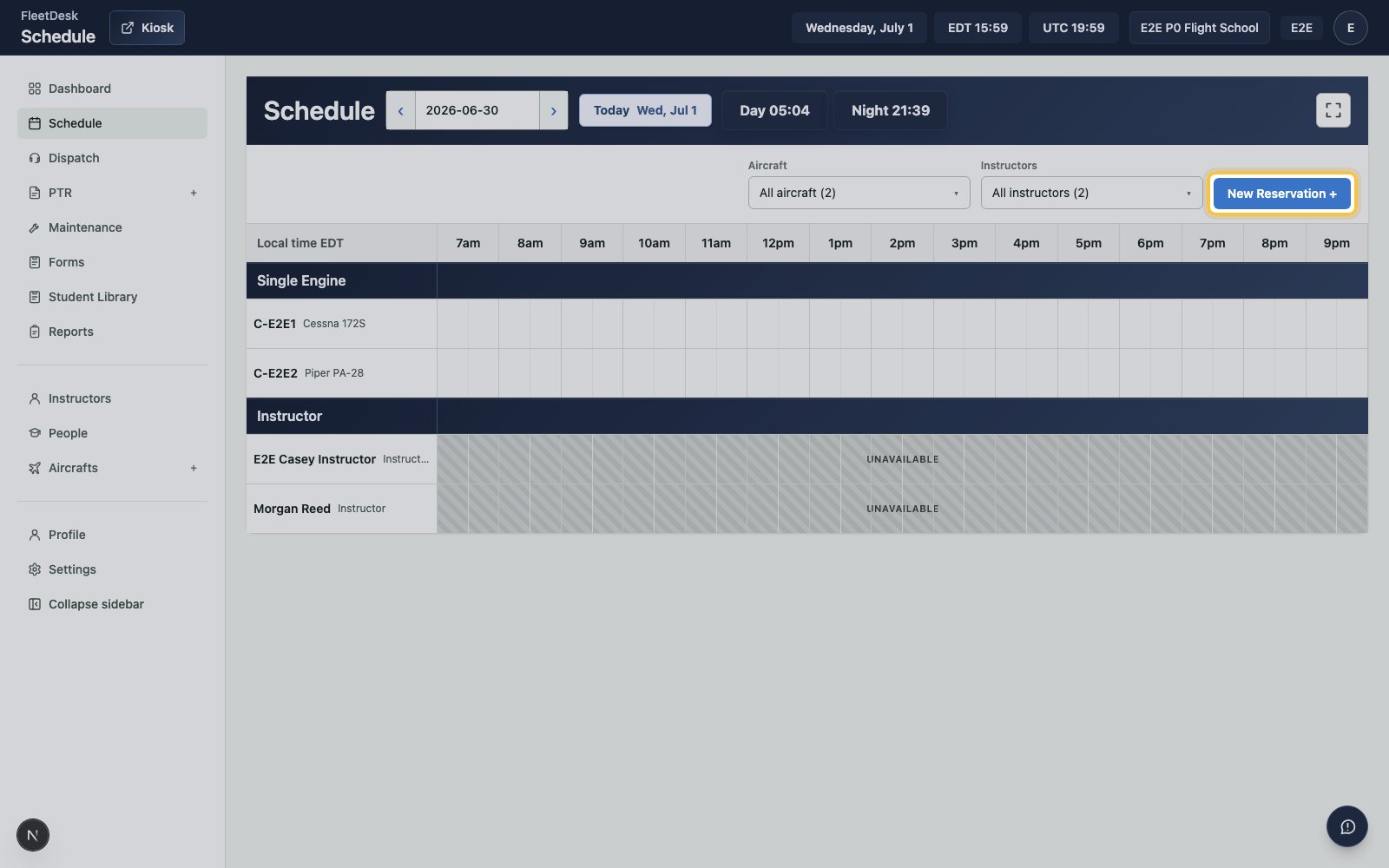
  <Step title="Create a reservation">
    Click **New reservation**.

    <img src="https://mintcdn.com/clearsignal-510cec9c/zrJeukWi5N6SK11x/images/quick-start/13-new-reservation.png?fit=max&auto=format&n=zrJeukWi5N6SK11x&q=85&s=272369ff0857b664ee8137ce7d0712a3" alt="Schedule page with New reservation highlighted" width="1600" height="1000" data-path="images/quick-start/13-new-reservation.png" />
  </Step>

  <Step title="Choose the booking type">
    In **Booking type**, choose **Dual lesson**.
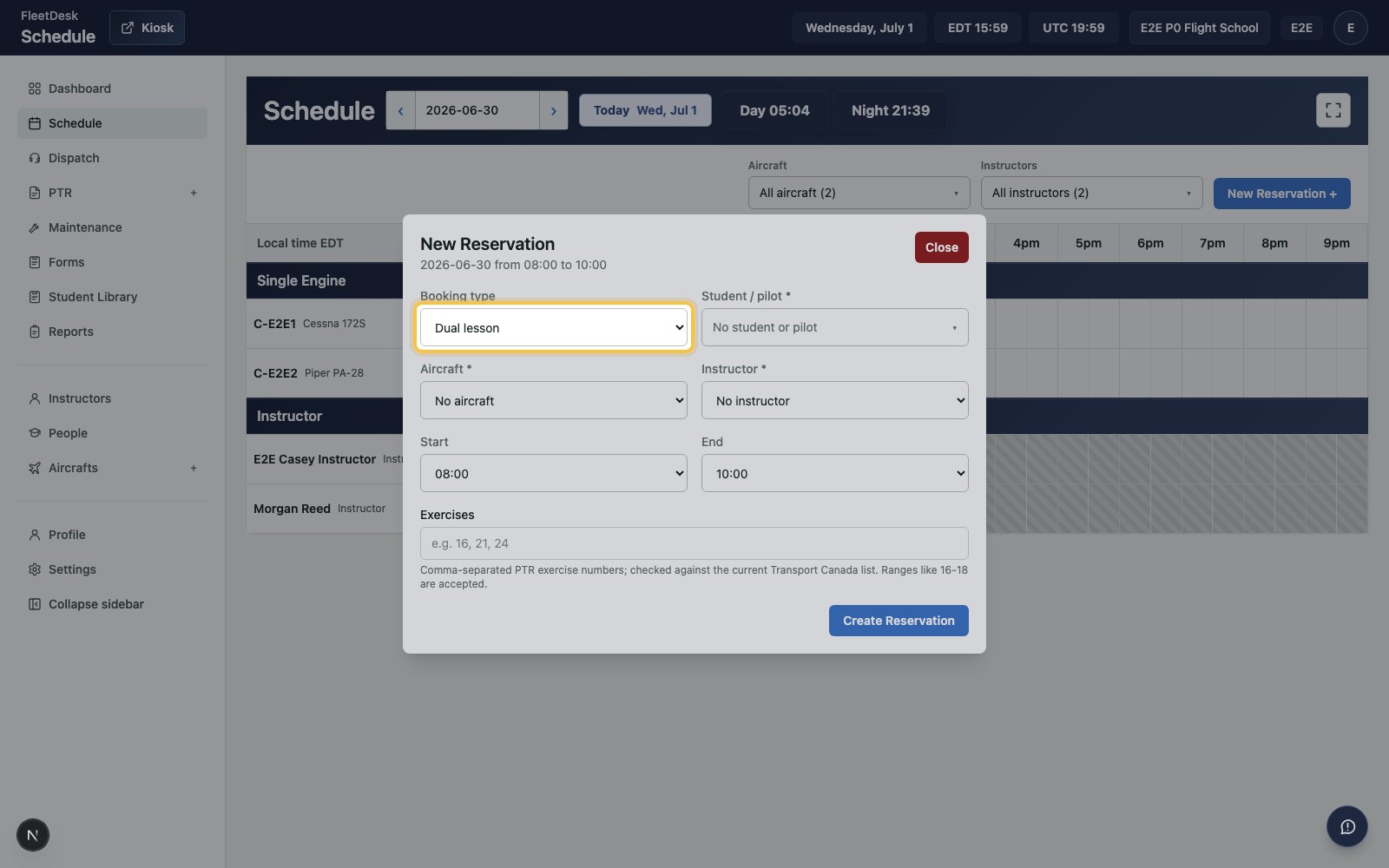
    <img src="https://mintcdn.com/clearsignal-510cec9c/zrJeukWi5N6SK11x/images/quick-start/14-dual-lesson.png?fit=max&auto=format&n=zrJeukWi5N6SK11x&q=85&s=17f6a34d7459c9be12d7eeb82bc68306" alt="New Reservation form with Booking type highlighted" width="1600" height="1000" data-path="images/quick-start/14-dual-lesson.png" />
  </Step>

  <Step title="Choose the student">
    Open the student search, search for the student you created, and select the student.
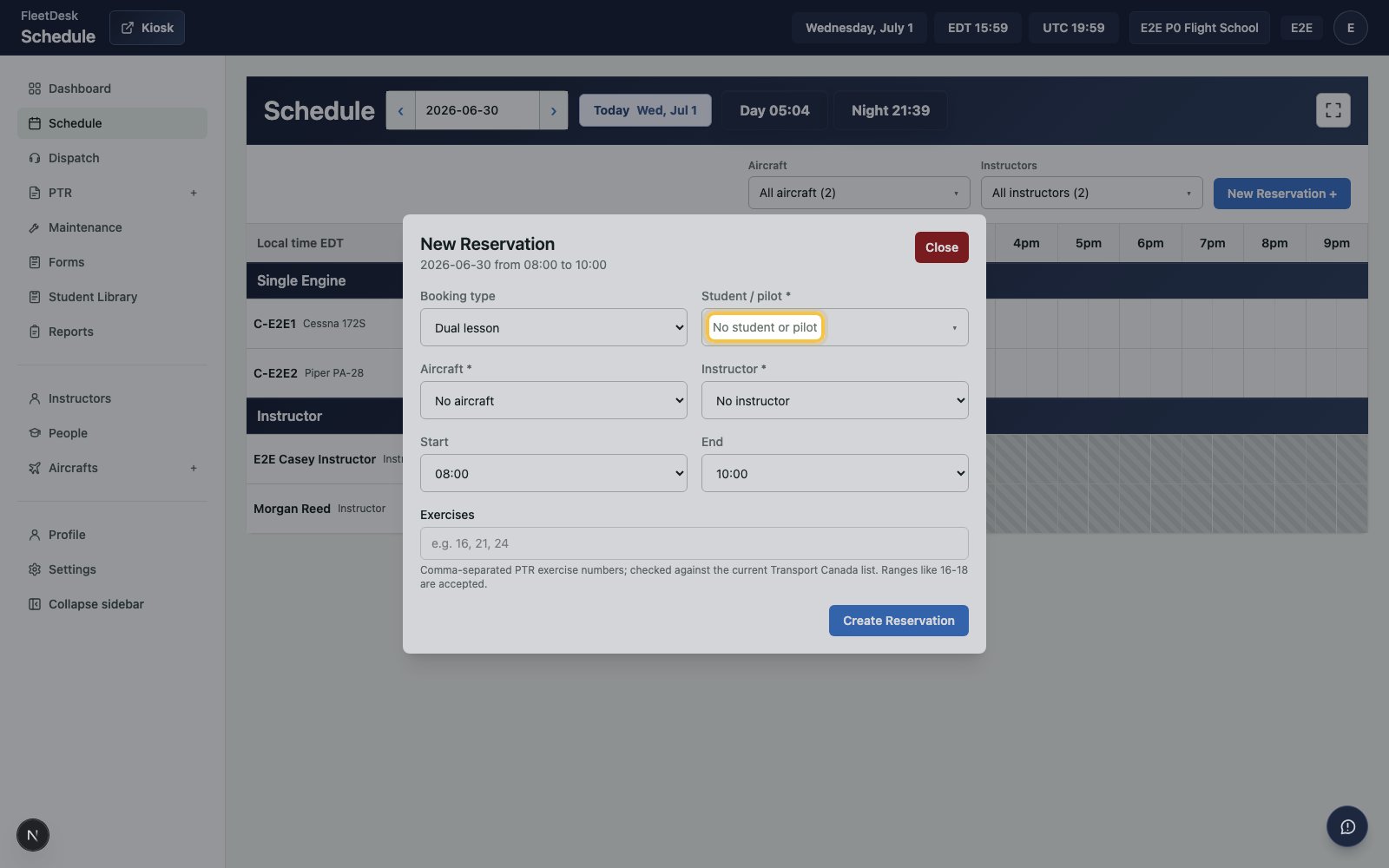
    <img src="https://mintcdn.com/clearsignal-510cec9c/zrJeukWi5N6SK11x/images/quick-start/15-select-student.png?fit=max&auto=format&n=zrJeukWi5N6SK11x&q=85&s=28ba126c35c350b7aa7007413a544e3c" alt="New Reservation form with the student selector highlighted" width="1600" height="1000" data-path="images/quick-start/15-select-student.png" />
  </Step>

  <Step title="Choose the aircraft and instructor">
    Select an aircraft and the instructor you created.
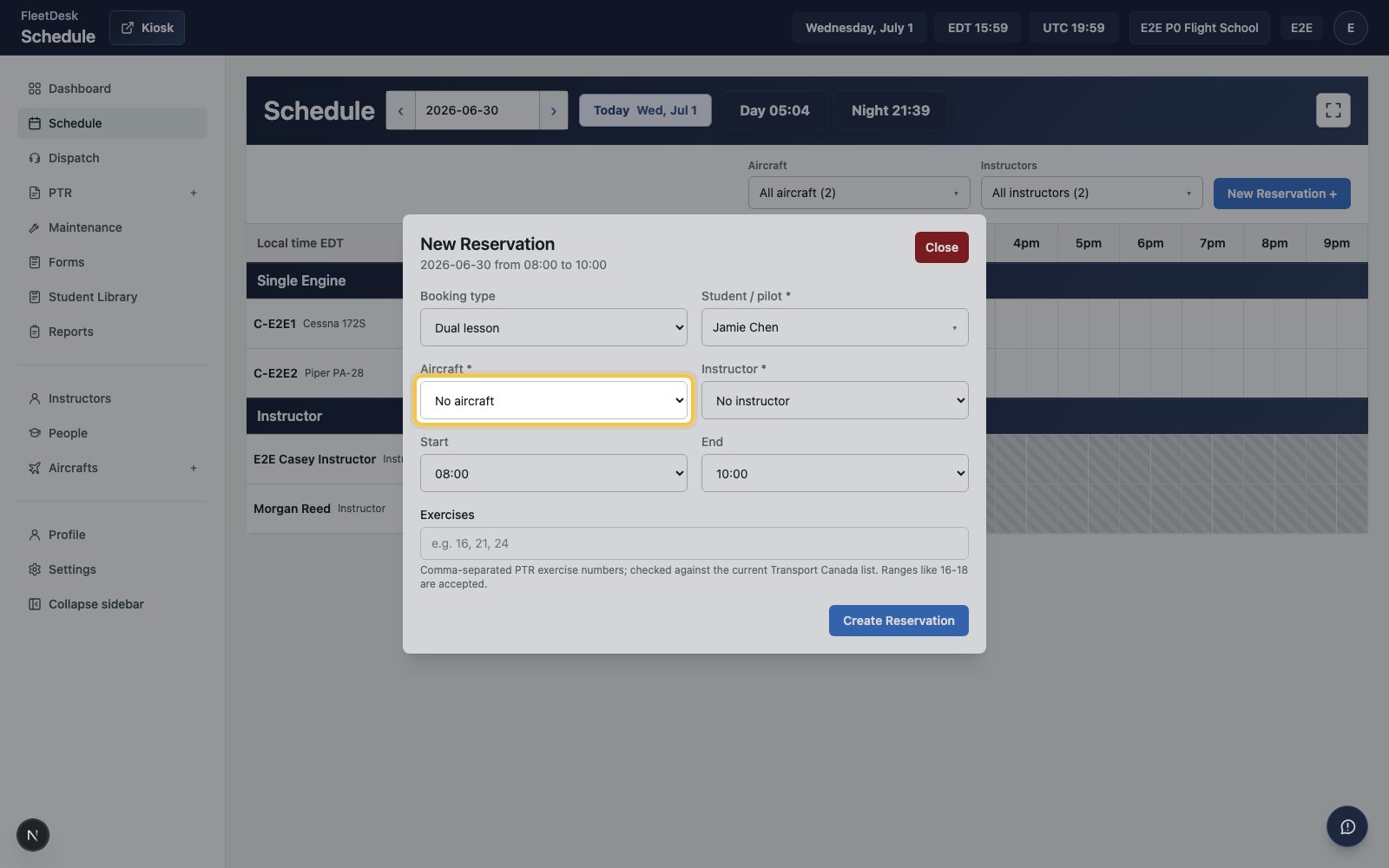
    <img src="https://mintcdn.com/clearsignal-510cec9c/zrJeukWi5N6SK11x/images/quick-start/16-select-resources.png?fit=max&auto=format&n=zrJeukWi5N6SK11x&q=85&s=f781fe23df1f2ca1a73a2cc0eabda57a" alt="New Reservation form with aircraft and instructor fields highlighted" width="1600" height="1000" data-path="images/quick-start/16-select-resources.png" />
  </Step>

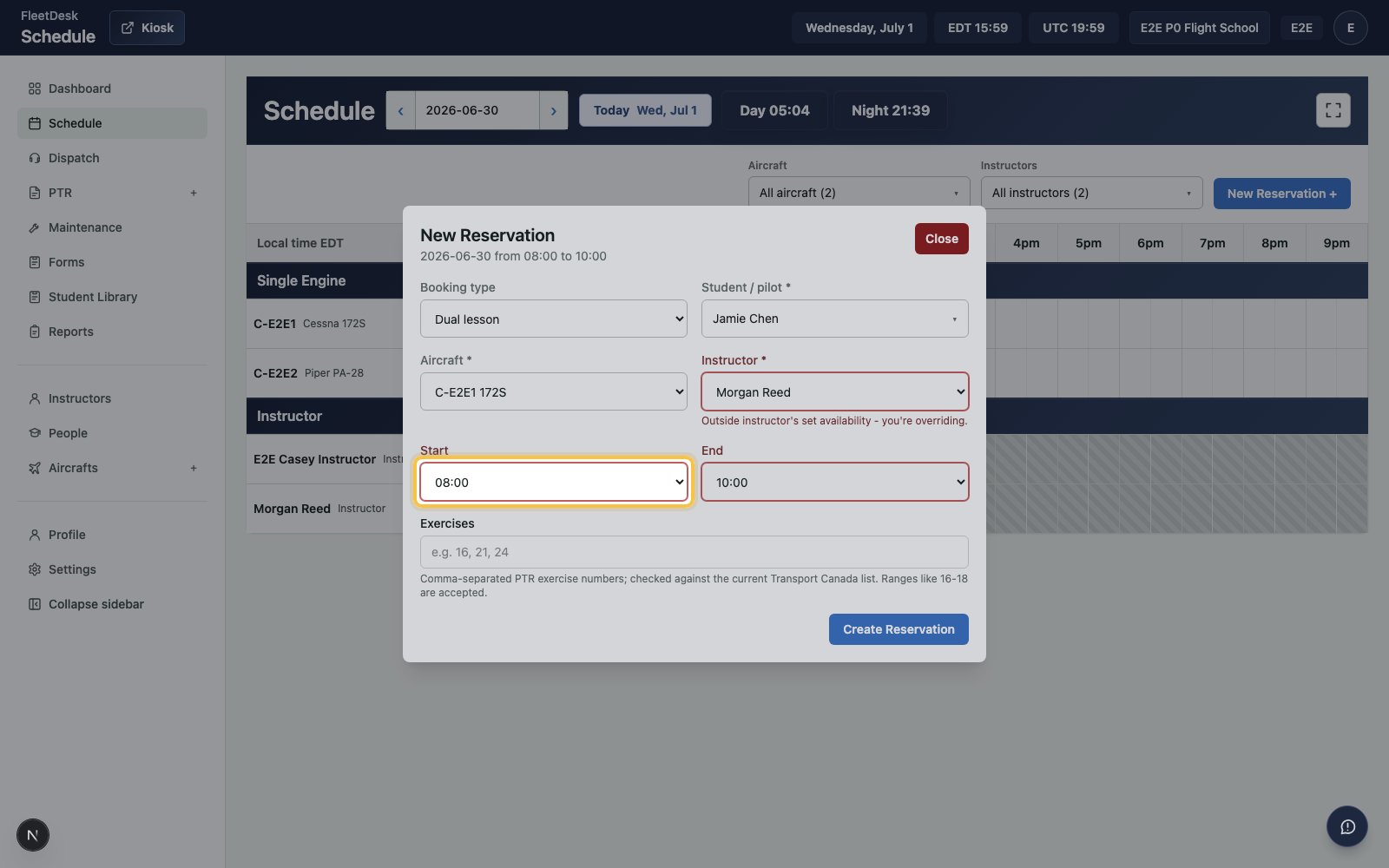
  <Step title="Set the lesson time">
    Choose the start and end time for the booking.
    <img src="https://mintcdn.com/clearsignal-510cec9c/zrJeukWi5N6SK11x/images/quick-start/17-set-lesson-time.png?fit=max&auto=format&n=zrJeukWi5N6SK11x&q=85&s=fb8438ce6e19abae332a8bf961ac1dd1" alt="New Reservation form with lesson time fields highlighted" width="1600" height="1000" data-path="images/quick-start/17-set-lesson-time.png" />
  </Step>

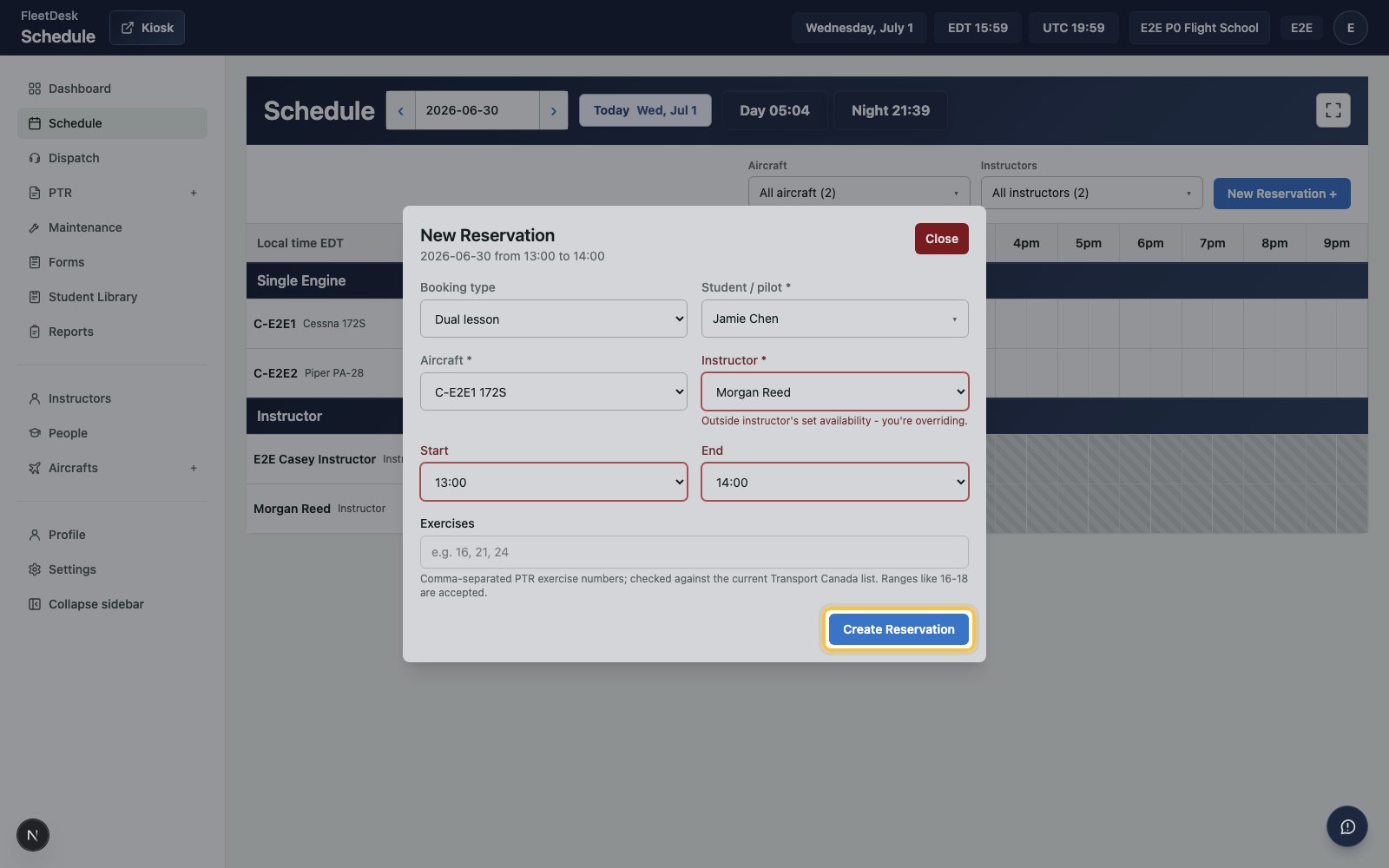
  <Step title="Save the reservation">
    Click **Create Reservation**.

    <img src="https://mintcdn.com/clearsignal-510cec9c/zrJeukWi5N6SK11x/images/quick-start/18-create-reservation.png?fit=max&auto=format&n=zrJeukWi5N6SK11x&q=85&s=7475f79d9839bbef5f743b6eadb460f5" alt="New Reservation form with Create Reservation highlighted" width="1600" height="1000" data-path="images/quick-start/18-create-reservation.png" />
  </Step>
</Steps>

## Dispatch the flight

<Steps>
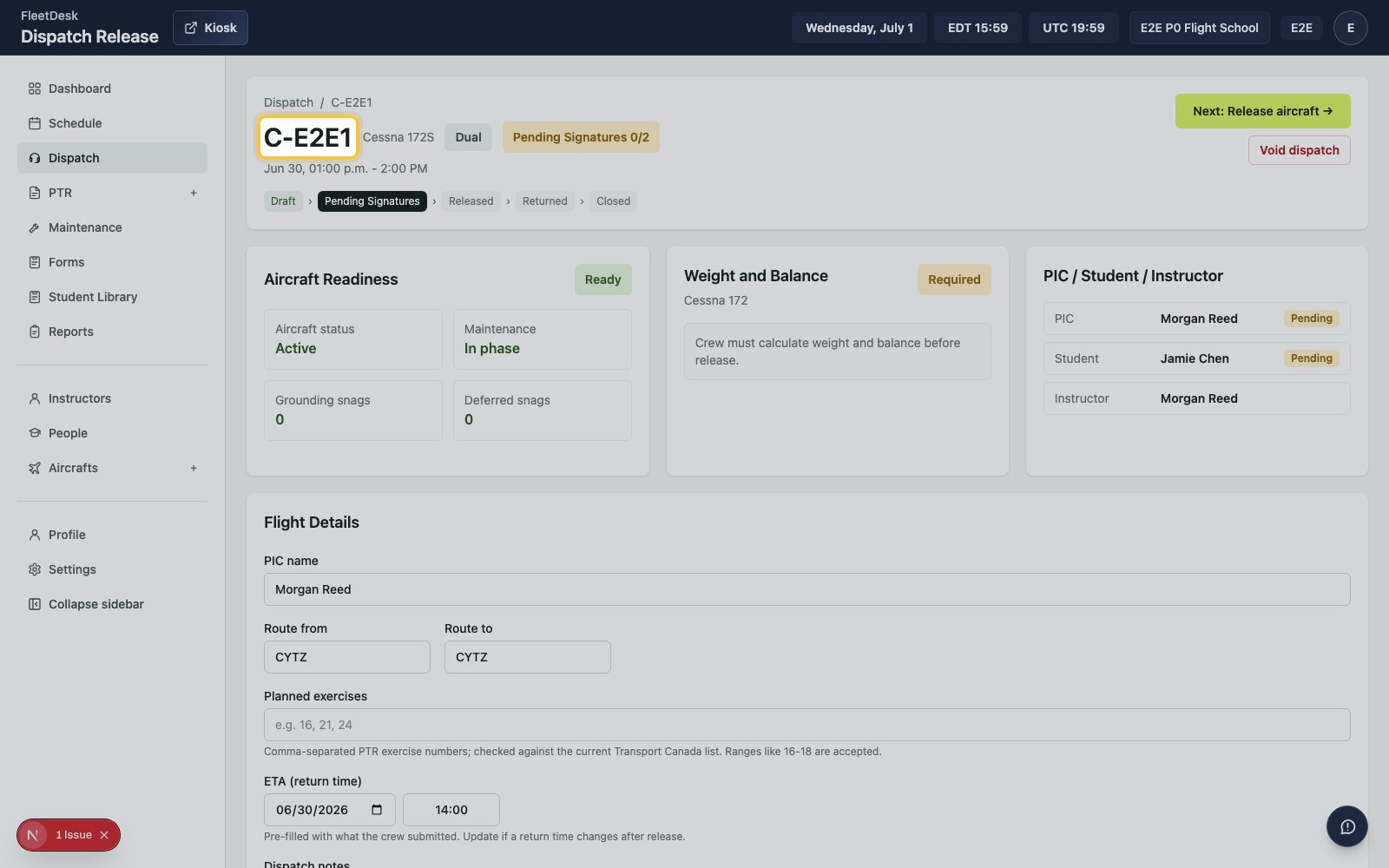
  <Step title="Open the dispatch release">
    Open the release created for the scheduled flight.
    <img src="https://mintcdn.com/clearsignal-510cec9c/zrJeukWi5N6SK11x/images/quick-start/19-open-release.png?fit=max&auto=format&n=zrJeukWi5N6SK11x&q=85&s=50559321847b8aafaf8b1e70b1bb63a2" alt="Dispatch release page with the next action highlighted" width="1600" height="1000" data-path="images/quick-start/19-open-release.png" />
  </Step>

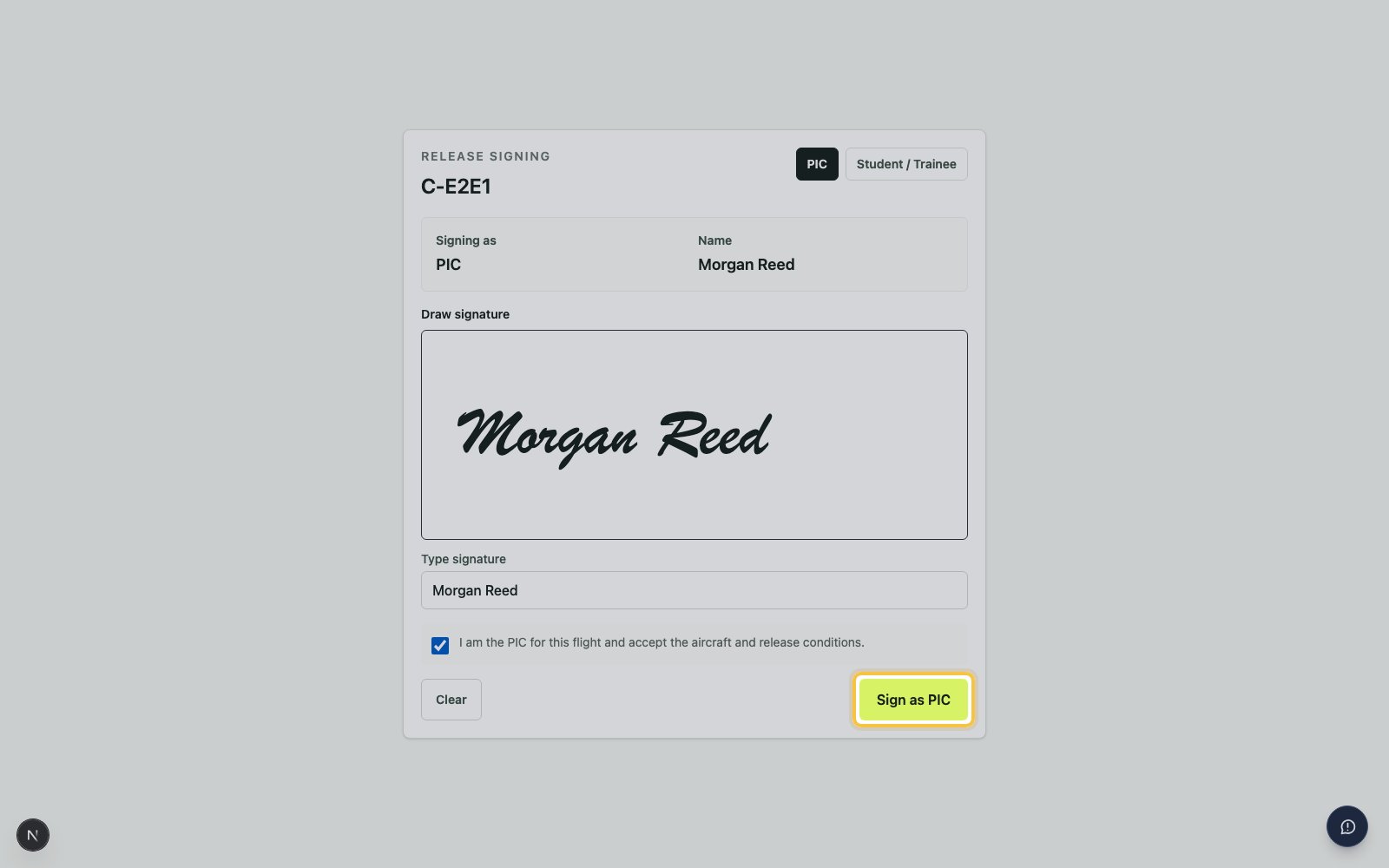
  <Step title="Sign as PIC">
    Open the release signing page, choose **PIC**, type the instructor name, confirm the attestation, and click **Sign as PIC**.
    <img src="https://mintcdn.com/clearsignal-510cec9c/zrJeukWi5N6SK11x/images/quick-start/20-sign-pic.png?fit=max&auto=format&n=zrJeukWi5N6SK11x&q=85&s=a62d7d7fe9c83df39620a1d9a83e6f6d" alt="Release signing page with Sign as PIC highlighted" width="1600" height="1000" data-path="images/quick-start/20-sign-pic.png" />
  </Step>

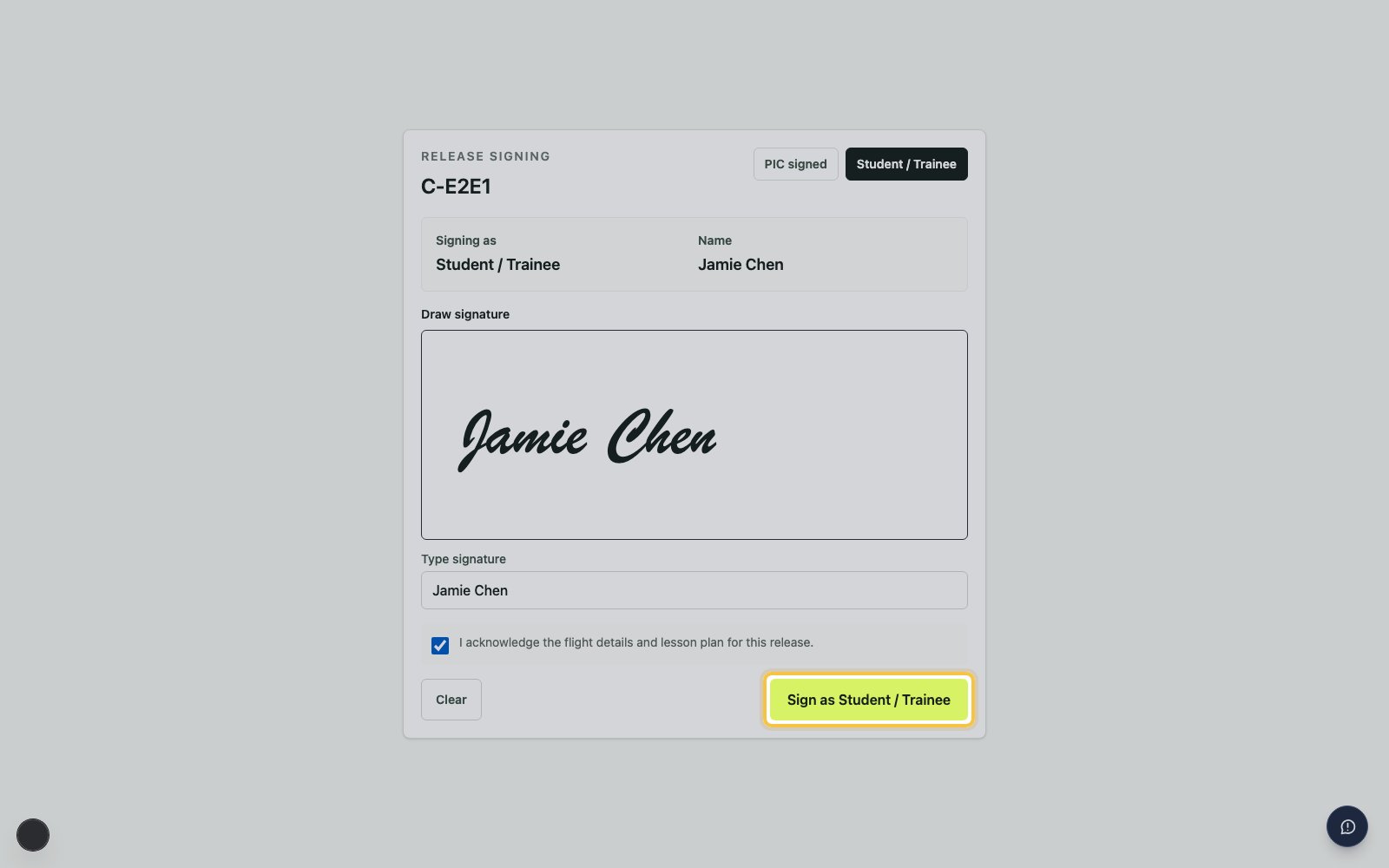
  <Step title="Sign as student">
    Choose **Student / Trainee**, type the student name, confirm the attestation, and click **Sign as Student / Trainee**.
    <img src="https://mintcdn.com/clearsignal-510cec9c/zrJeukWi5N6SK11x/images/quick-start/21-sign-student.png?fit=max&auto=format&n=zrJeukWi5N6SK11x&q=85&s=bc59db0c15b801155746514e991a6921" alt="Release signing page with Sign as Student or Trainee highlighted" width="1600" height="1000" data-path="images/quick-start/21-sign-student.png" />
  </Step>

  <Step title="Release the aircraft">
    Return to the release and click **Next: Release aircraft**.
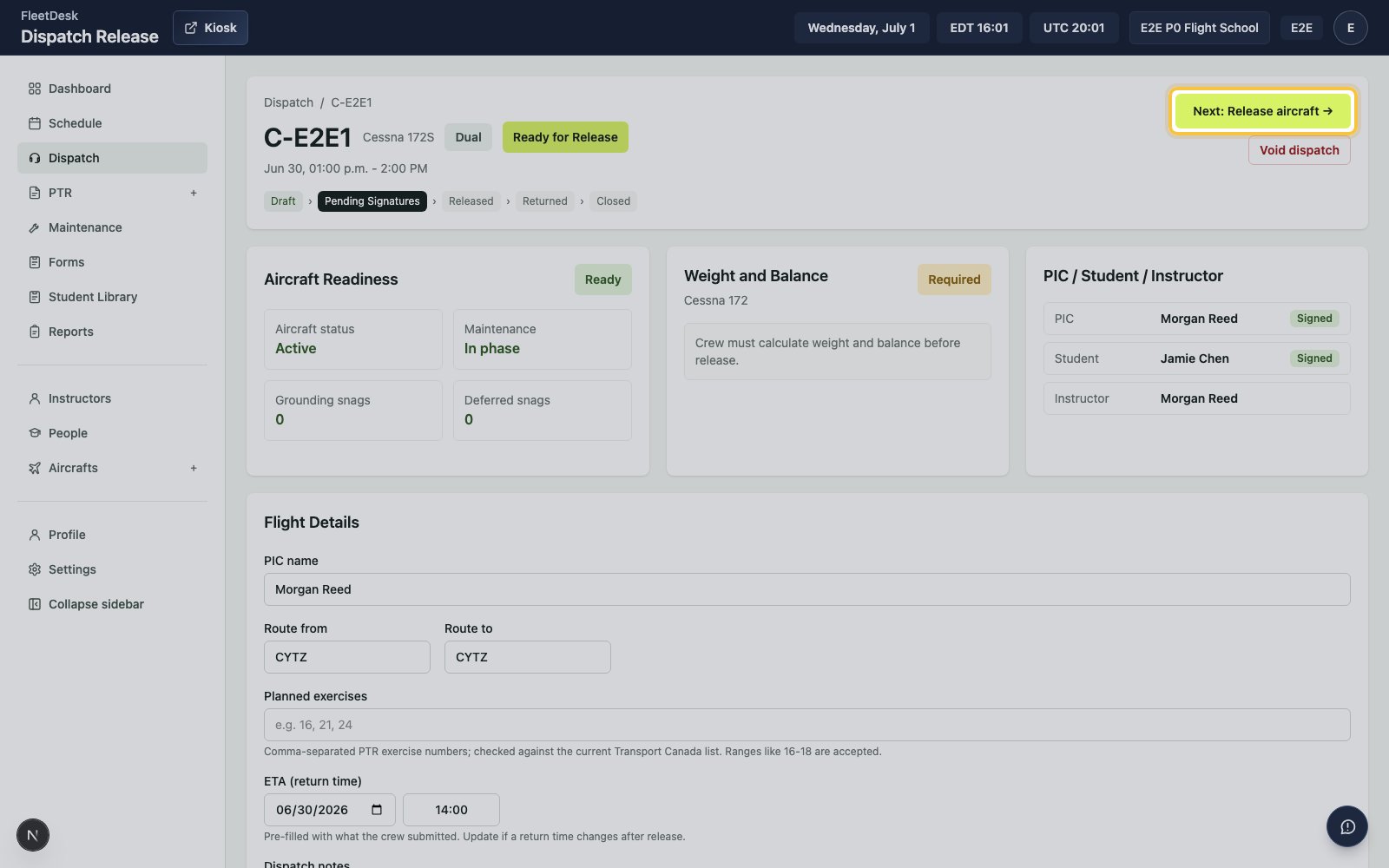
    <img src="https://mintcdn.com/clearsignal-510cec9c/zrJeukWi5N6SK11x/images/quick-start/22-release-aircraft.png?fit=max&auto=format&n=zrJeukWi5N6SK11x&q=85&s=ca5f968aecb55a81d120c3535799406a" alt="Dispatch release page with Next Release aircraft highlighted" width="1600" height="1000" data-path="images/quick-start/22-release-aircraft.png" />
  </Step>

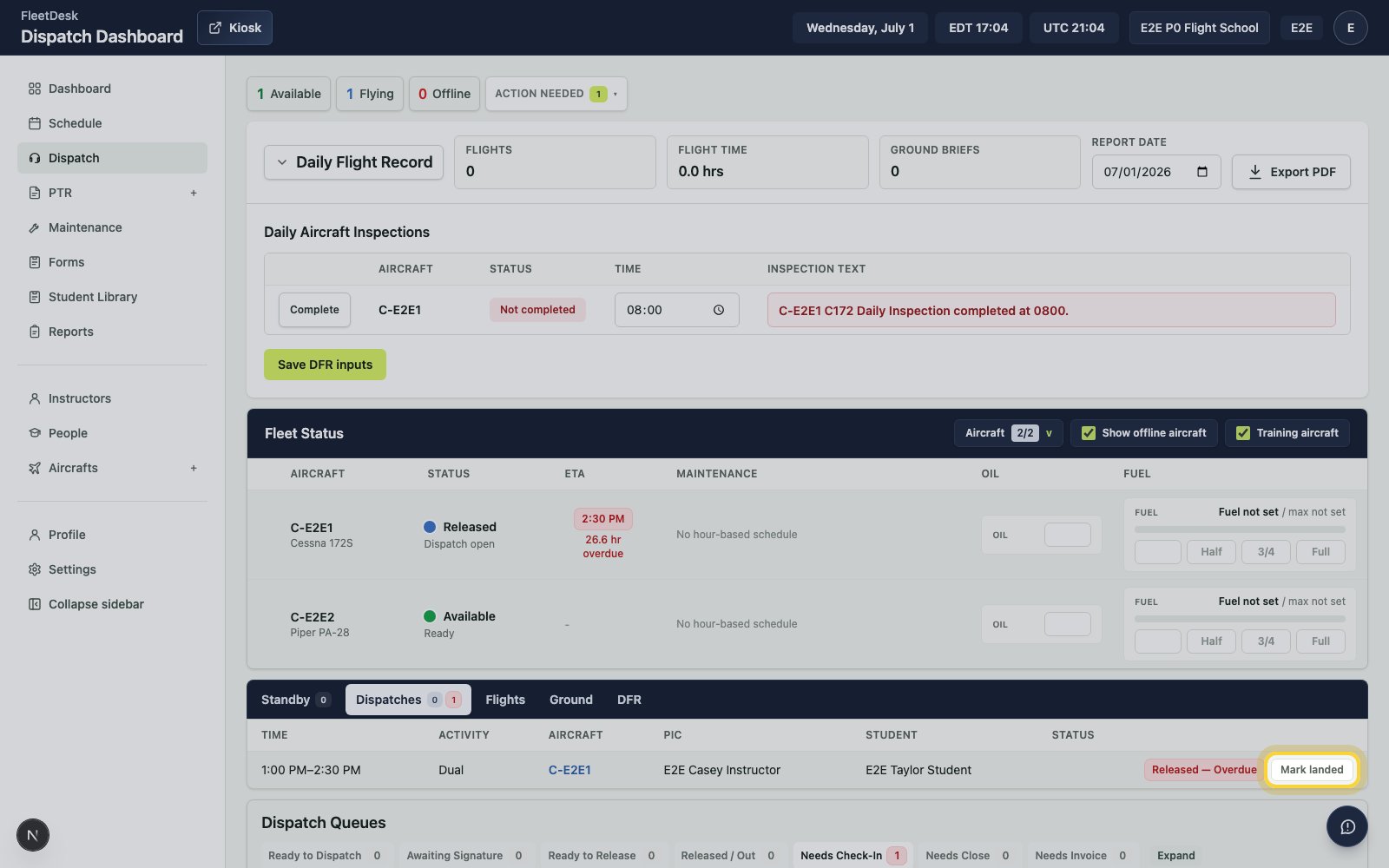
  <Step title="Mark the aircraft landed">
    In Dispatches, click **Mark landed**.

    <img src="https://mintcdn.com/clearsignal-510cec9c/zrJeukWi5N6SK11x/images/quick-start/23-mark-landed.png?fit=max&auto=format&n=zrJeukWi5N6SK11x&q=85&s=ba0f3ea738fb421861bdd3af7039d90e" alt="Dispatches queue with Mark landed highlighted" width="1600" height="1000" data-path="images/quick-start/23-mark-landed.png" />
  </Step>

  <Step title="Enter actuals">
    Open the release, enter the engine times, flight times, route, briefing time, and flight hours.
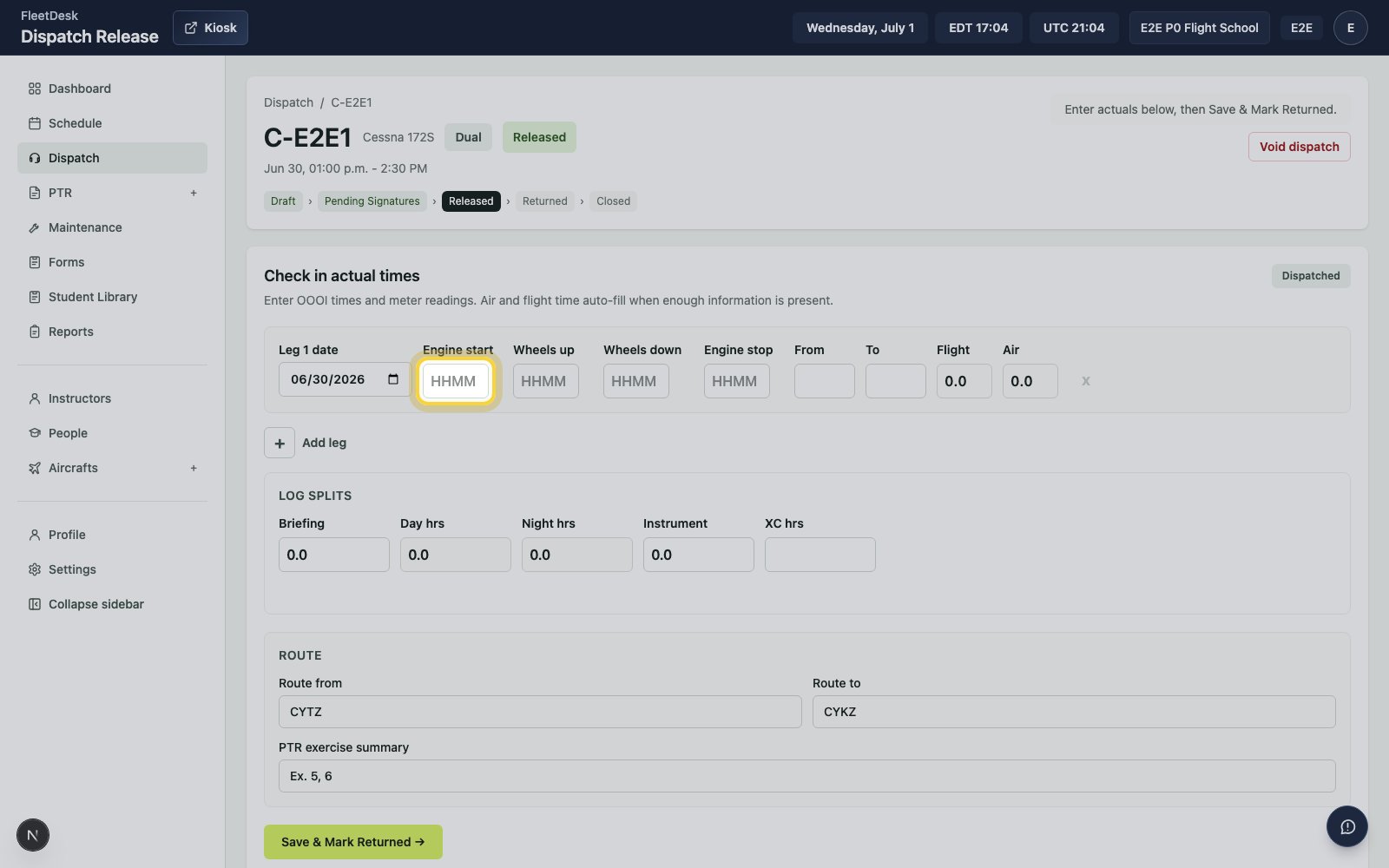
    <img src="https://mintcdn.com/clearsignal-510cec9c/zrJeukWi5N6SK11x/images/quick-start/24-enter-actuals.png?fit=max&auto=format&n=zrJeukWi5N6SK11x&q=85&s=22d64d2d406a397ac9f8309eeb68b554" alt="Dispatch release actuals form with Engine start highlighted" width="1600" height="1000" data-path="images/quick-start/24-enter-actuals.png" />
  </Step>

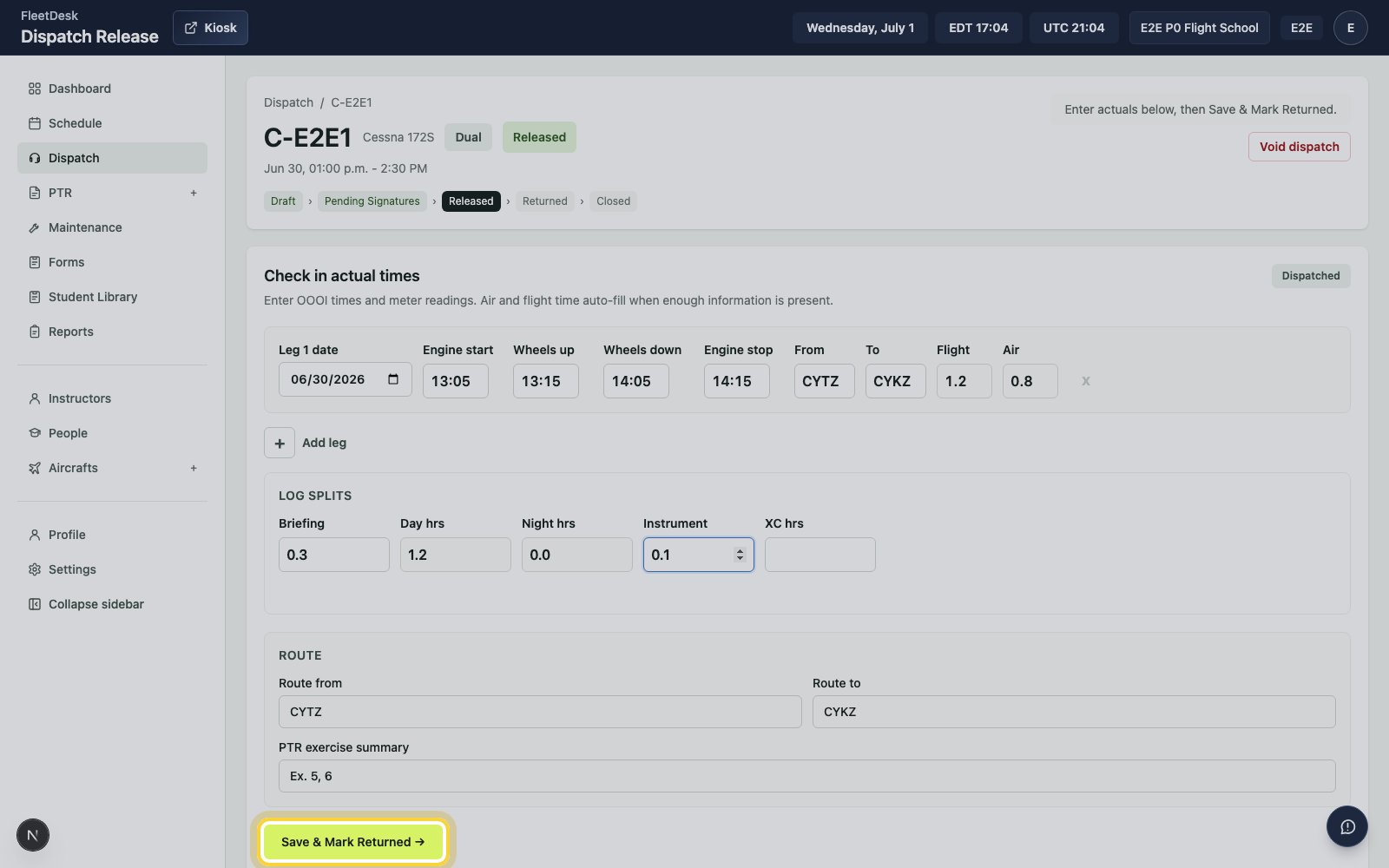
  <Step title="Mark the flight returned">
    Click **Save & mark returned**.

    <img src="https://mintcdn.com/clearsignal-510cec9c/zrJeukWi5N6SK11x/images/quick-start/25-mark-returned.png?fit=max&auto=format&n=zrJeukWi5N6SK11x&q=85&s=bbae0271ab41fcf472b8470877381ebb" alt="Dispatch release actuals form with Save and Mark Returned highlighted" width="1600" height="1000" data-path="images/quick-start/25-mark-returned.png" />
  </Step>

  <Step title="Close the release">
    In Dispatches, open **Returned - Ready to Close**, then click **Close release**.
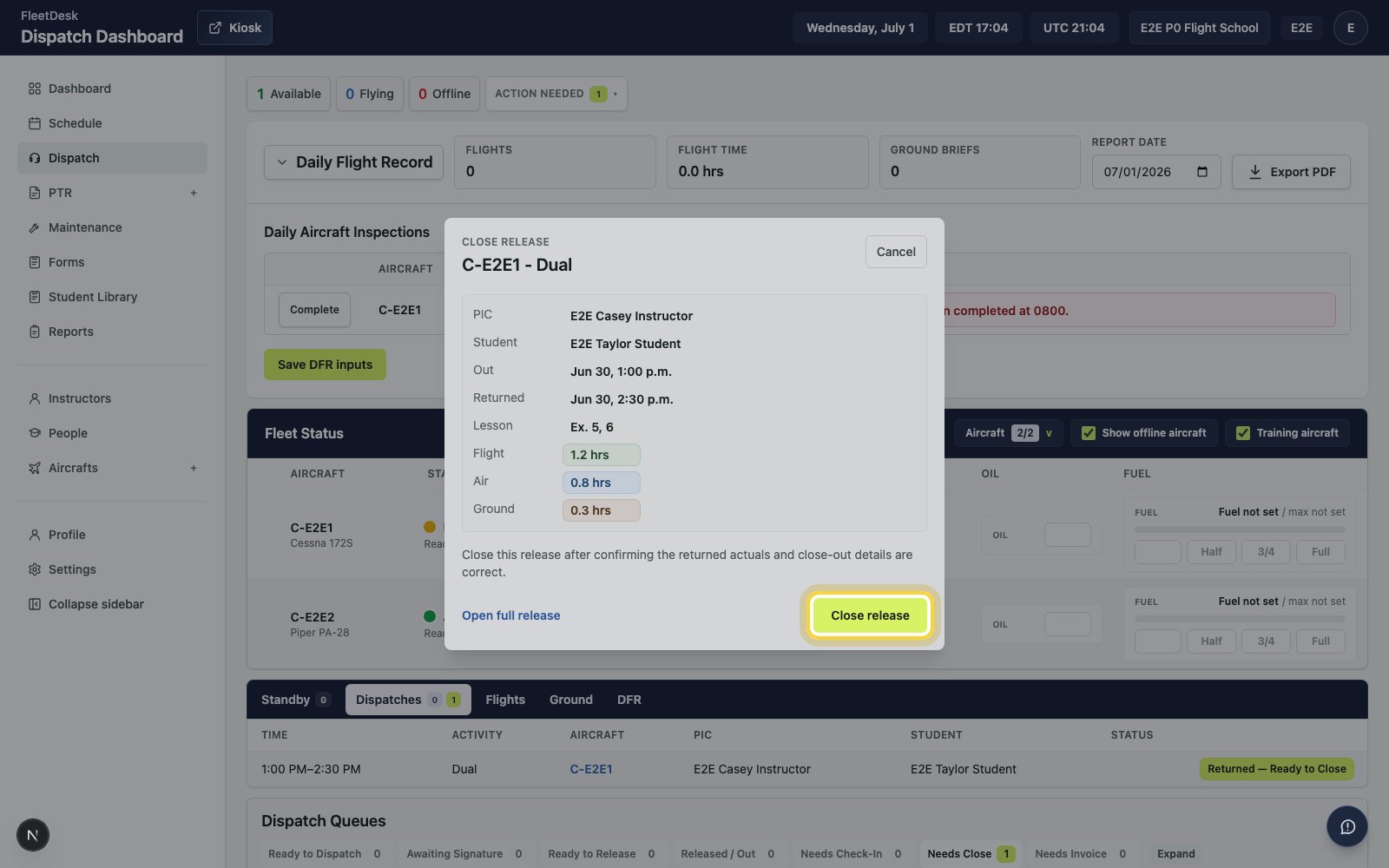
    <img src="https://mintcdn.com/clearsignal-510cec9c/zrJeukWi5N6SK11x/images/quick-start/26-close-release.png?fit=max&auto=format&n=zrJeukWi5N6SK11x&q=85&s=f9f59cf1e6ebb01227fbc4a16859a036" alt="Close release dialog with Close release highlighted" width="1600" height="1000" data-path="images/quick-start/26-close-release.png" />
  </Step>
</Steps>

## Post the PTR entry

<Steps>
  <Step title="Open PTR drafts">
    Select **PTRs**, then open the draft for the completed flight.
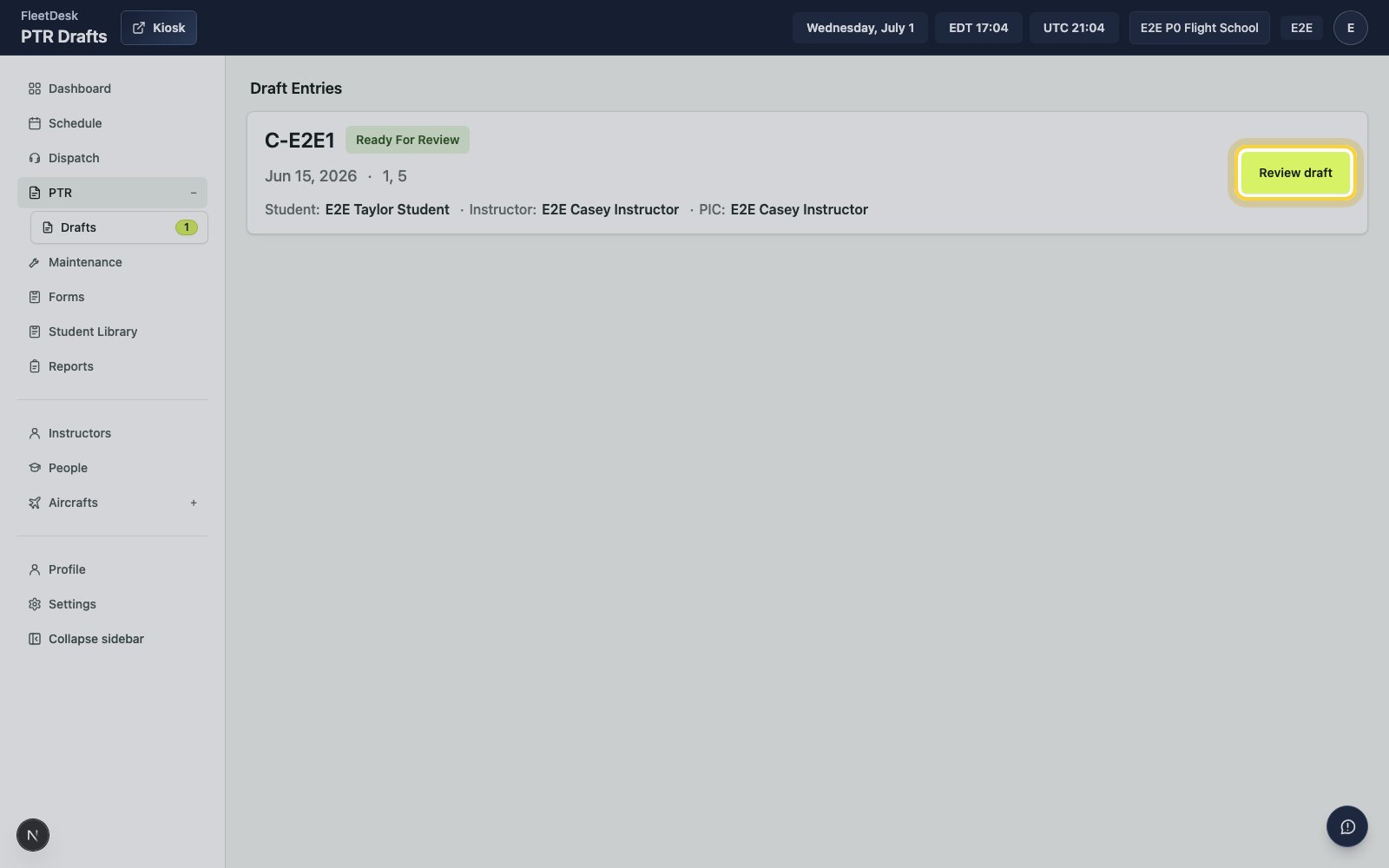
    <img src="https://mintcdn.com/clearsignal-510cec9c/zrJeukWi5N6SK11x/images/quick-start/27-open-ptr-draft.png?fit=max&auto=format&n=zrJeukWi5N6SK11x&q=85&s=ba70854368103823b1344ebb1d961ab2" alt="PTR drafts page with the draft link highlighted" width="1600" height="1000" data-path="images/quick-start/27-open-ptr-draft.png" />
  </Step>

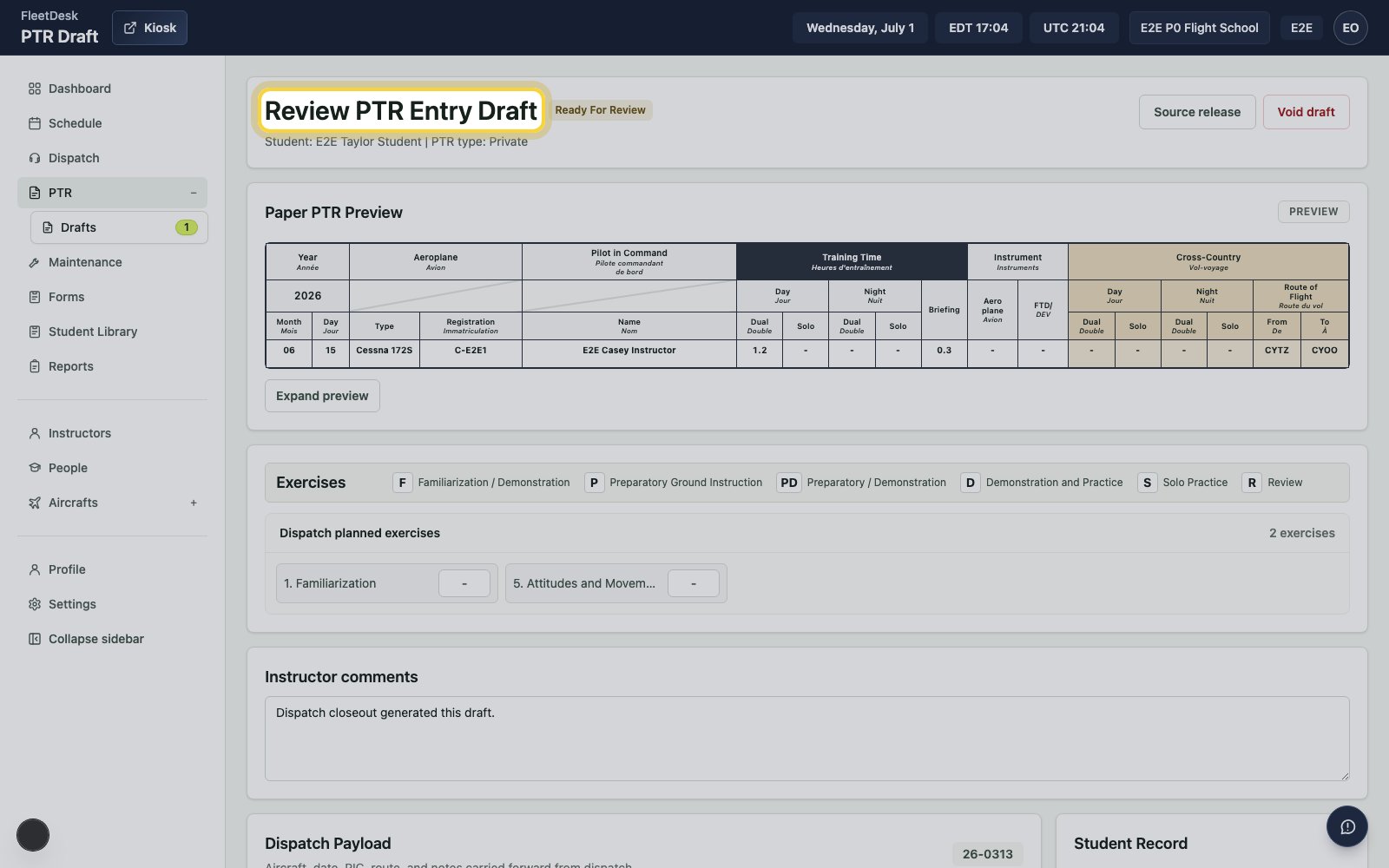
  <Step title="Review the draft">
    Confirm the student, aircraft, route, and flight time.
    <img src="https://mintcdn.com/clearsignal-510cec9c/zrJeukWi5N6SK11x/images/quick-start/28-review-draft.png?fit=max&auto=format&n=zrJeukWi5N6SK11x&q=85&s=1eca1ac545166558c8fceddd72c8fcb5" alt="PTR draft review page with the review heading highlighted" width="1600" height="1000" data-path="images/quick-start/28-review-draft.png" />
  </Step>

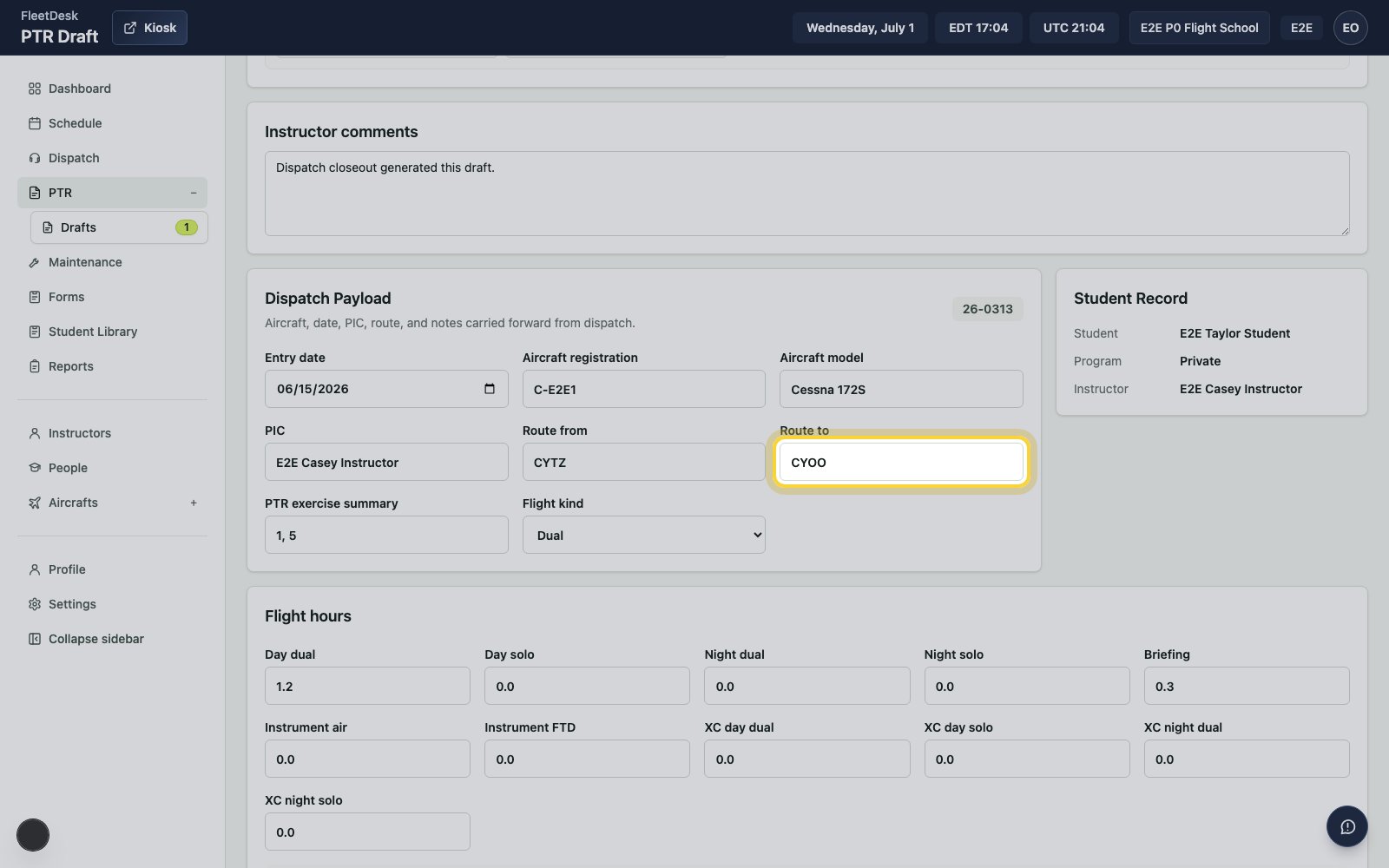
  <Step title="Update the PTR details">
    Adjust the route, instructor comments, dual time, briefing time, and exercise marks.
    <img src="https://mintcdn.com/clearsignal-510cec9c/zrJeukWi5N6SK11x/images/quick-start/29-update-ptr-details.png?fit=max&auto=format&n=zrJeukWi5N6SK11x&q=85&s=0653cac76ad19f2a3bfb73e8b906786f" alt="PTR draft review form with Route to highlighted" width="1600" height="1000" data-path="images/quick-start/29-update-ptr-details.png" />
  </Step>

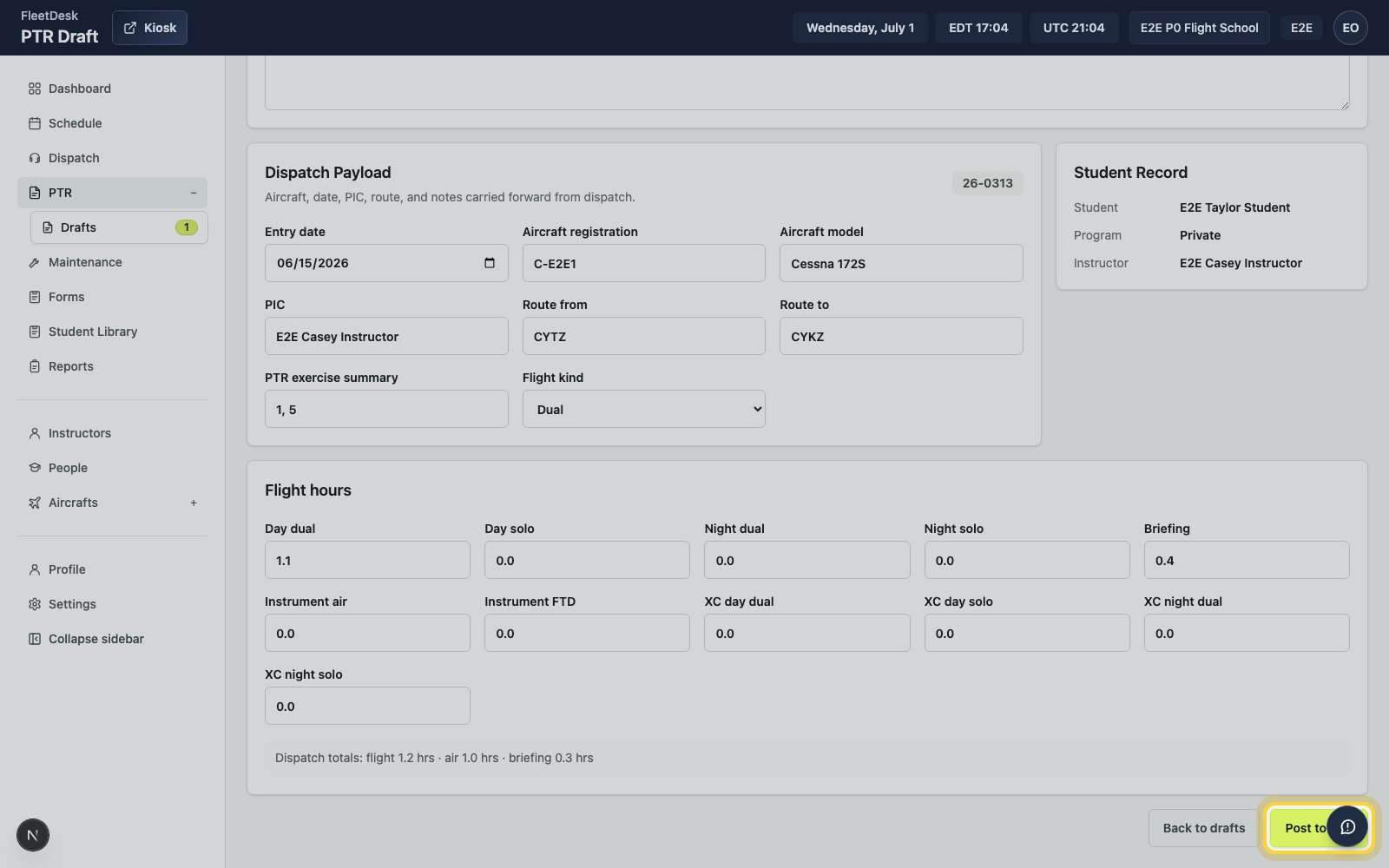
  <Step title="Post the draft">
    Click **Post to PTR**.

    <img src="https://mintcdn.com/clearsignal-510cec9c/zrJeukWi5N6SK11x/images/quick-start/30-post-to-ptr.png?fit=max&auto=format&n=zrJeukWi5N6SK11x&q=85&s=4ab2d756b6cdf7d1a75a21e60890e9d6" alt="PTR draft review form with Post to PTR highlighted" width="1600" height="1000" data-path="images/quick-start/30-post-to-ptr.png" />
  </Step>
</Steps>

## Confirm the PTR entry

<Steps>
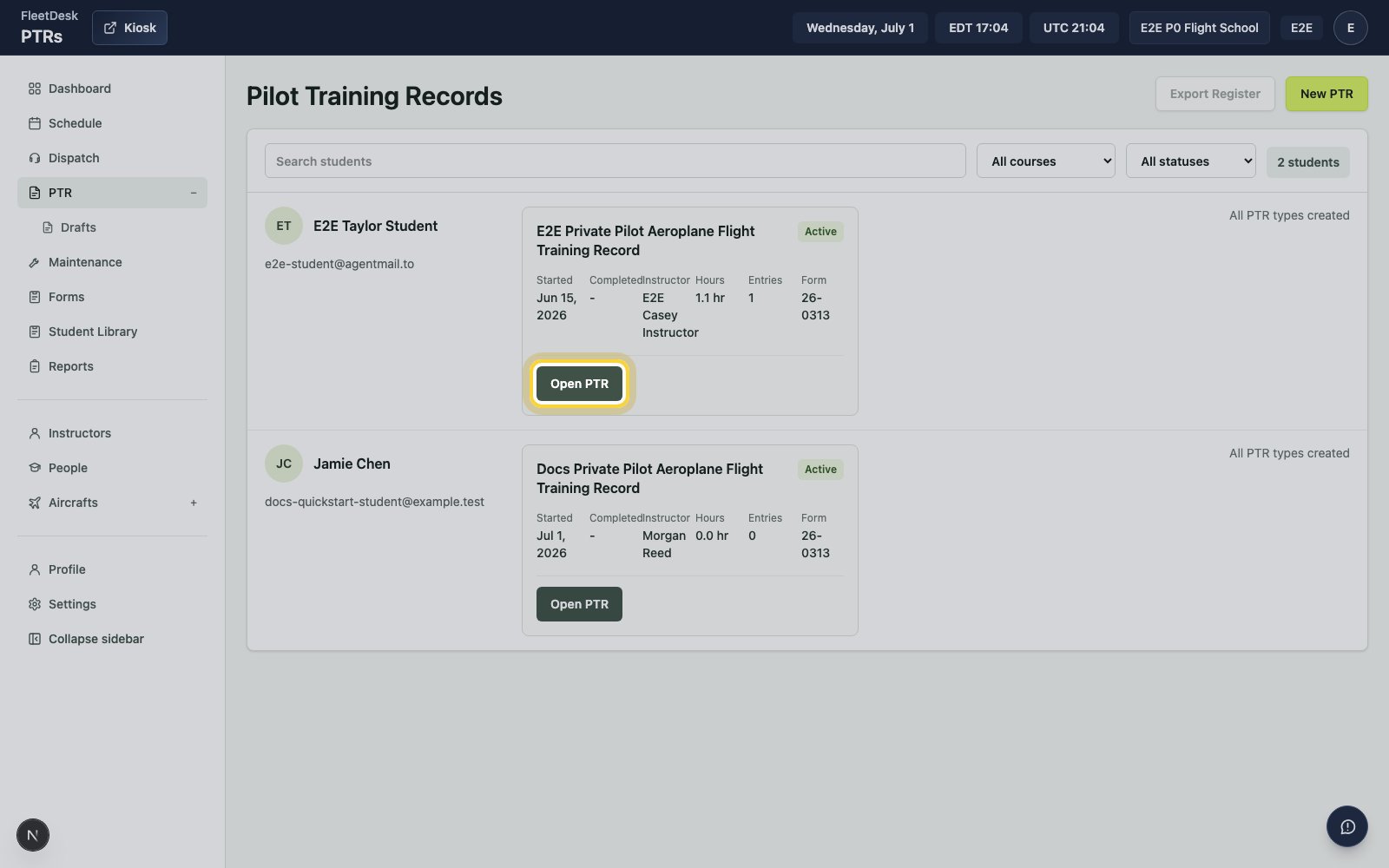
  <Step title="Open the student's PTR">
    Open the student's PTR record from **PTRs**.
    <img src="https://mintcdn.com/clearsignal-510cec9c/zrJeukWi5N6SK11x/images/quick-start/31-open-student-ptr.png?fit=max&auto=format&n=zrJeukWi5N6SK11x&q=85&s=7f4dfddaf14e57c13867006c6f539565" alt="PTR records page with Open PTR highlighted" width="1600" height="1000" data-path="images/quick-start/31-open-student-ptr.png" />
  </Step>

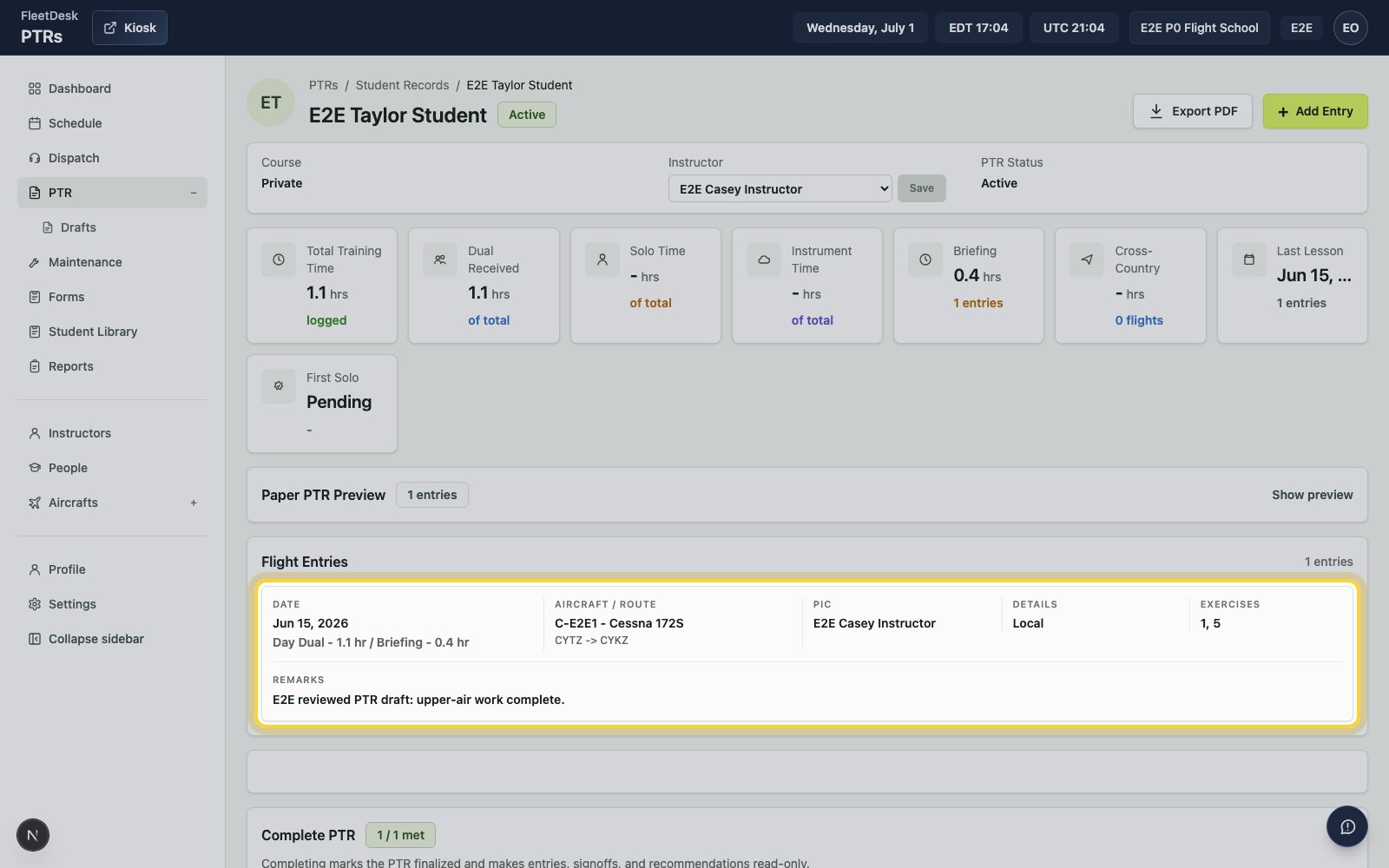
  <Step title="Confirm the flight entry">
    Confirm the new flight entry shows the aircraft, route, instructor, comments, and exercise numbers from the posted draft.
    <img src="https://mintcdn.com/clearsignal-510cec9c/zrJeukWi5N6SK11x/images/quick-start/32-confirm-ptr-entry.png?fit=max&auto=format&n=zrJeukWi5N6SK11x&q=85&s=dc7c1593a2aa2d04f216d7102a883a39" alt="Student PTR page with the posted flight entry highlighted" width="1600" height="1000" data-path="images/quick-start/32-confirm-ptr-entry.png" />
  </Step>
</Steps>

<Check>
  The instructor and student exist, the student's PPL PTR is active, the dual
  booking is closed through dispatch, and the posted flight appears in the
  student's PTR.
</Check>