This workflow assumes your aircraft and PPL training program are already
configured.
Add the instructor
1
Open People
Select People from the sidebar.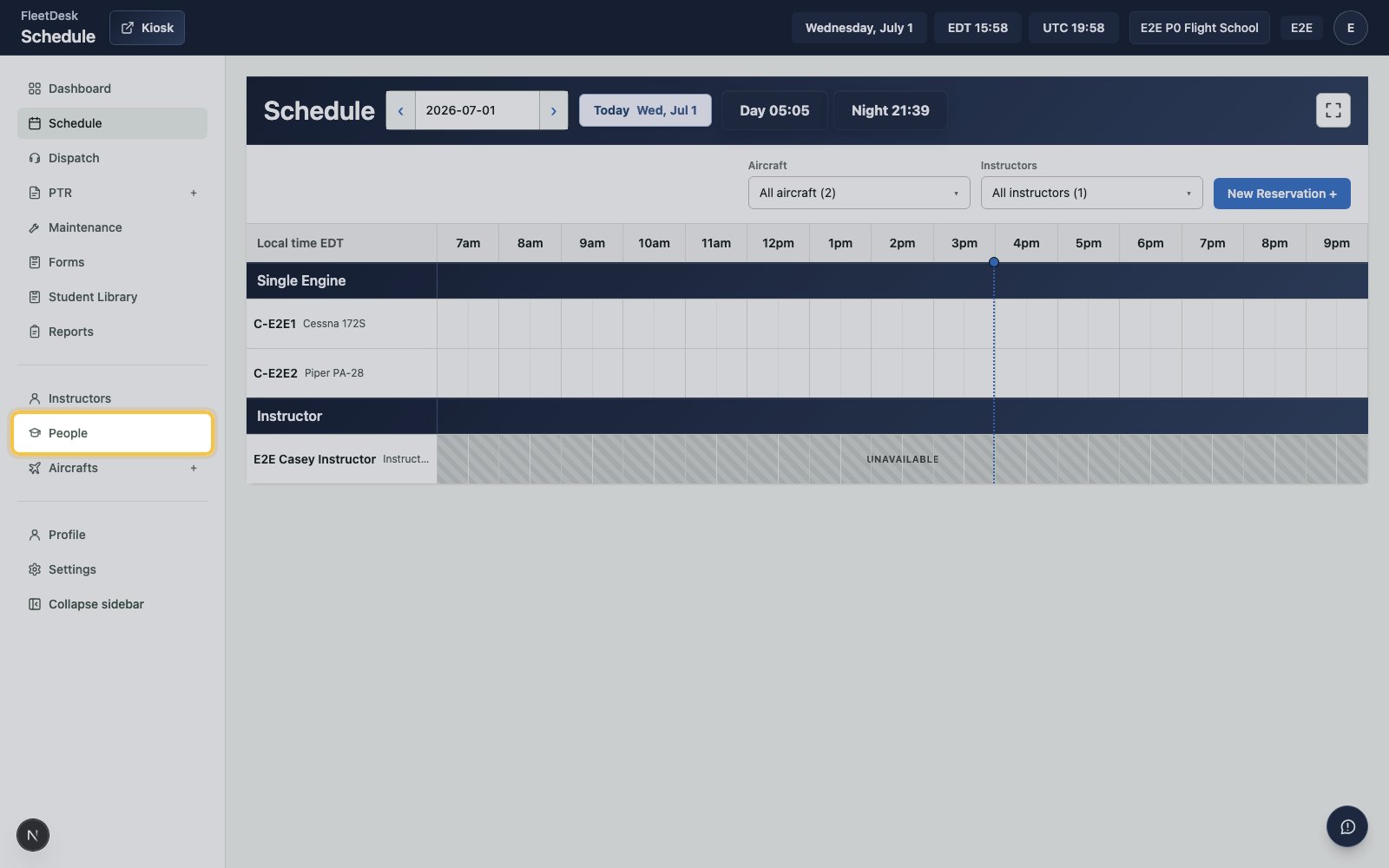
2
Start a new person record
Click Add person.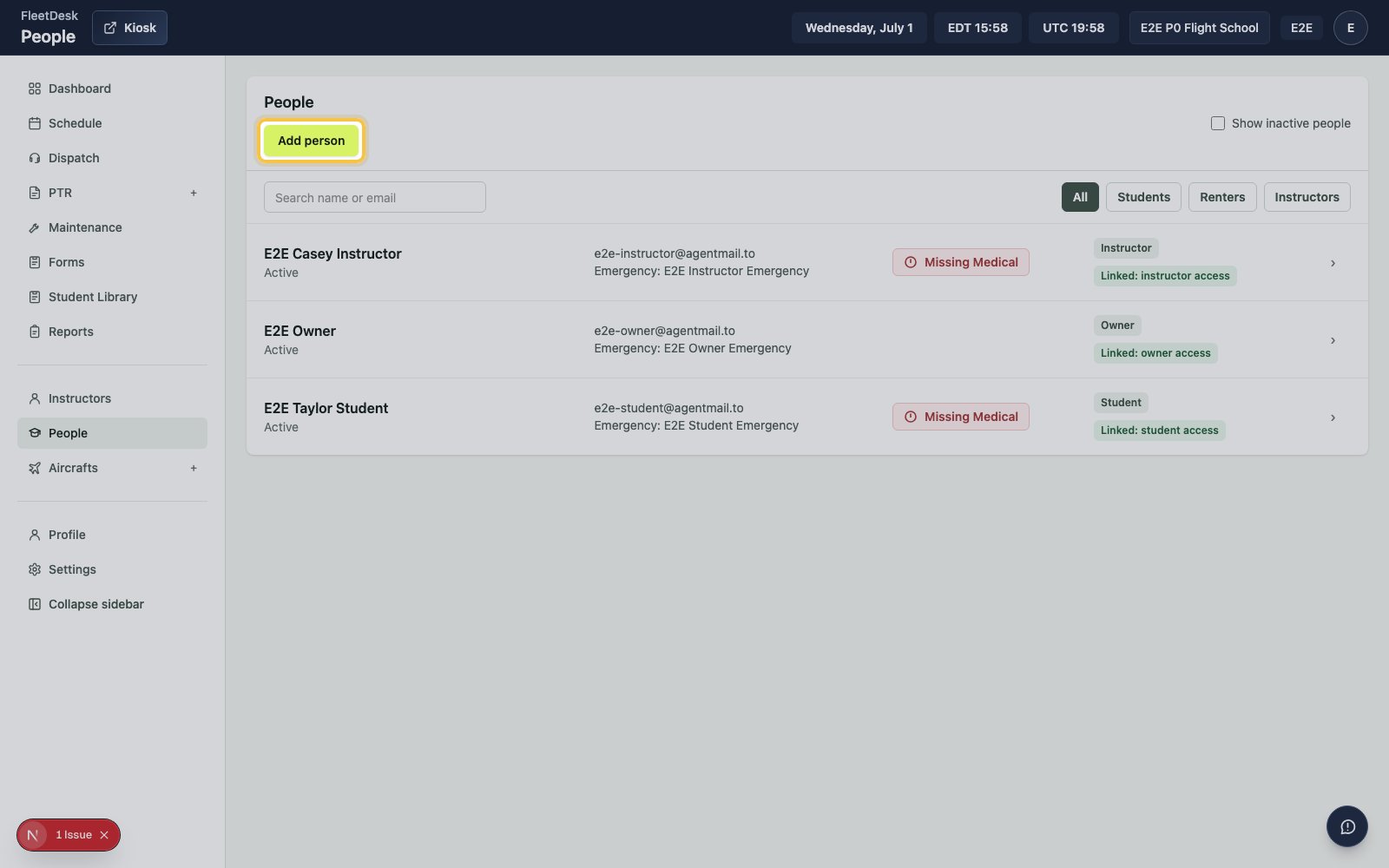
3
Enter the instructor details
Fill in the instructor’s name and email.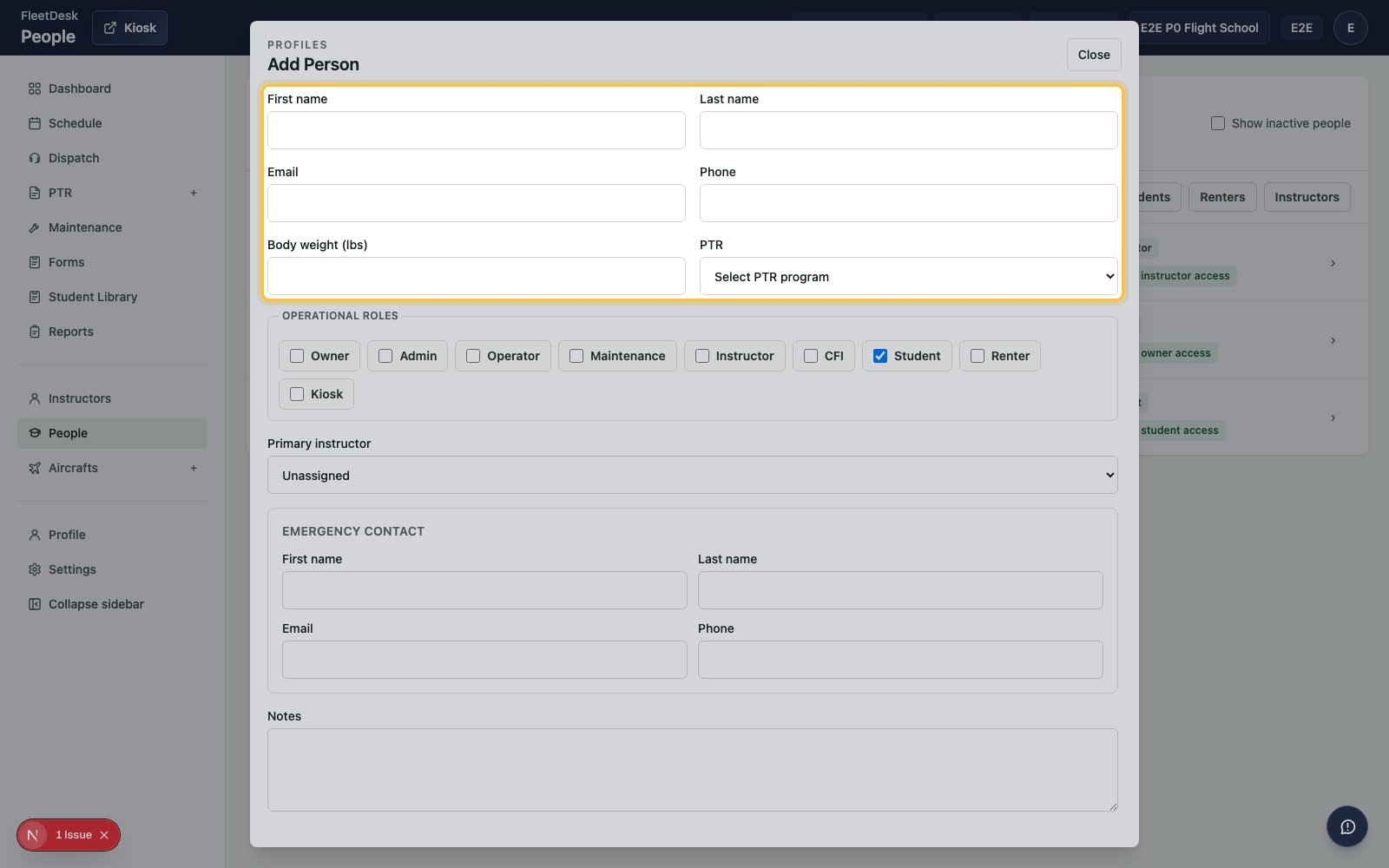
4
Set the instructor role
Select Instructor under Operational roles.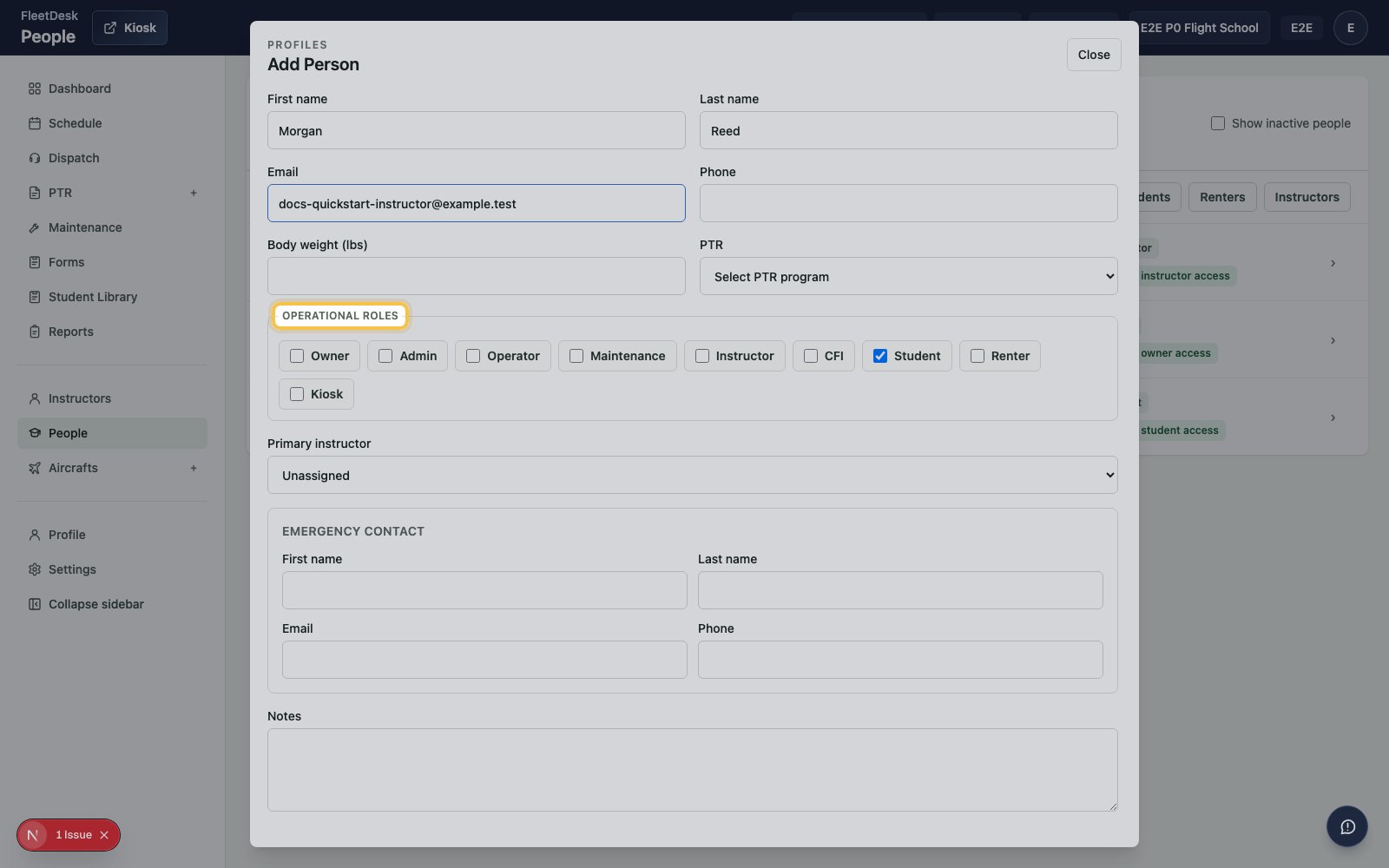
5
Save the instructor
Click Add person.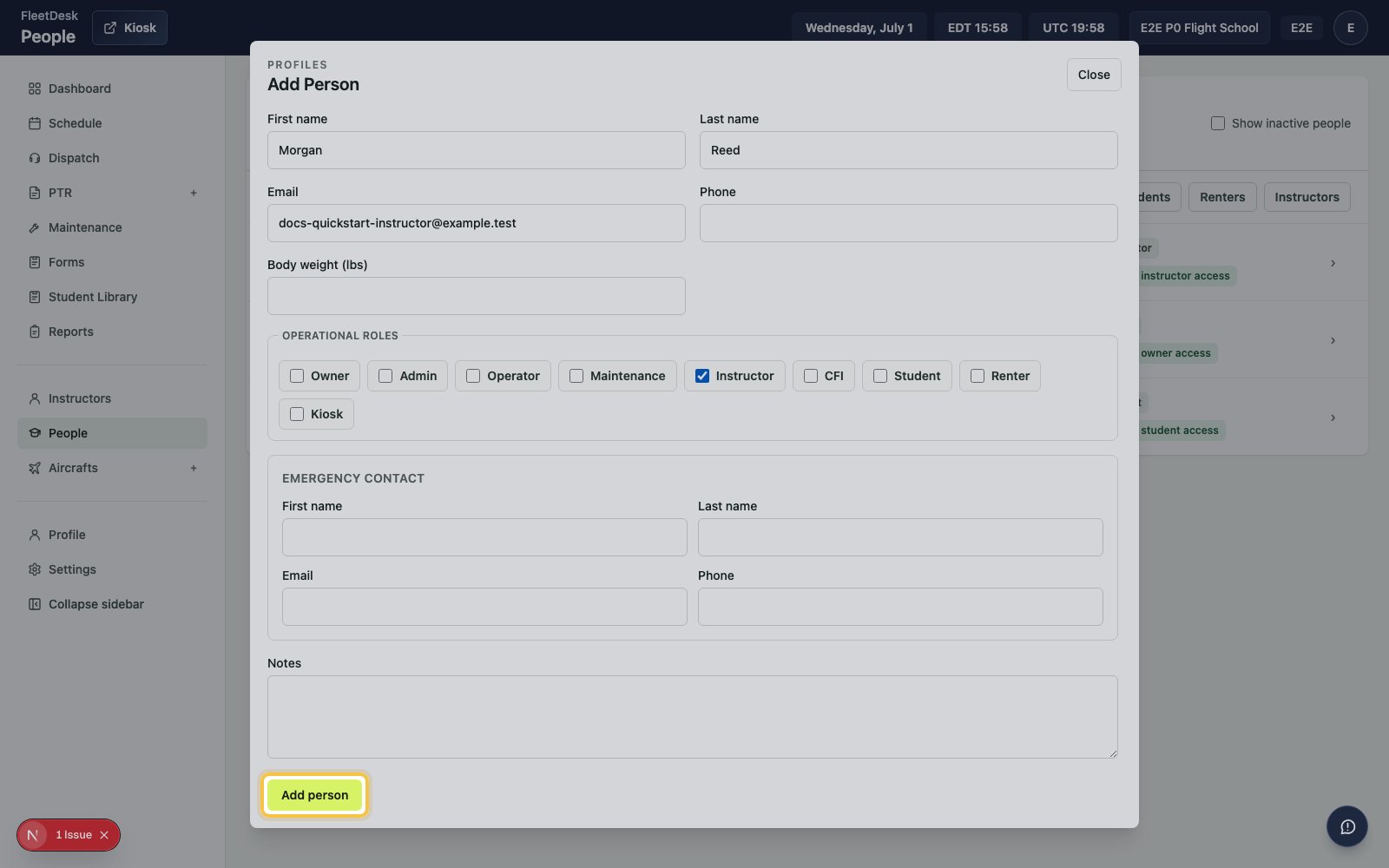
Add the student and PTR
1
Start another person record
Click Add person.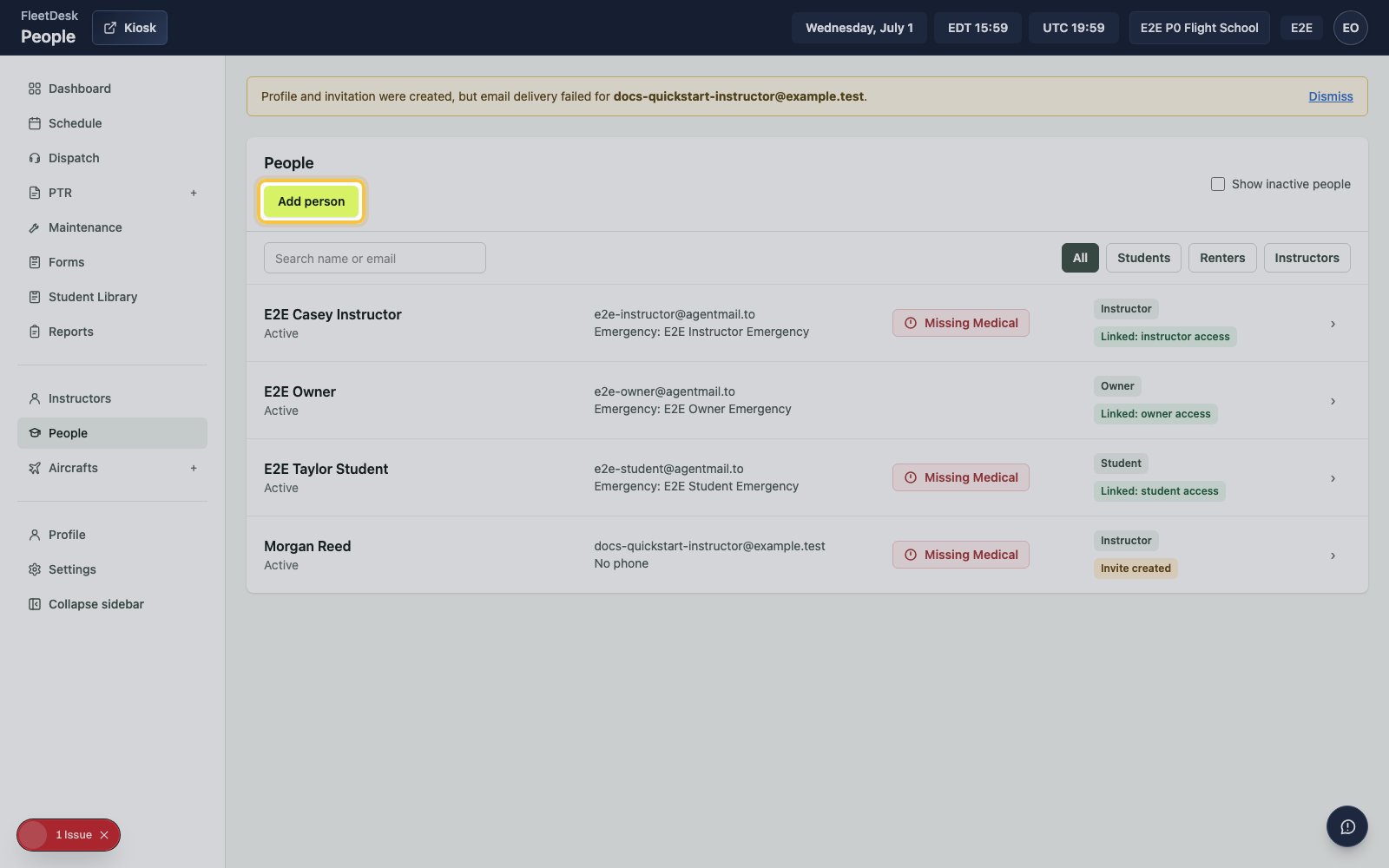
2
Enter the student details
Fill in the student’s name and email.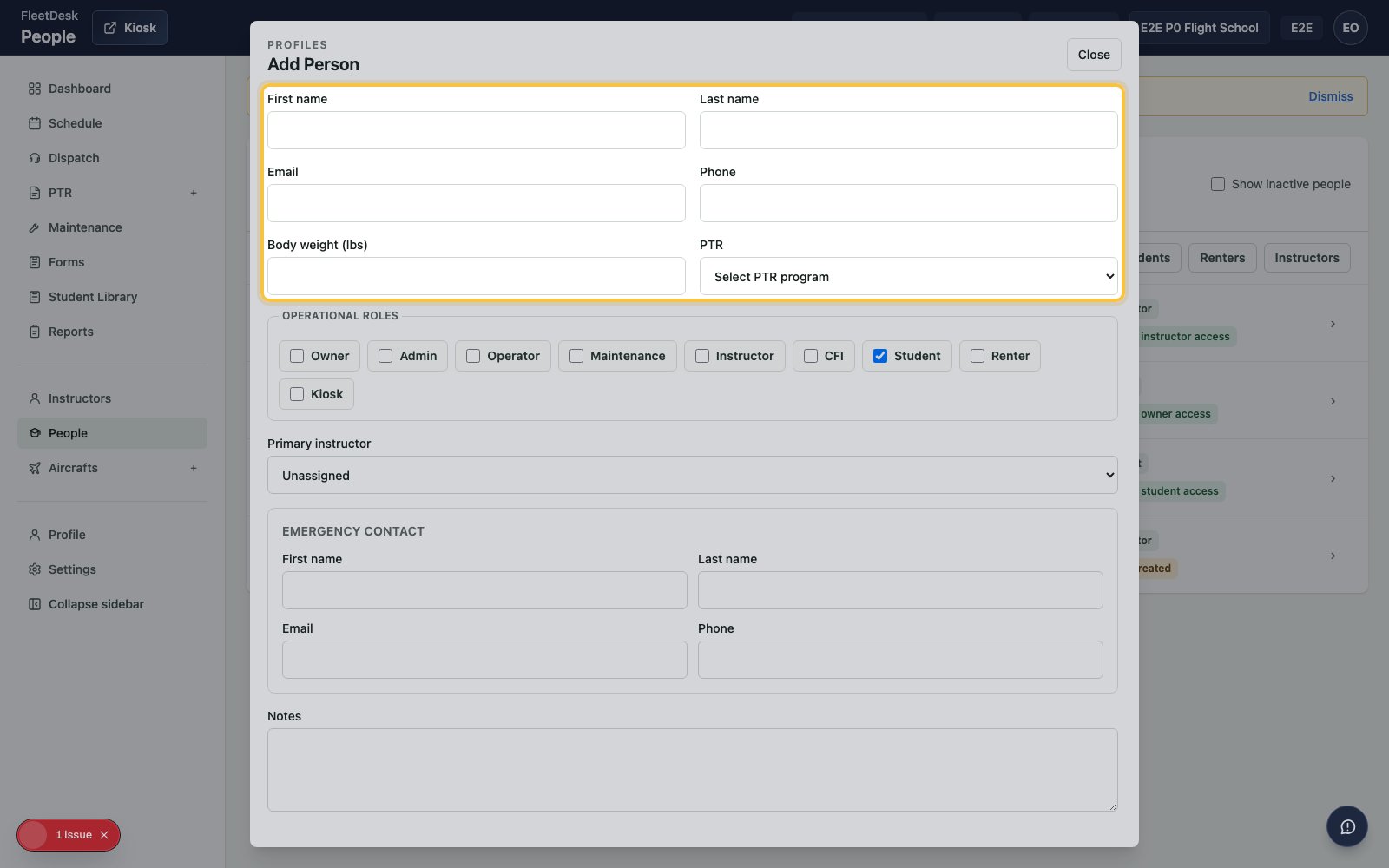
3
Set the student role
Select Student under Operational roles.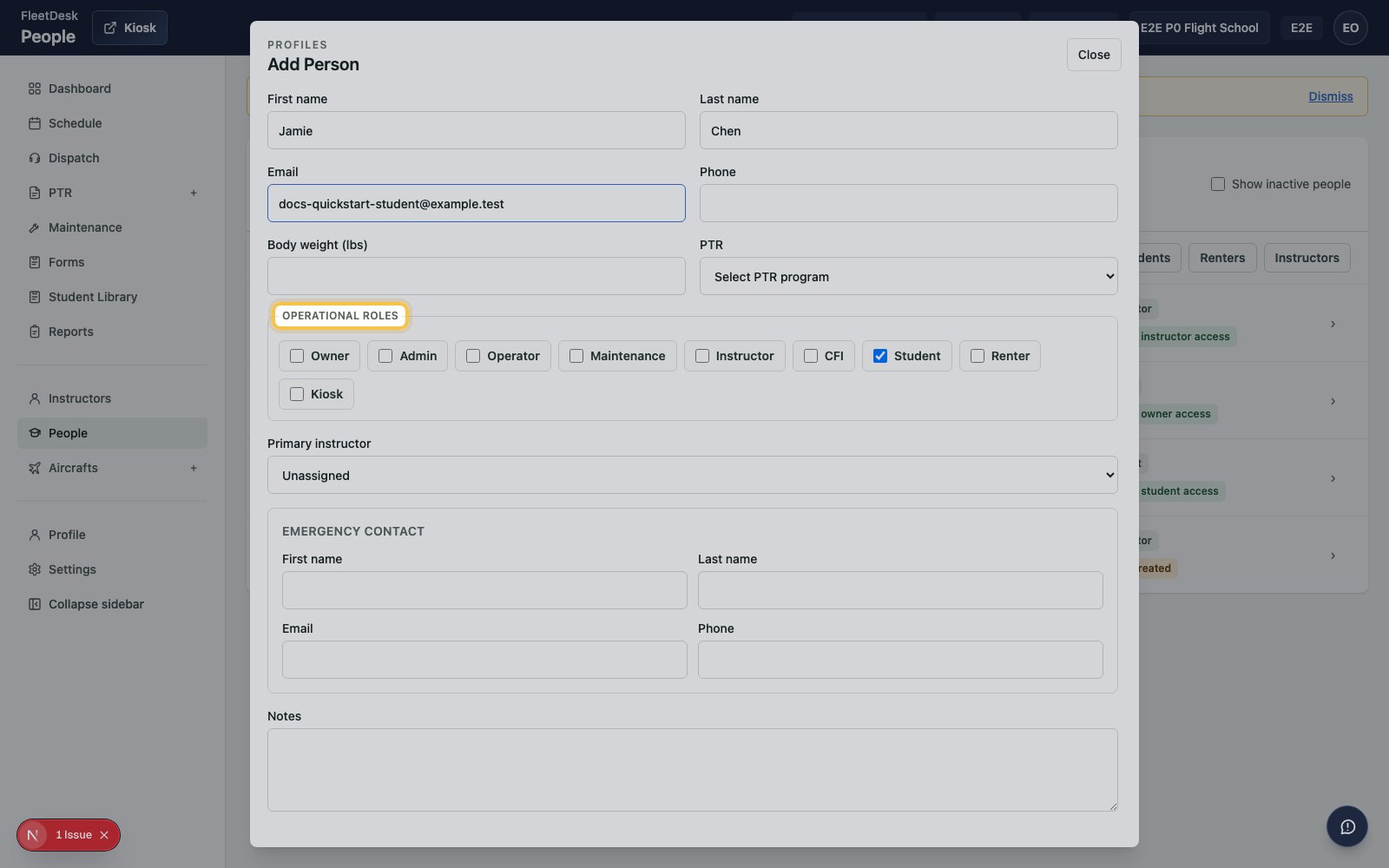
4
Create the PPL PTR
In PTR, choose Private Pilot Licence.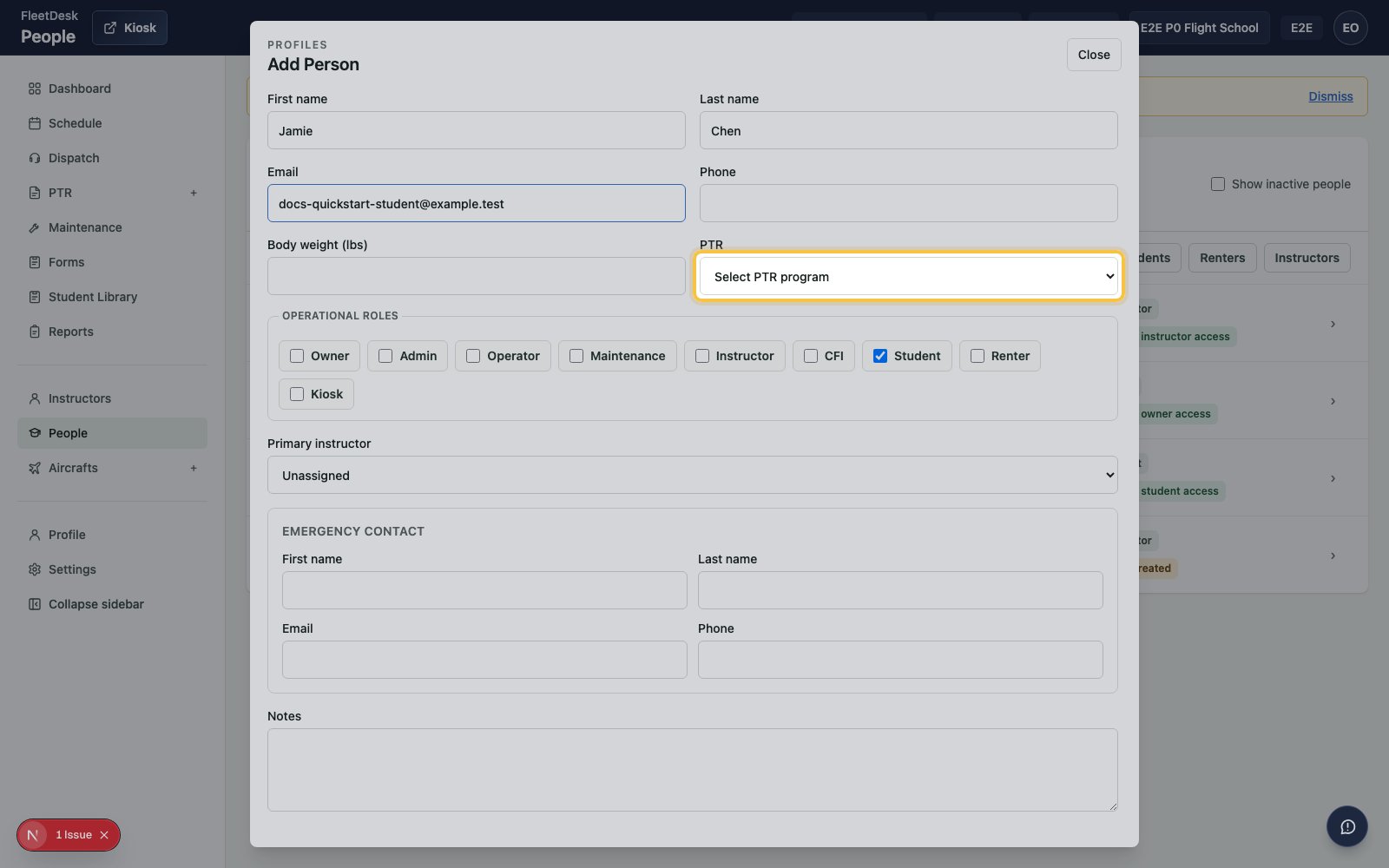
5
Assign the primary instructor
In Primary instructor, choose the instructor you created.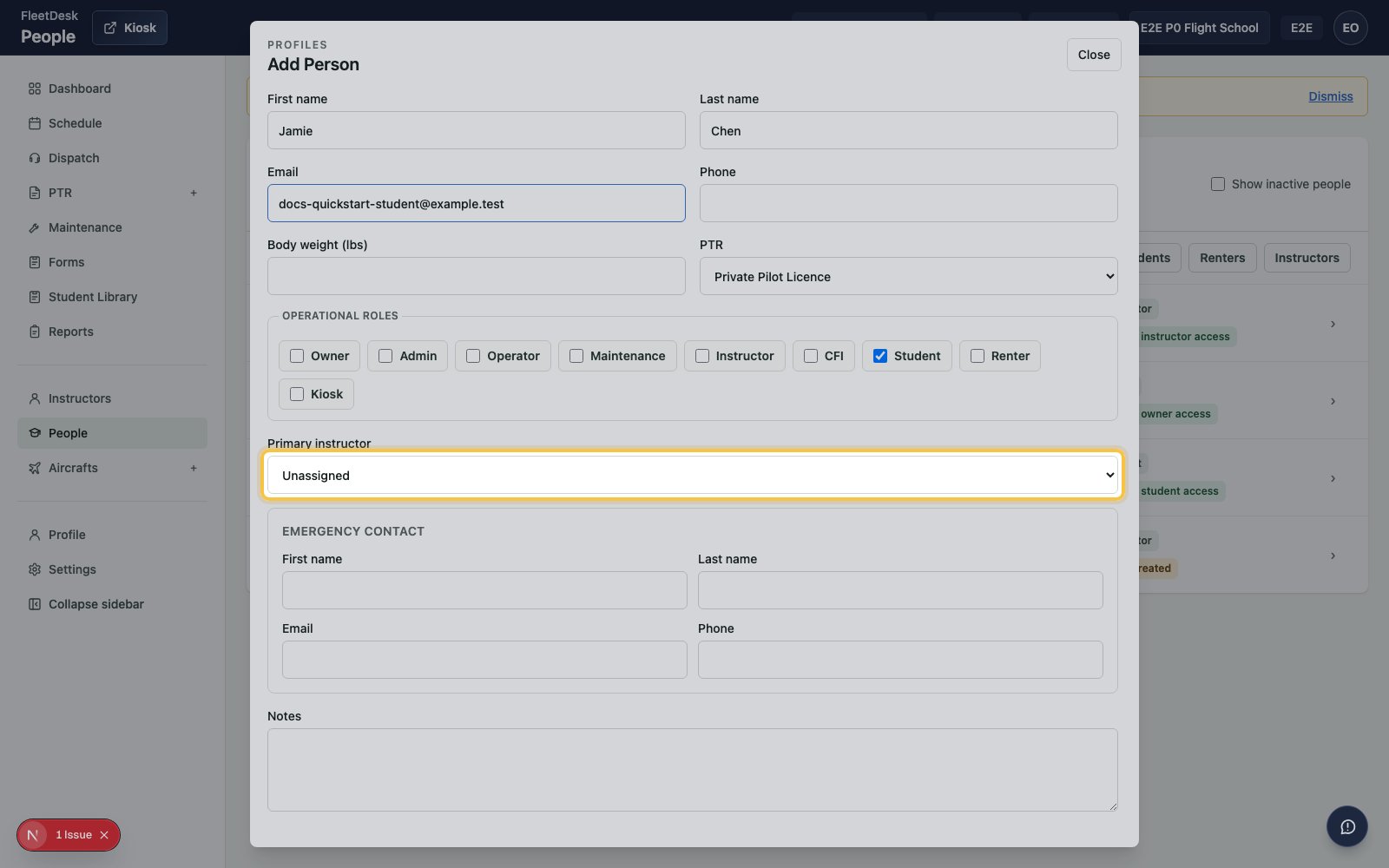
6
Save the student
Click Add person.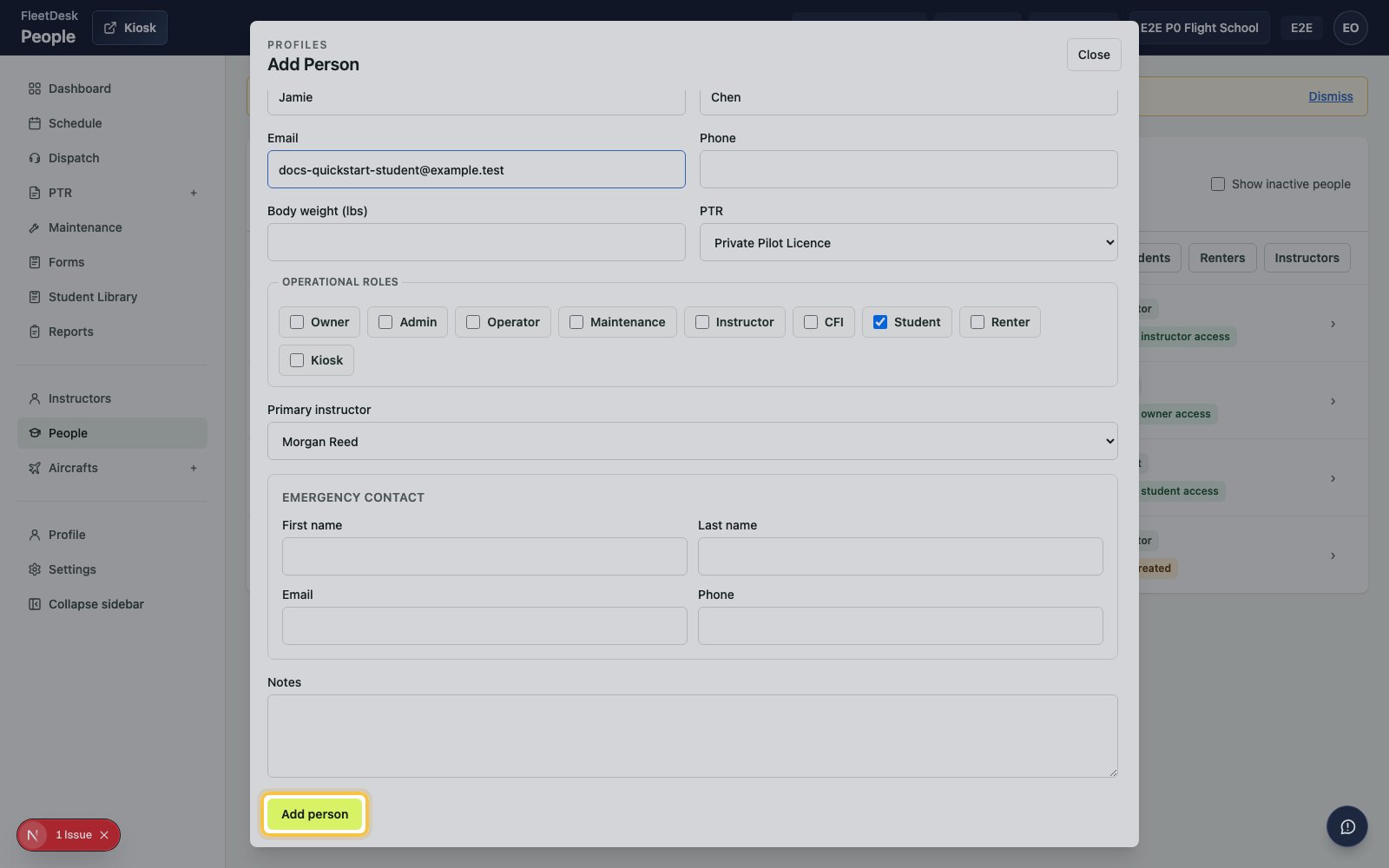
Create the dual booking
1
Open Schedule
Select Schedule from the sidebar.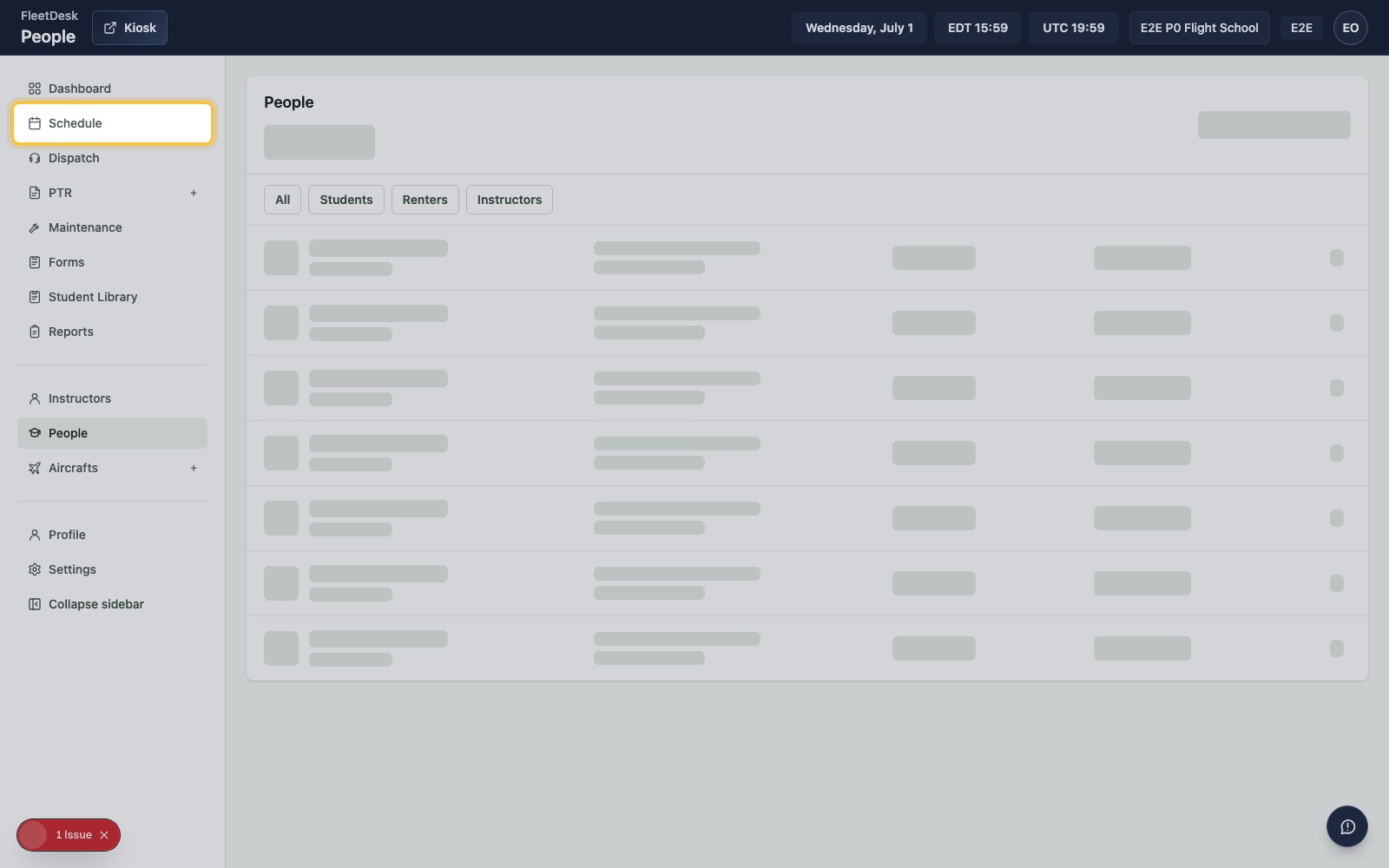
2
Create a reservation
Click New reservation.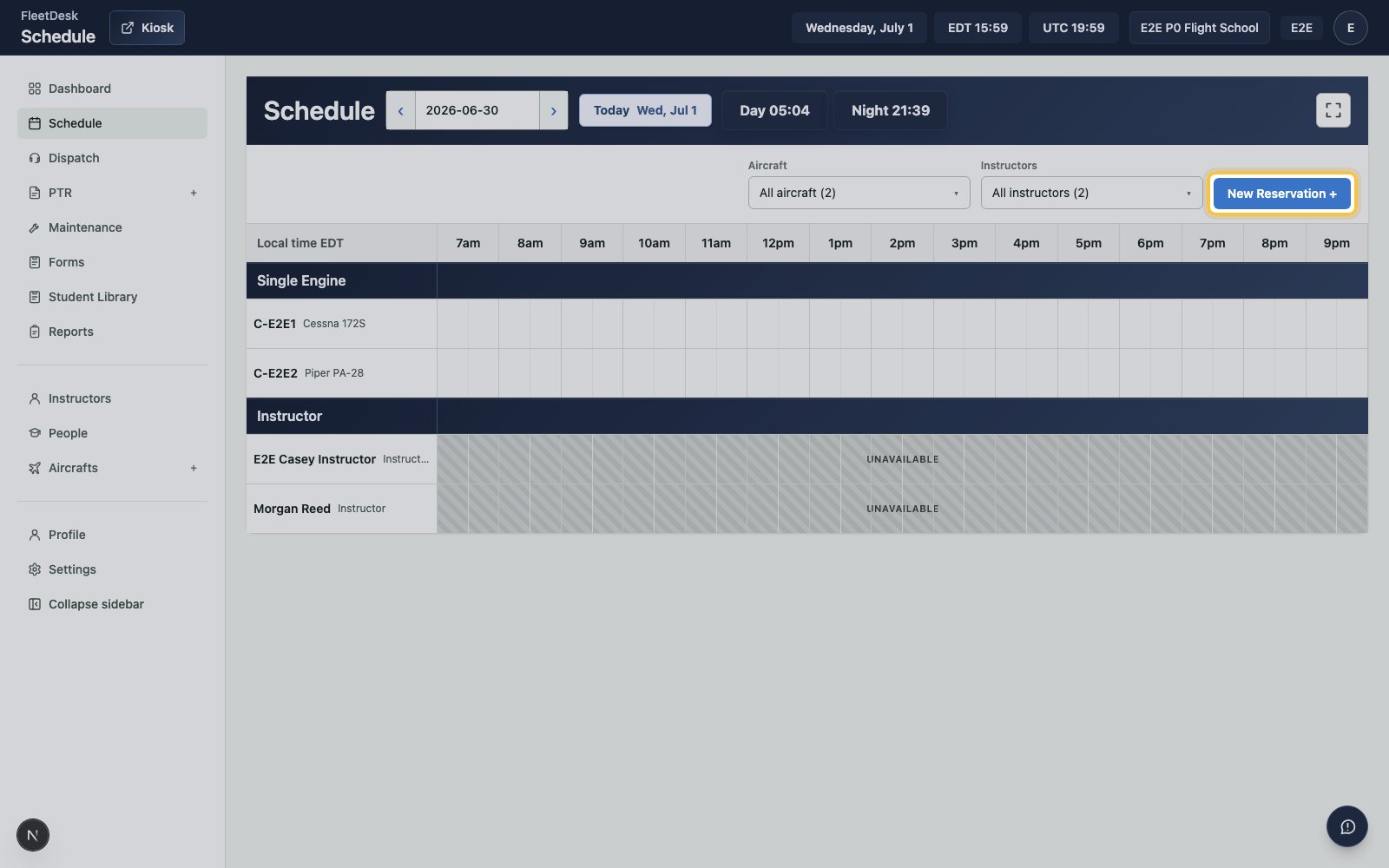
3
Choose the booking type
In Booking type, choose Dual lesson.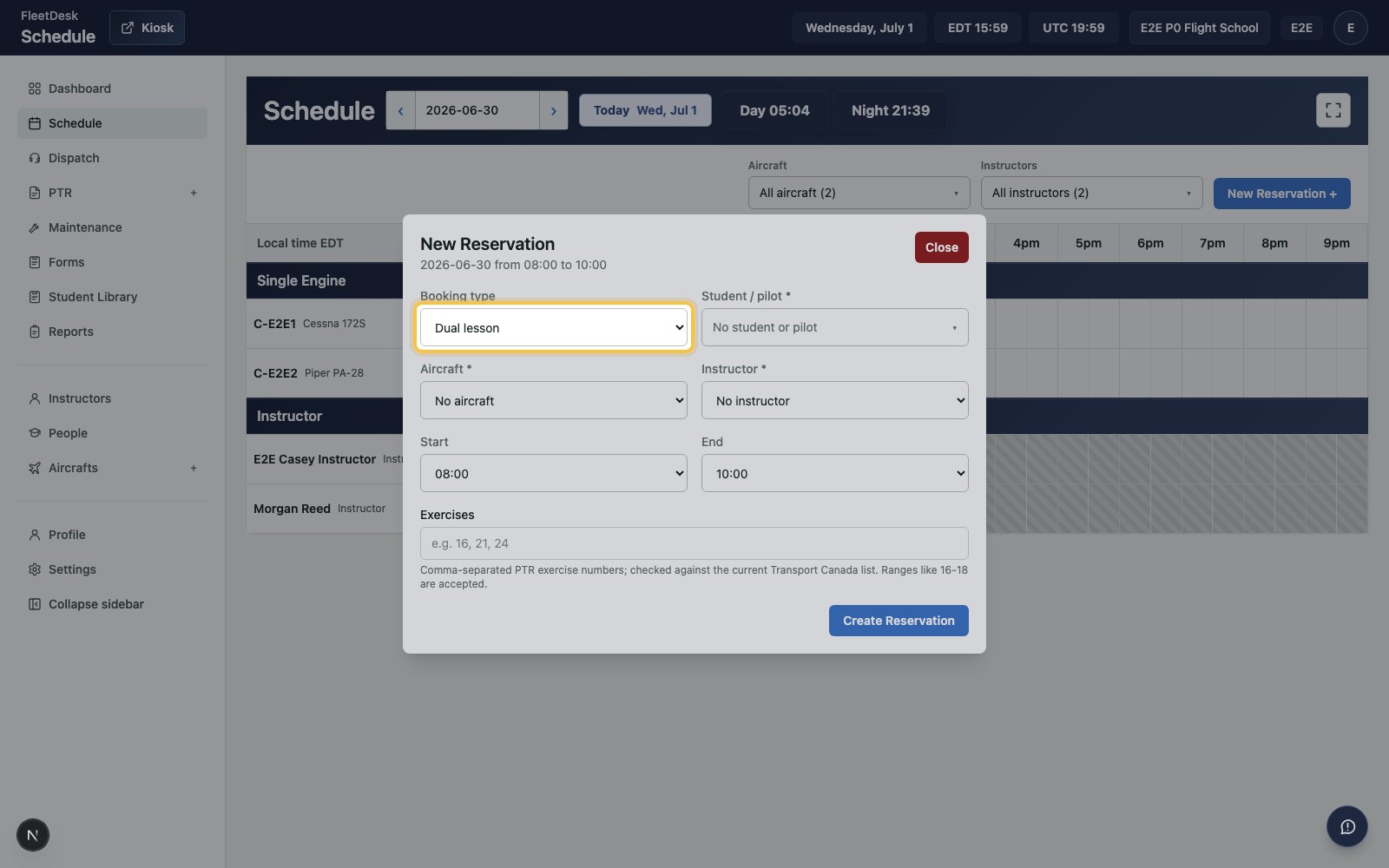
4
Choose the student
Open the student search, search for the student you created, and select the student.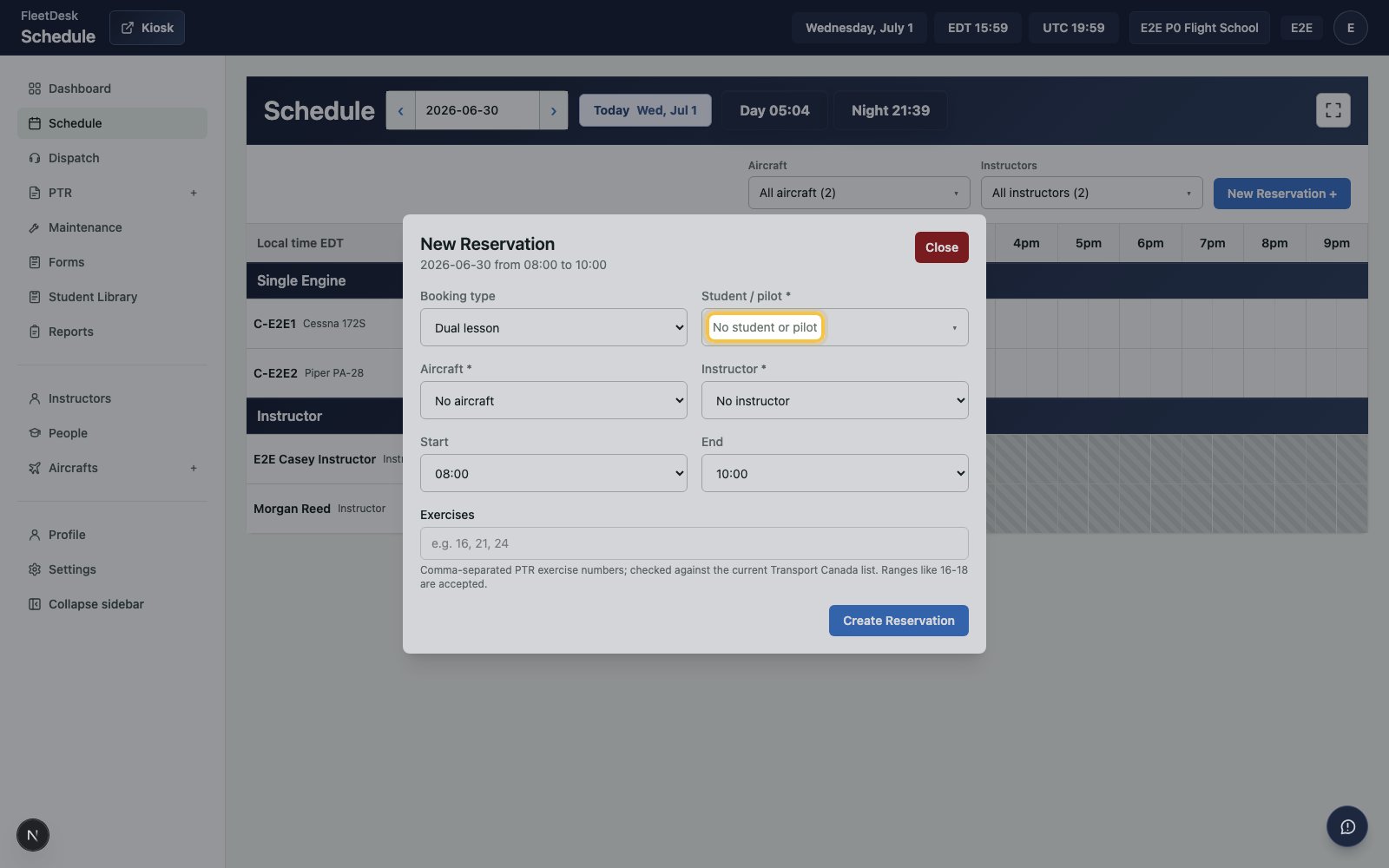
5
Choose the aircraft and instructor
Select an aircraft and the instructor you created.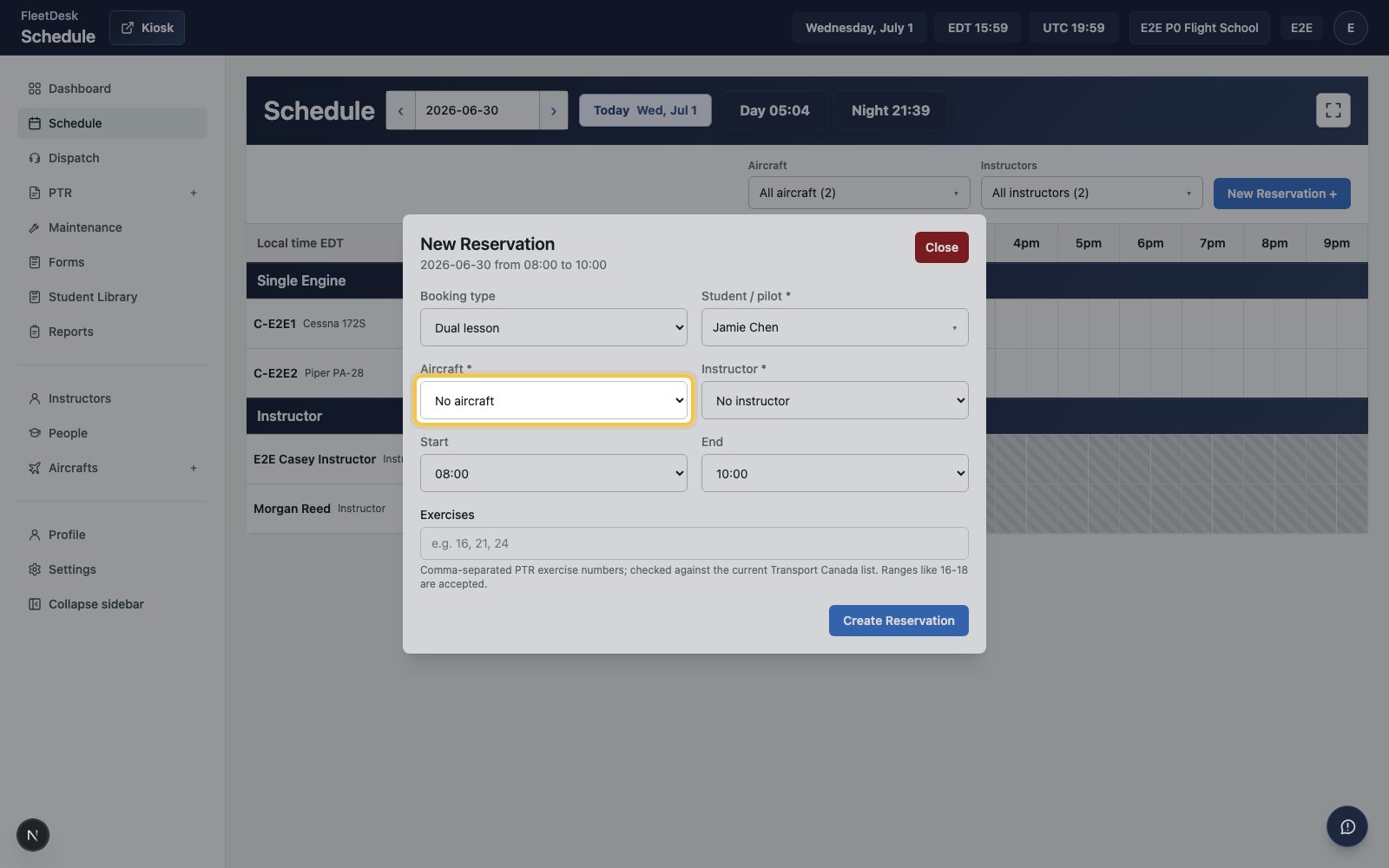
6
Set the lesson time
Choose the start and end time for the booking.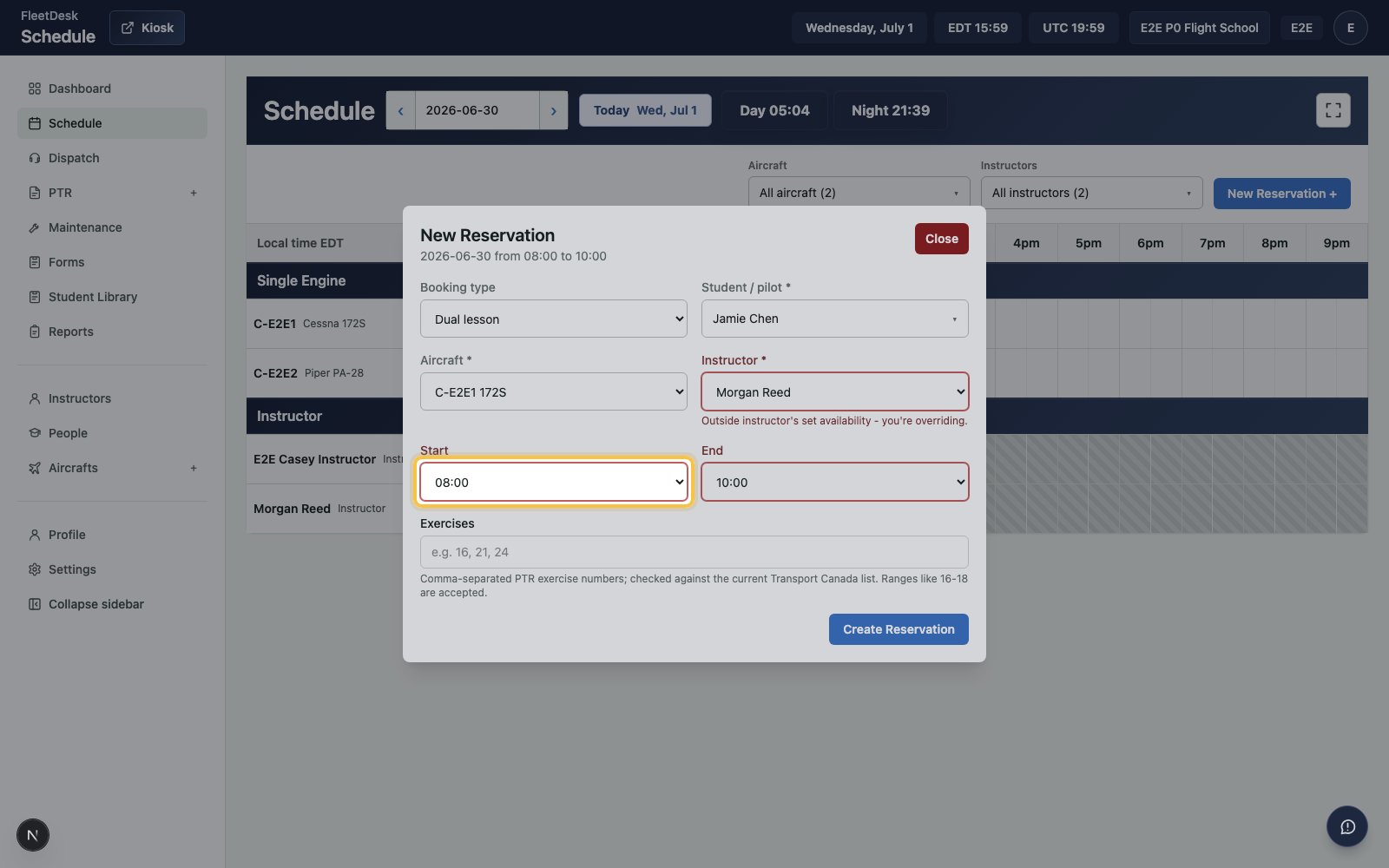
7
Save the reservation
Click Create Reservation.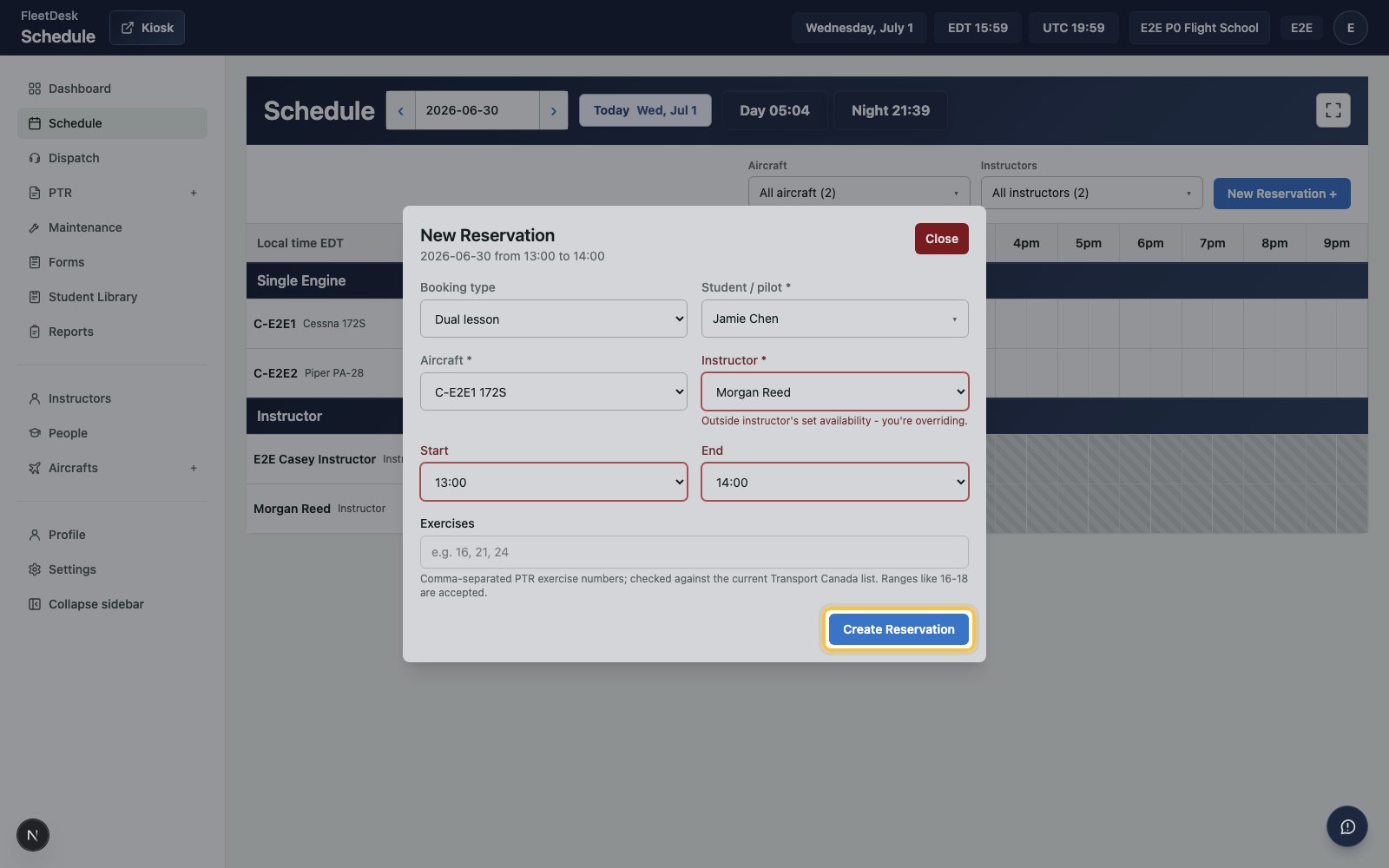
Dispatch the flight
1
Open the dispatch release
Open the release created for the scheduled flight.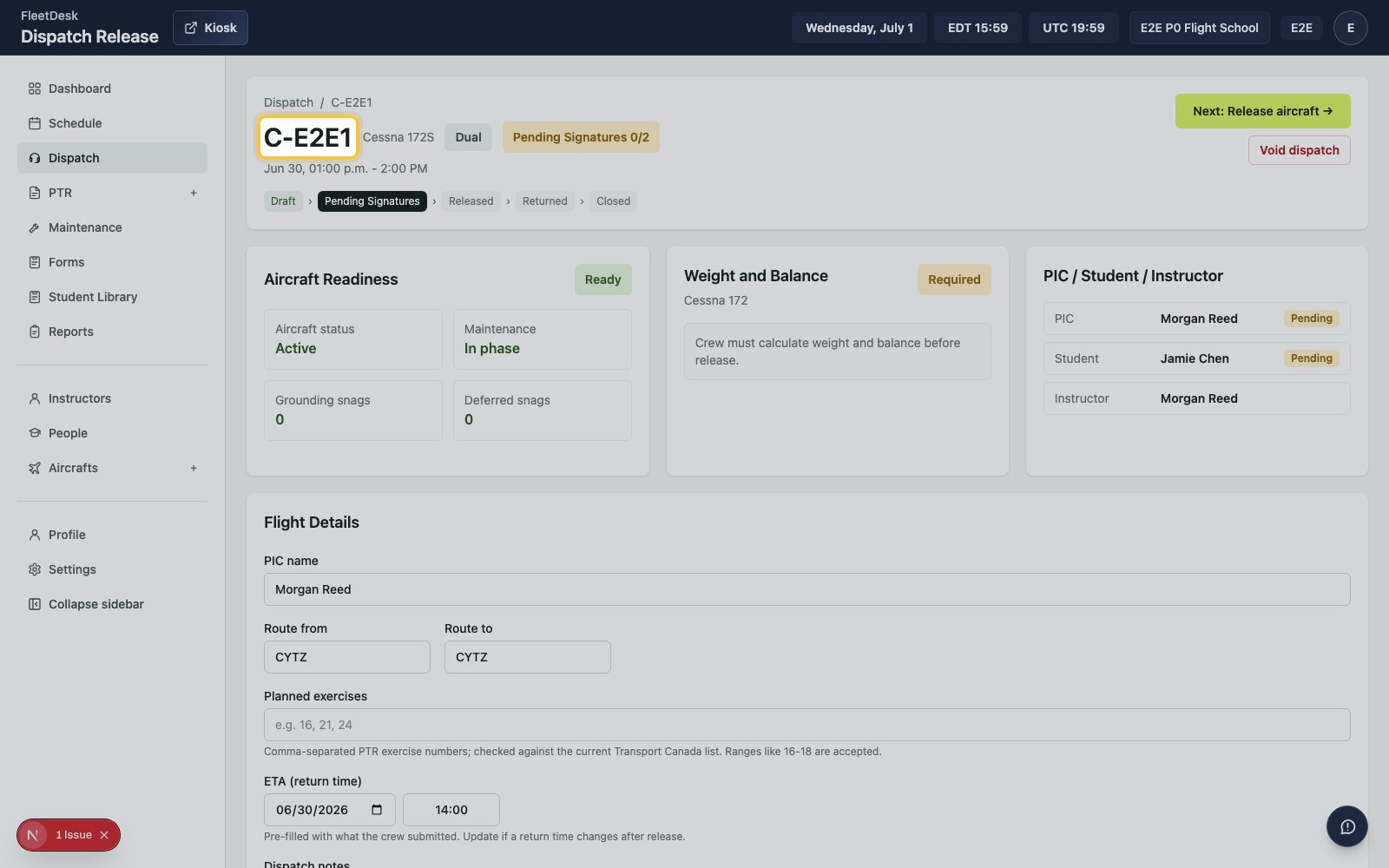
2
Sign as PIC
Open the release signing page, choose PIC, type the instructor name, confirm the attestation, and click Sign as PIC.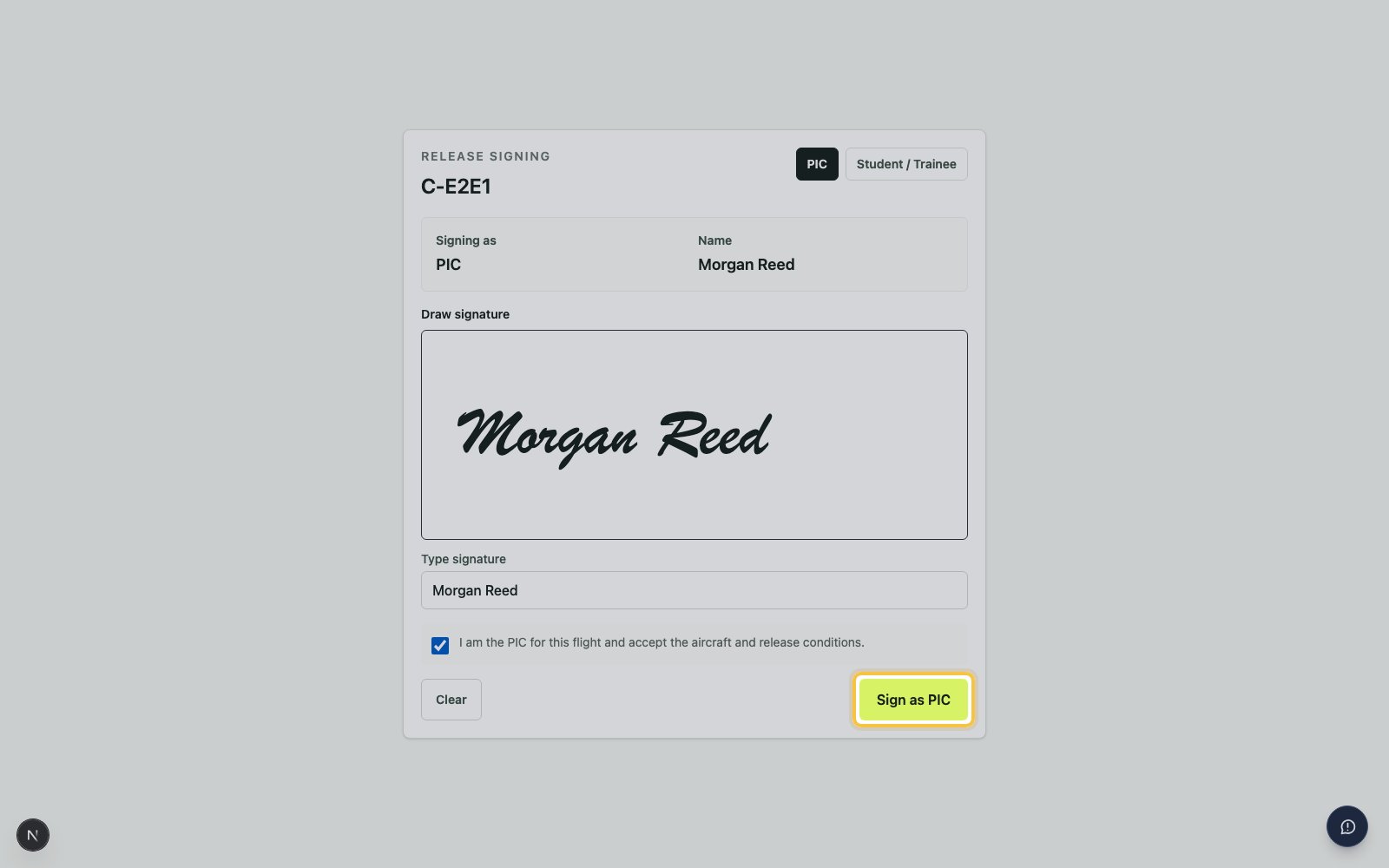
3
Sign as student
Choose Student / Trainee, type the student name, confirm the attestation, and click Sign as Student / Trainee.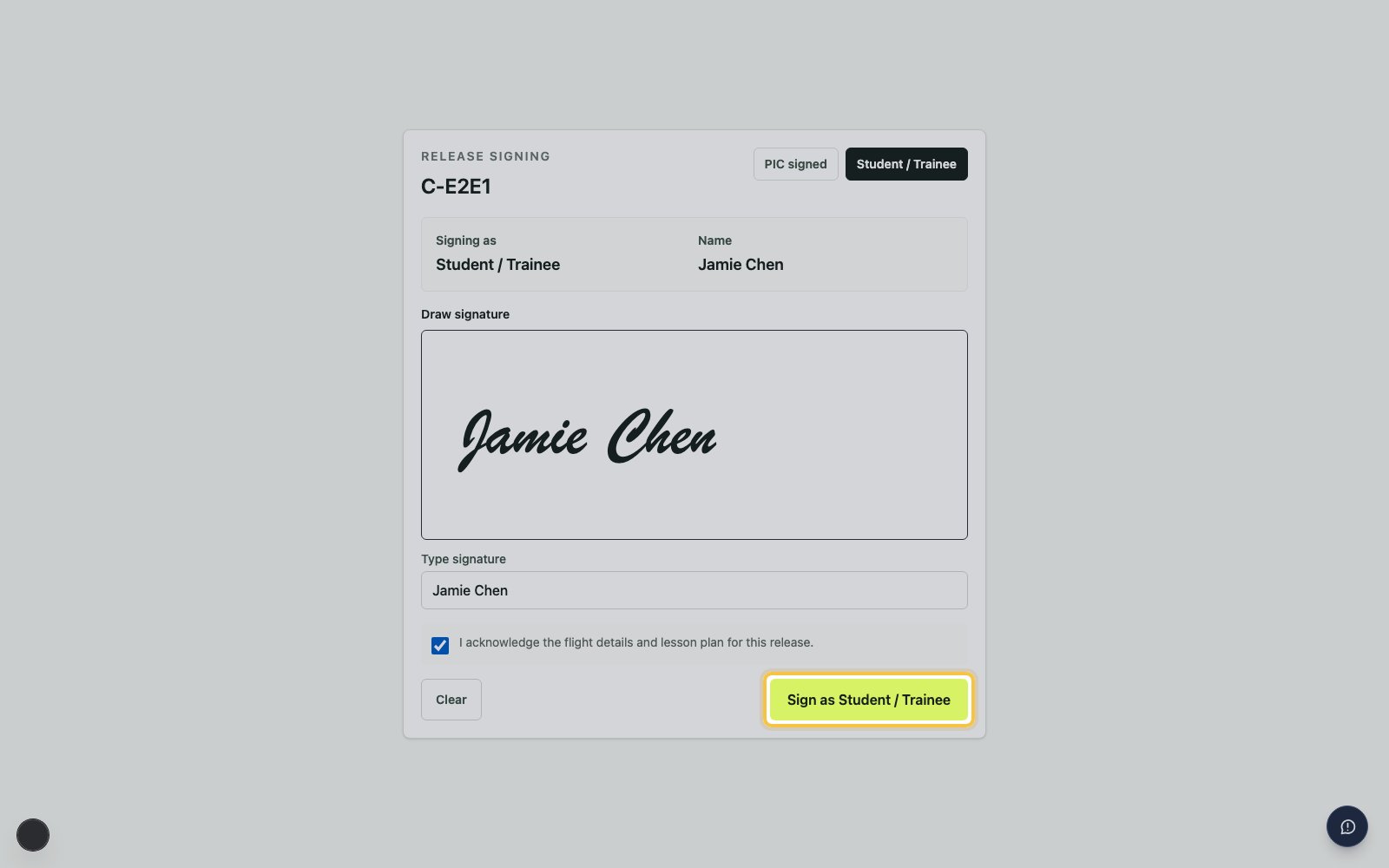
4
Release the aircraft
Return to the release and click Next: Release aircraft.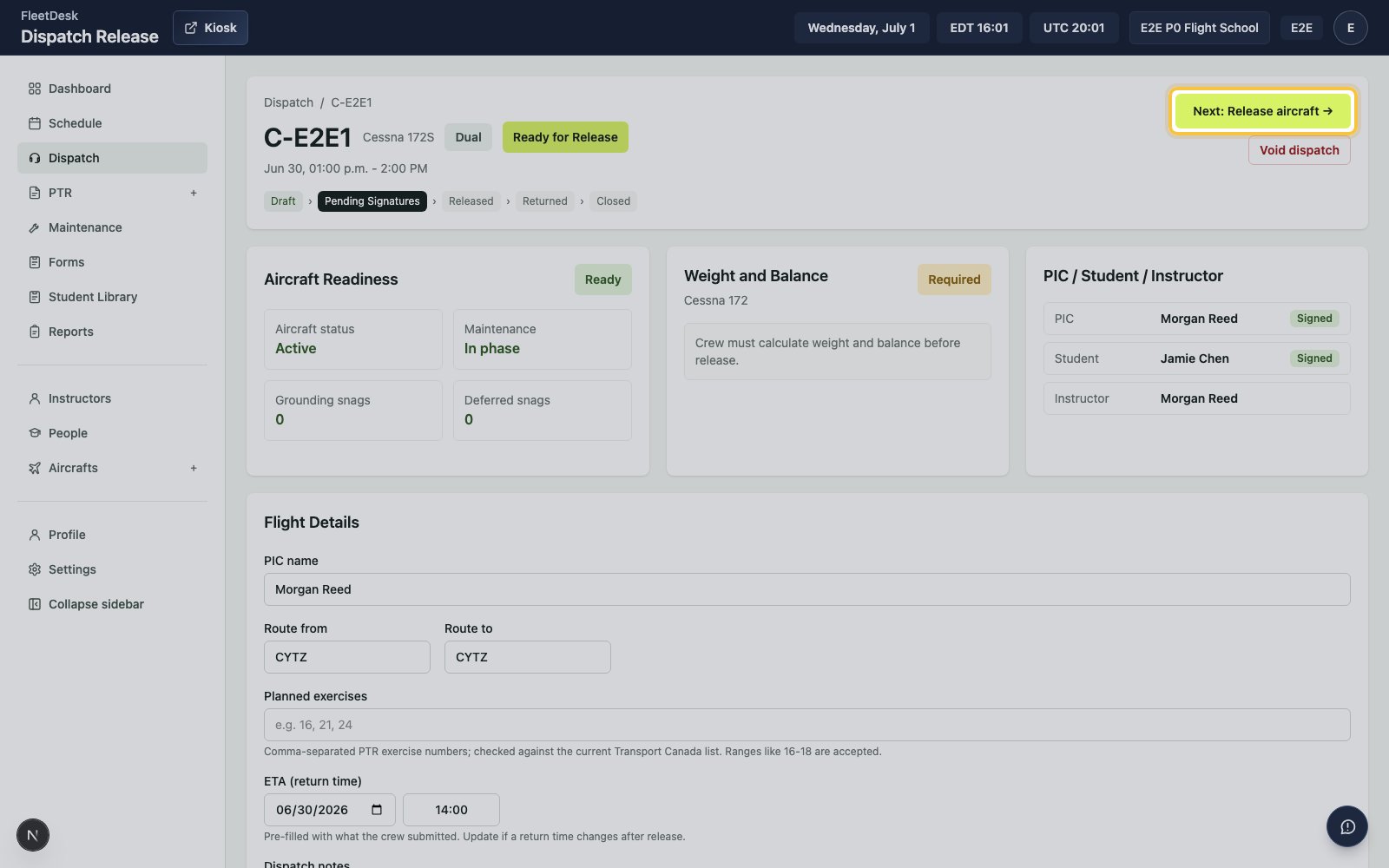
5
Mark the aircraft landed
In Dispatches, click Mark landed.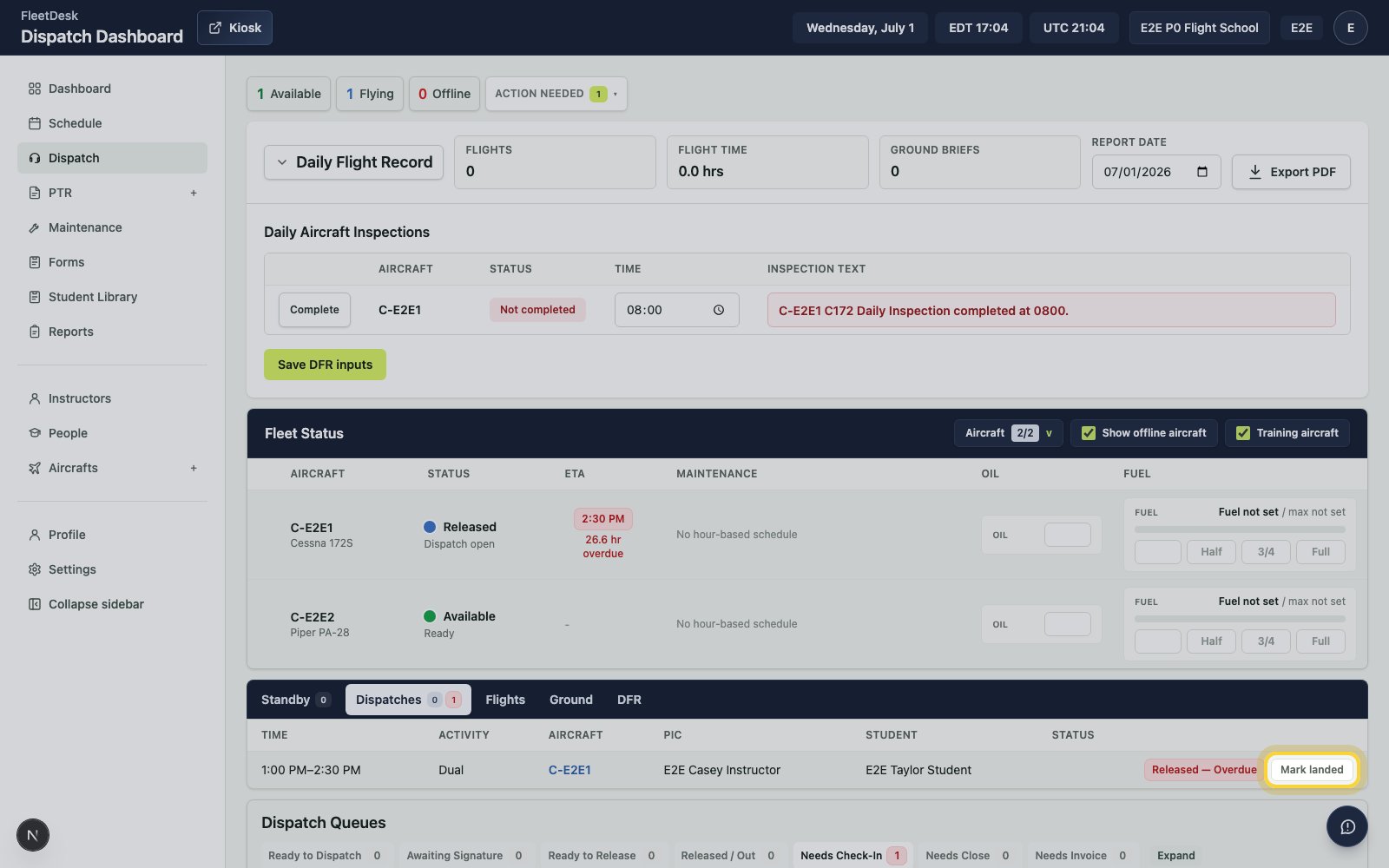
6
Enter actuals
Open the release, enter the engine times, flight times, route, briefing time, and flight hours.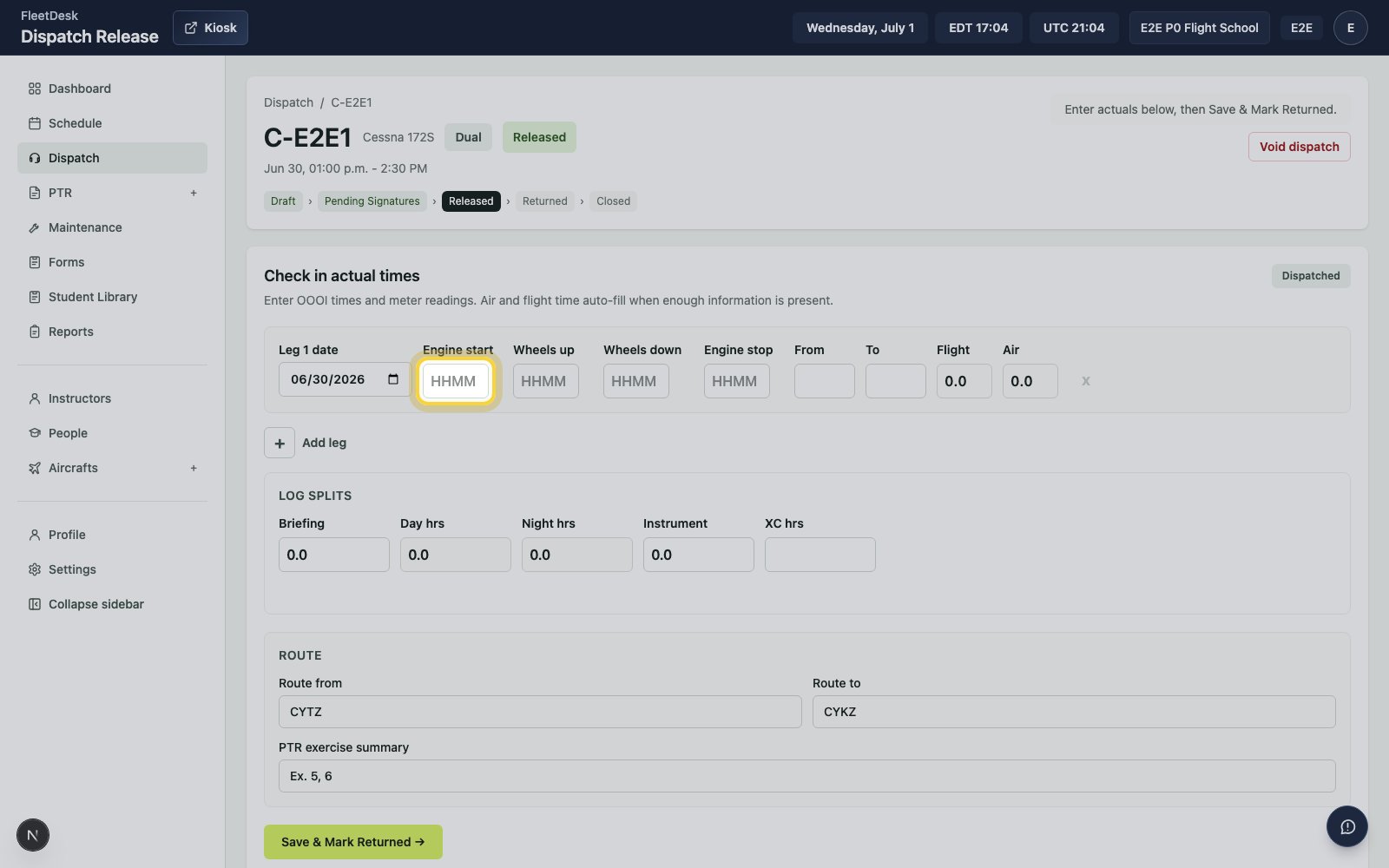
7
Mark the flight returned
Click Save & mark returned.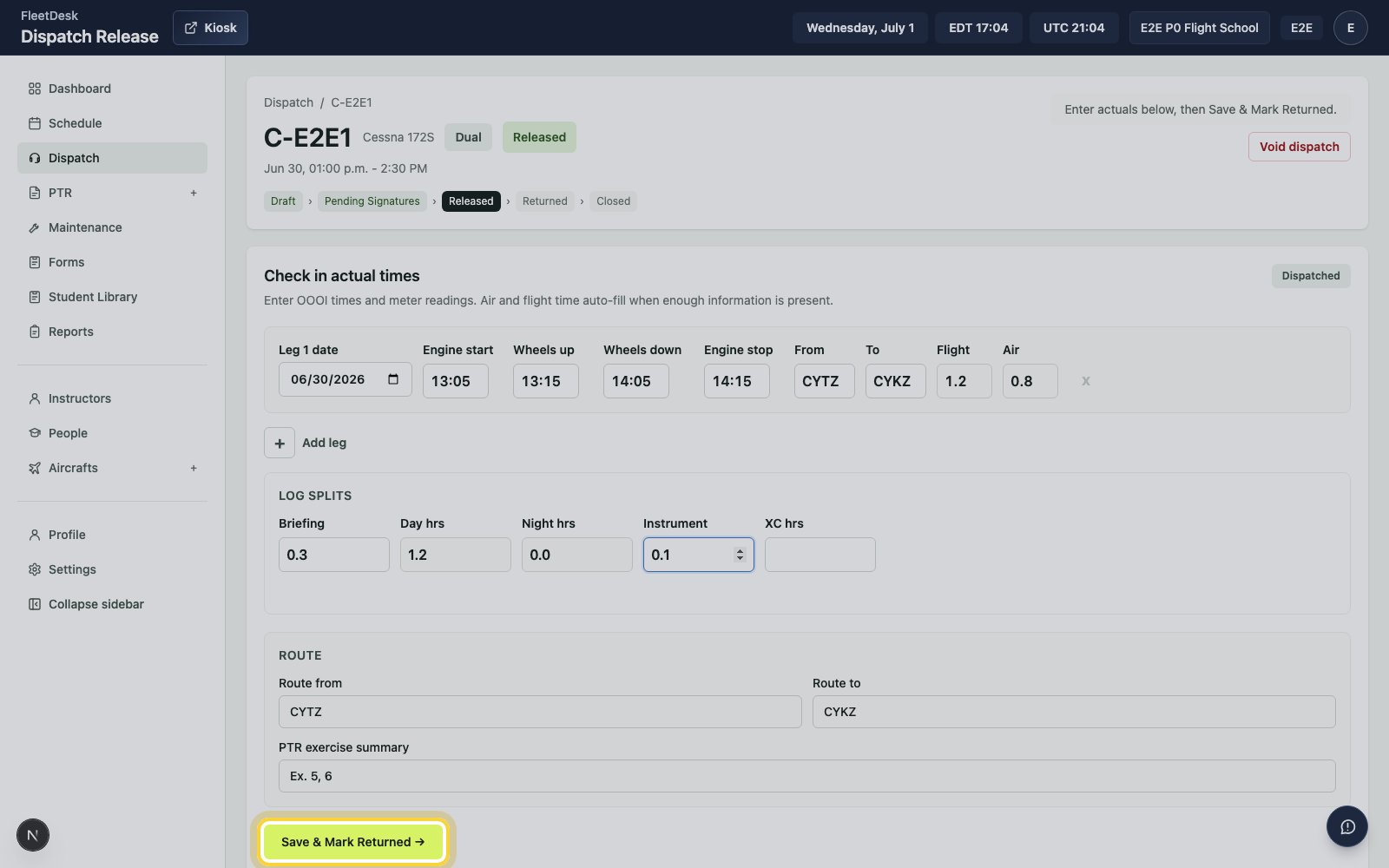
8
Close the release
In Dispatches, open Returned - Ready to Close, then click Close release.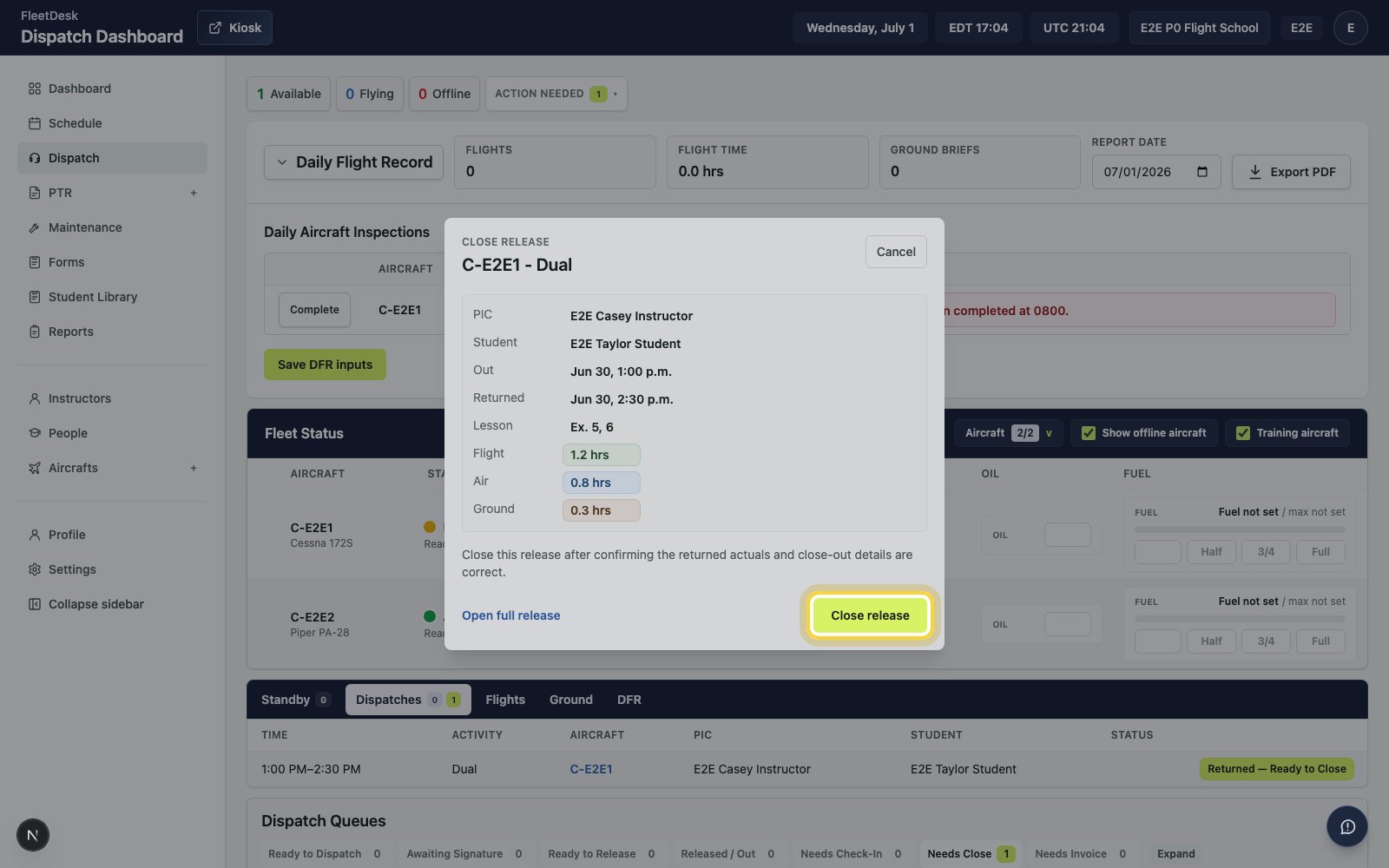
Post the PTR entry
1
Open PTR drafts
Select PTRs, then open the draft for the completed flight.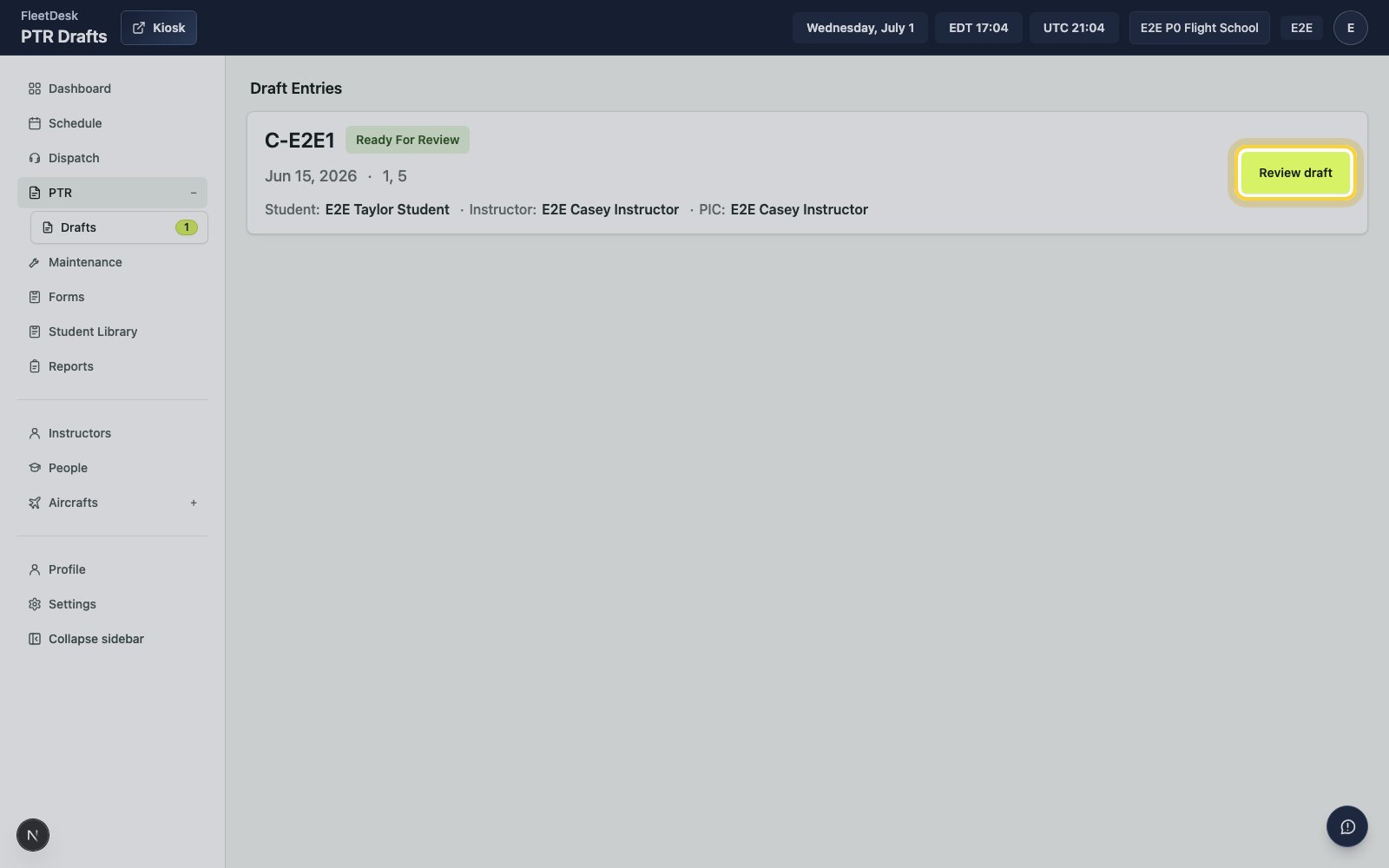
2
Review the draft
Confirm the student, aircraft, route, and flight time.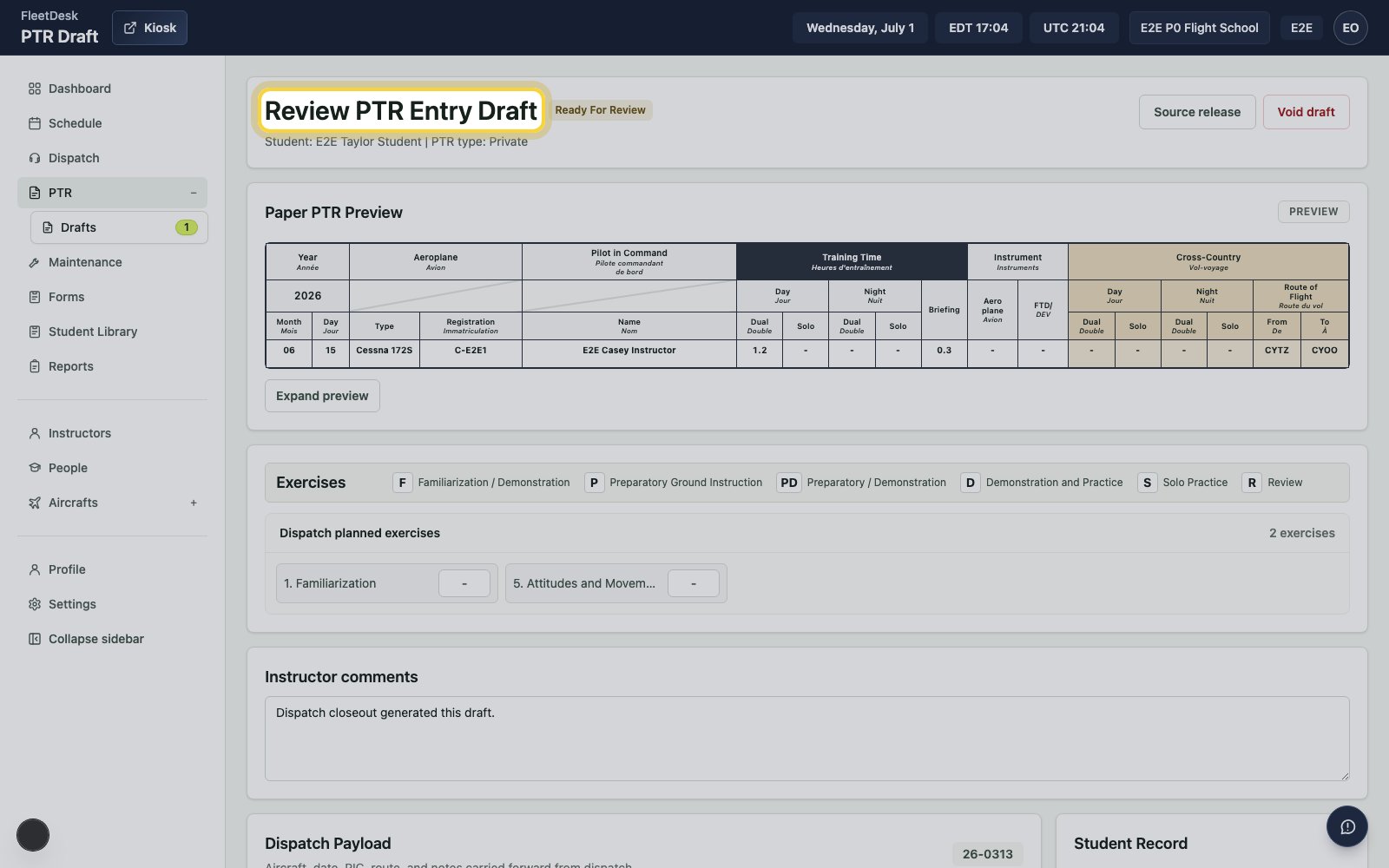
3
Update the PTR details
Adjust the route, instructor comments, dual time, briefing time, and exercise marks.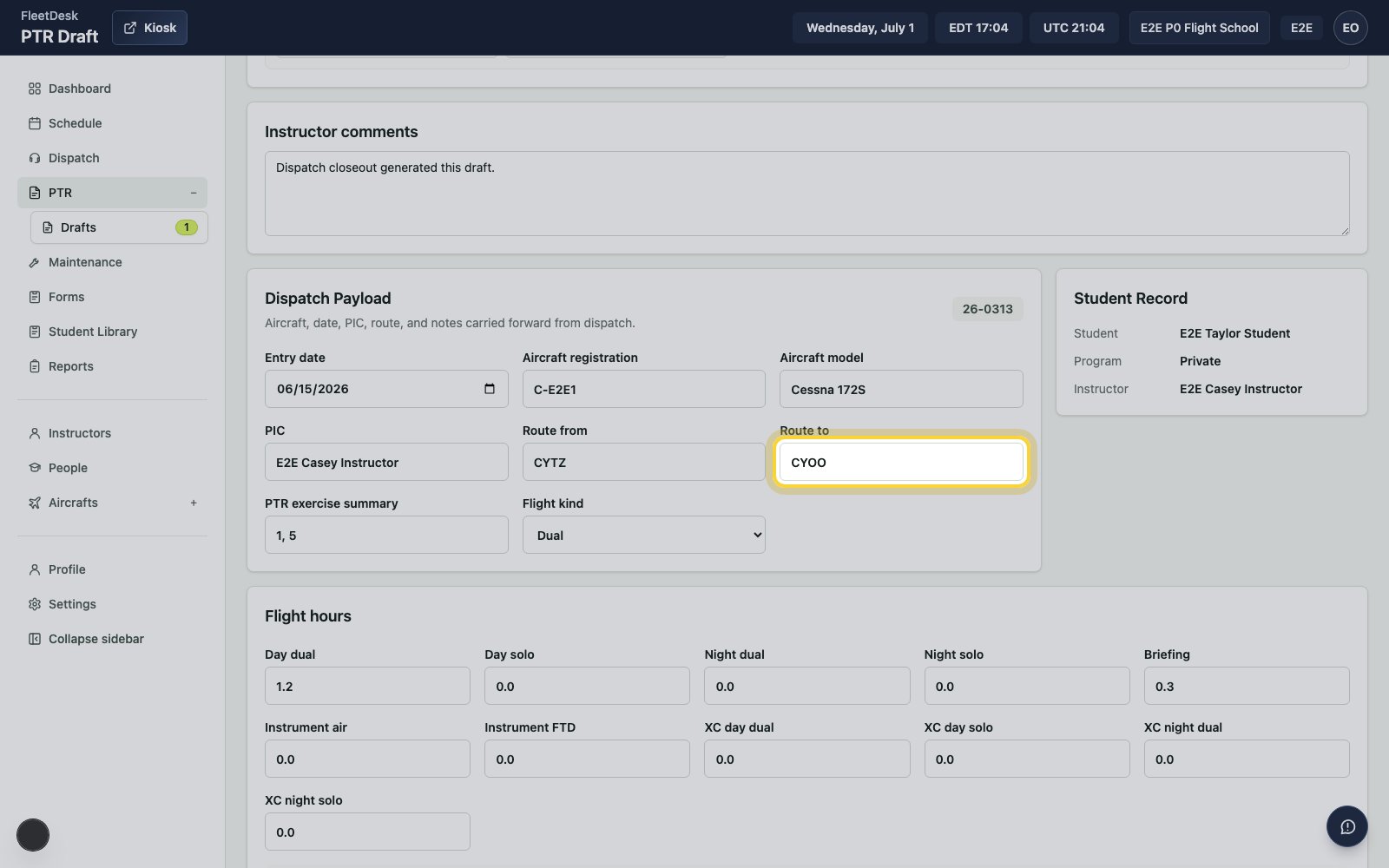
4
Post the draft
Click Post to PTR.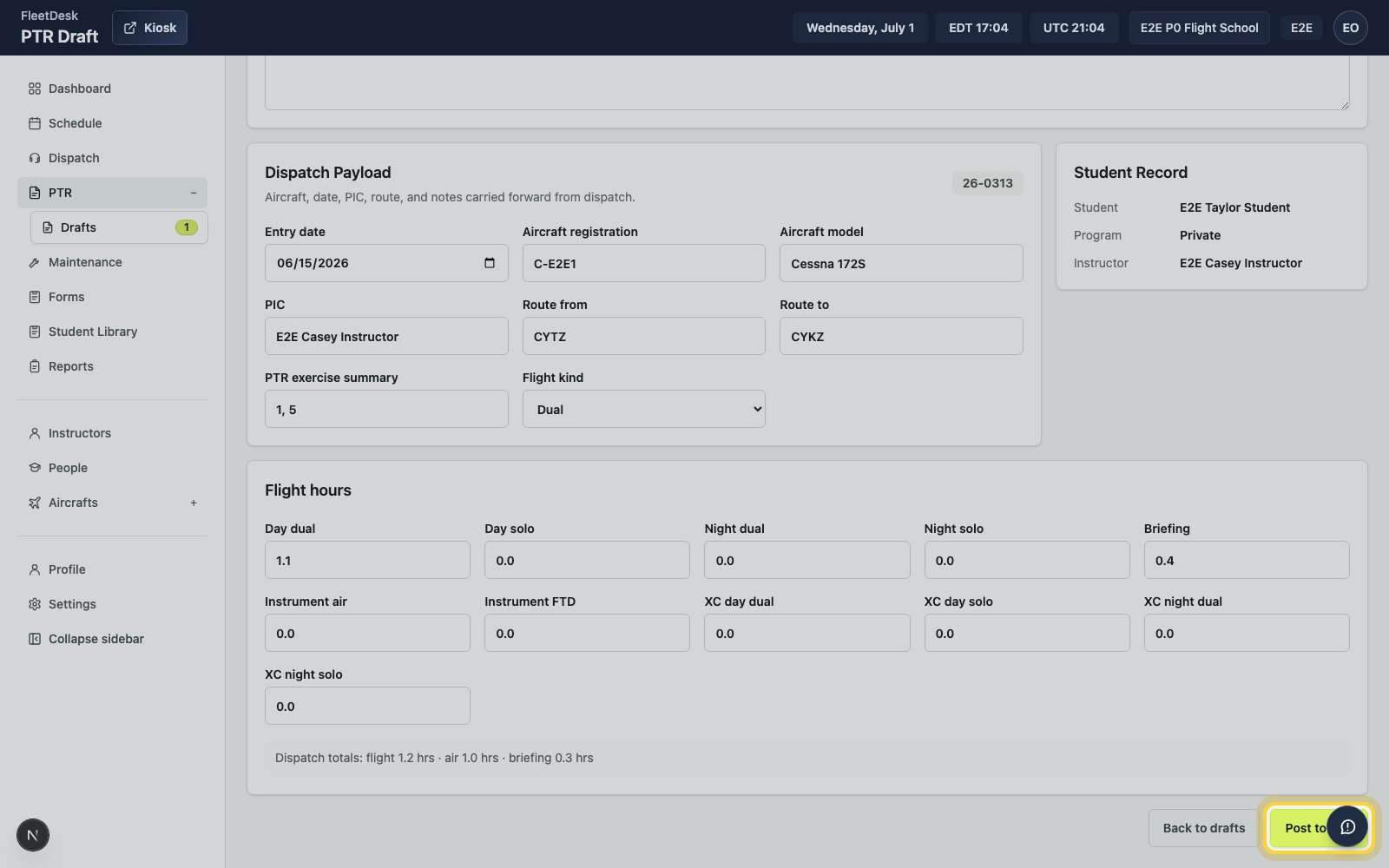
Confirm the PTR entry
1
Open the student's PTR
Open the student’s PTR record from PTRs.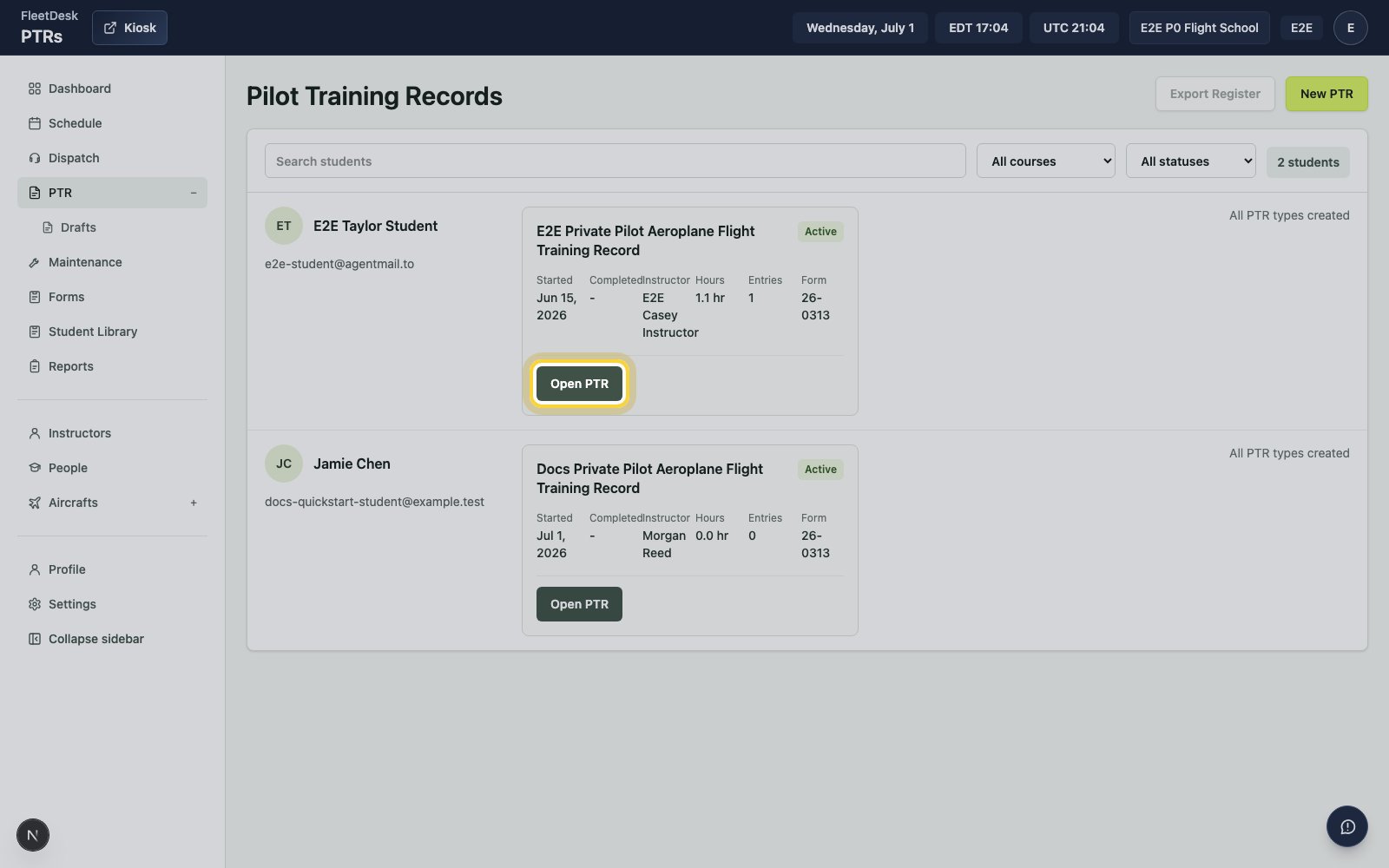
2
Confirm the flight entry
Confirm the new flight entry shows the aircraft, route, instructor, comments, and exercise numbers from the posted draft.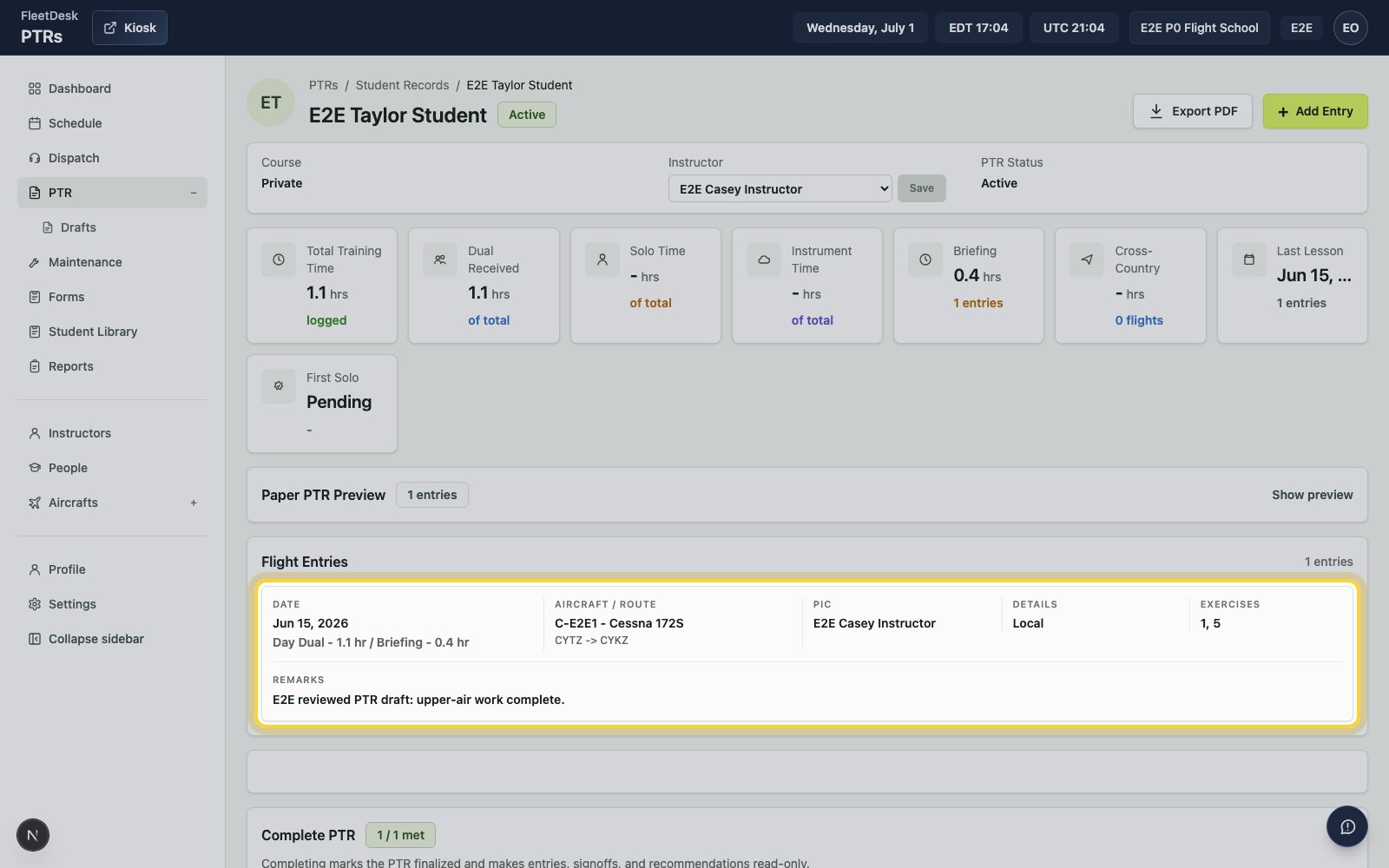
The instructor and student exist, the student’s PPL PTR is active, the dual
booking is closed through dispatch, and the posted flight appears in the
student’s PTR.